Google Consent Mode
Google Consent Mode is Google's framework for managing how Google tags behave based on a visitor's consent choices. It determines when and how Google services like Analytics and Ads collect data, depending on whether you use Basic or Advanced Consent Mode.
Basic vs Advanced
Basic provides the strictest privacy controls—DataGrail blocks all consent-aware tags until consent is granted. No data is collected when consent is denied, but this limits conversion measurement from users who opt out.
Advanced allows Google to send anonymous, cookieless pings when consent is denied. These pings contain no personal identifiers but enable modeled conversion data. DataGrail sends consent signals to Google but does not add consent checks to consent-aware tags, giving Google full control over blocking behavior.
| Behavior | Basic Mode | Advanced Mode |
|---|---|---|
| Tags load | After consent granted | Before consent banner |
| Tracking when denied | None | Anonymous, cookieless pings |
| DataGrail consent checks | Added to consent-aware tags | Not added—Google controls blocking |
Consent-Aware Tags
The following tags are consent-aware, meaning they can read Google consent signals and adjust their behavior accordingly:
- Display & Video 360
- Search Ads 360
- Google Campaign Manager 360
- Google Ads
- Google Ads Remarketing
- Google Ads Conversion Tracking
- Google Analytics 4
- Google Analytics
- Conversion Linker
- DoubleClick Ad (Note: this product is deprecated)
- DoubleClick Floodlight (Note: this product is deprecated)
- Google Campaign Manager (Note: this product is deprecated)
Choosing a Mode
You control which mode DataGrail uses through the Consent Mode settings.
Regardless of which mode you choose, DataGrail always sends category mappings to Google. This allows third-party tools like Elevar to read these consent signals and adjust their own behavior accordingly.
To configure your consent mode settings:
- Navigate to Consent > Settings > Category Mapping.
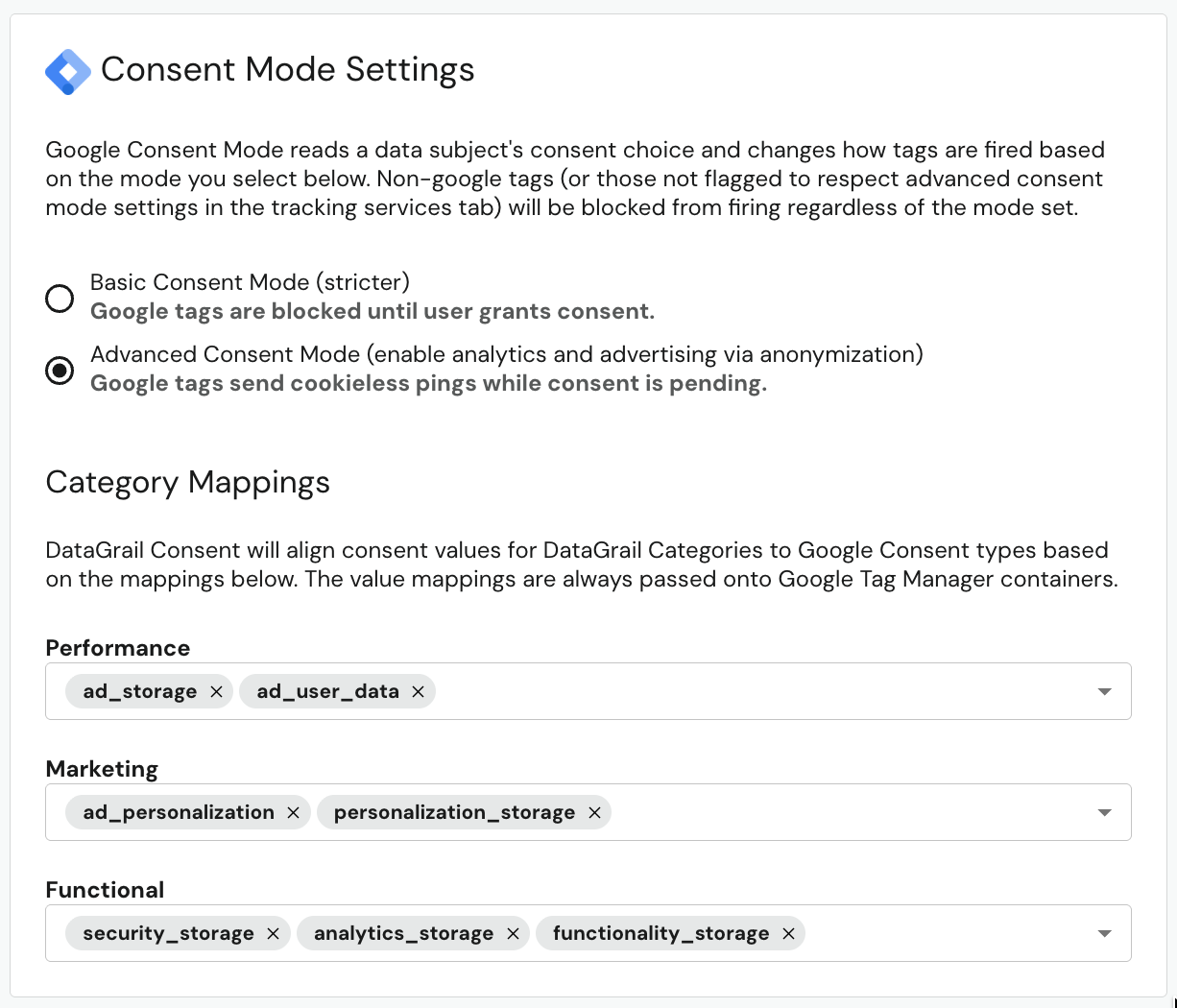
- Locate the Map DataGrail Categories to Google Consent Types toggle.
- Choose your mode:
- Advanced Consent Mode — DataGrail sends consent signals to Google without adding consent checks to consent-aware tags. Google's tags handle their own blocking behavior, allowing cookieless pings and modeled conversion data when consent is denied.
- Basic Consent Mode — DataGrail adds consent checks to all consent-aware tags, blocking them entirely until consent is granted.
- Configure your category mappings. DataGrail maps your internal consent categories to Google Consent Mode types (e.g.,
ad_storage,analytics_storage). When a visitor rejects a mapped category, DataGrail updates the corresponding Google consent signal todenied. - Publish your changes.
Use the DataGrail Privacy Inspector browser extension to verify your Google Consent Mode configuration is working correctly. The extension's Google Consent Mode page displays your GTM container, consent types, and the values set for each category.
Remove Additional Consent Checks
In Basic mode, DataGrail adds consent checks to all consent-aware tags. However, some tags—like third-party analytics tools—read Google consent signals directly and manage their own blocking behavior. For these tags, you can remove DataGrail's consent checks so they rely solely on the Google consent signals.
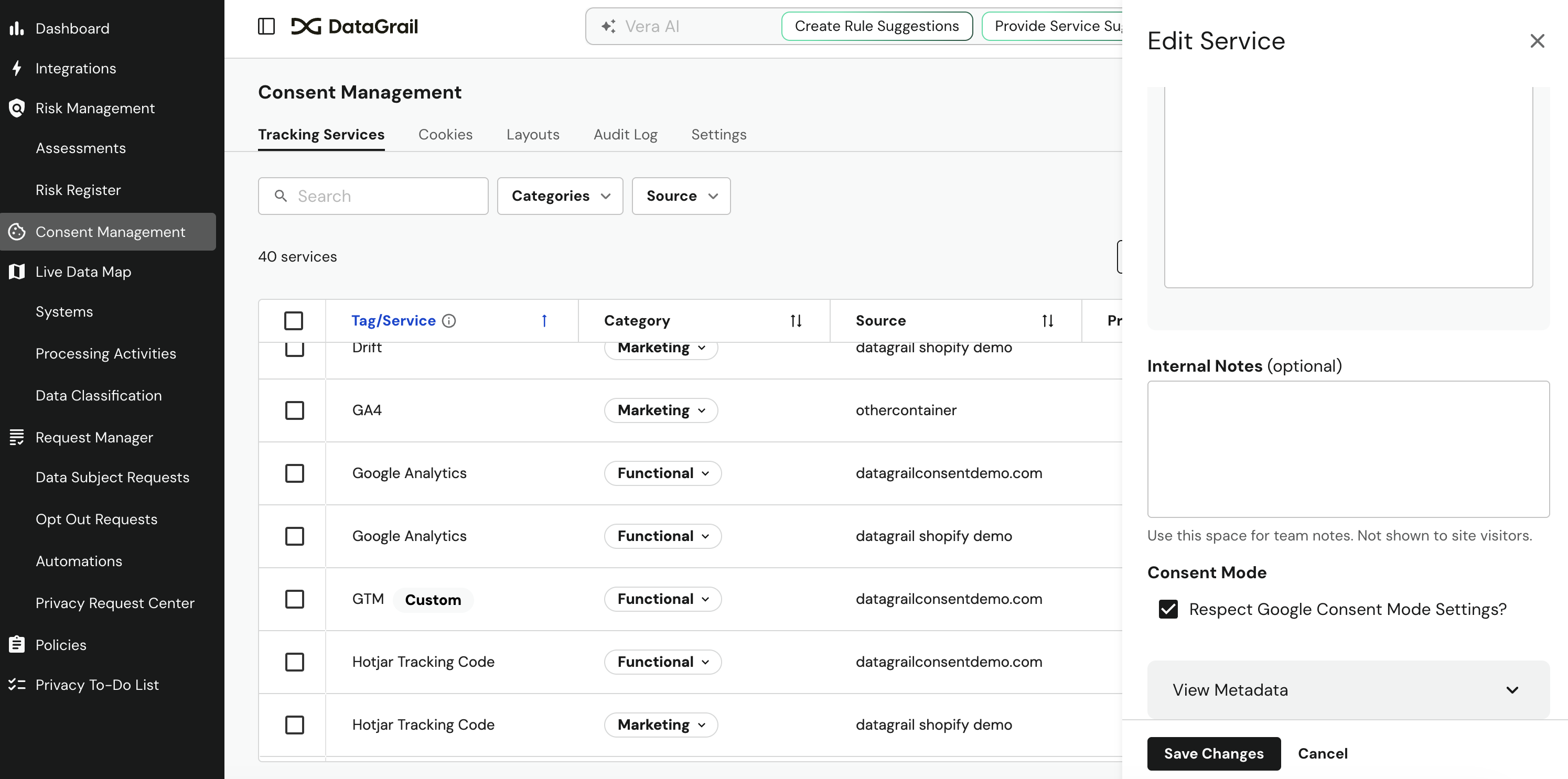
To configure a tag to skip DataGrail consent checks:
- Navigate to the Tracking Services page.
- Select the relevant tag and then Edit Service.
- Enable Respect Google Consent Mode Settings?.
- Select Save Changes.
- Publish your changes.
Disclaimer: The information contained in this message does not constitute as legal advice. We would advise seeking professional counsel before acting on or interpreting any material.