Google Consent Mode
Google Consent Mode is Google's framework for managing how Google tags behave based on a visitor's consent choices. It determines when and how Google services like Analytics and Ads collect data, depending on whether you use Basic or Advanced Consent Mode.
Basic vs Advanced
Basic provides the strictest privacy controls—DataGrail blocks all consent-aware tags until consent is granted. No data is collected when consent is denied, but this limits conversion measurement from users who opt out.
Advanced allows Google to send anonymous, cookieless pings when consent is denied. These pings contain no personal identifiers but enable modeled conversion data. DataGrail sends consent signals to Google but does not add consent checks to consent-aware tags, giving Google full control over blocking behavior.
| Behavior | Basic Mode | Advanced Mode |
|---|---|---|
| Tags load | After consent granted | Before consent banner |
| Tracking when denied | None | Anonymous, cookieless pings |
| DataGrail consent checks | Added to consent-aware tags | Not added—Google controls blocking |
Consent-Aware Tags
The following tags are consent-aware, meaning they can read Google consent signals and adjust their behavior accordingly:
- Display & Video 360
- Search Ads 360
- Google Campaign Manager 360
- Google Ads
- Google Ads Remarketing
- Google Ads Conversion Tracking
- Google Analytics 4
- Google Analytics
- Conversion Linker
- DoubleClick Ad (Note: this product is deprecated)
- DoubleClick Floodlight (Note: this product is deprecated)
- Google Campaign Manager (Note: this product is deprecated)
Choosing a Mode
You control which mode DataGrail uses through the Consent Mode settings.
Regardless of which mode you choose, DataGrail always sends category mappings to Google. This allows third-party tools like Elevar to read these consent signals and adjust their own behavior accordingly.
To configure your consent mode settings:
- Navigate to Consent > Settings > Category Mapping.
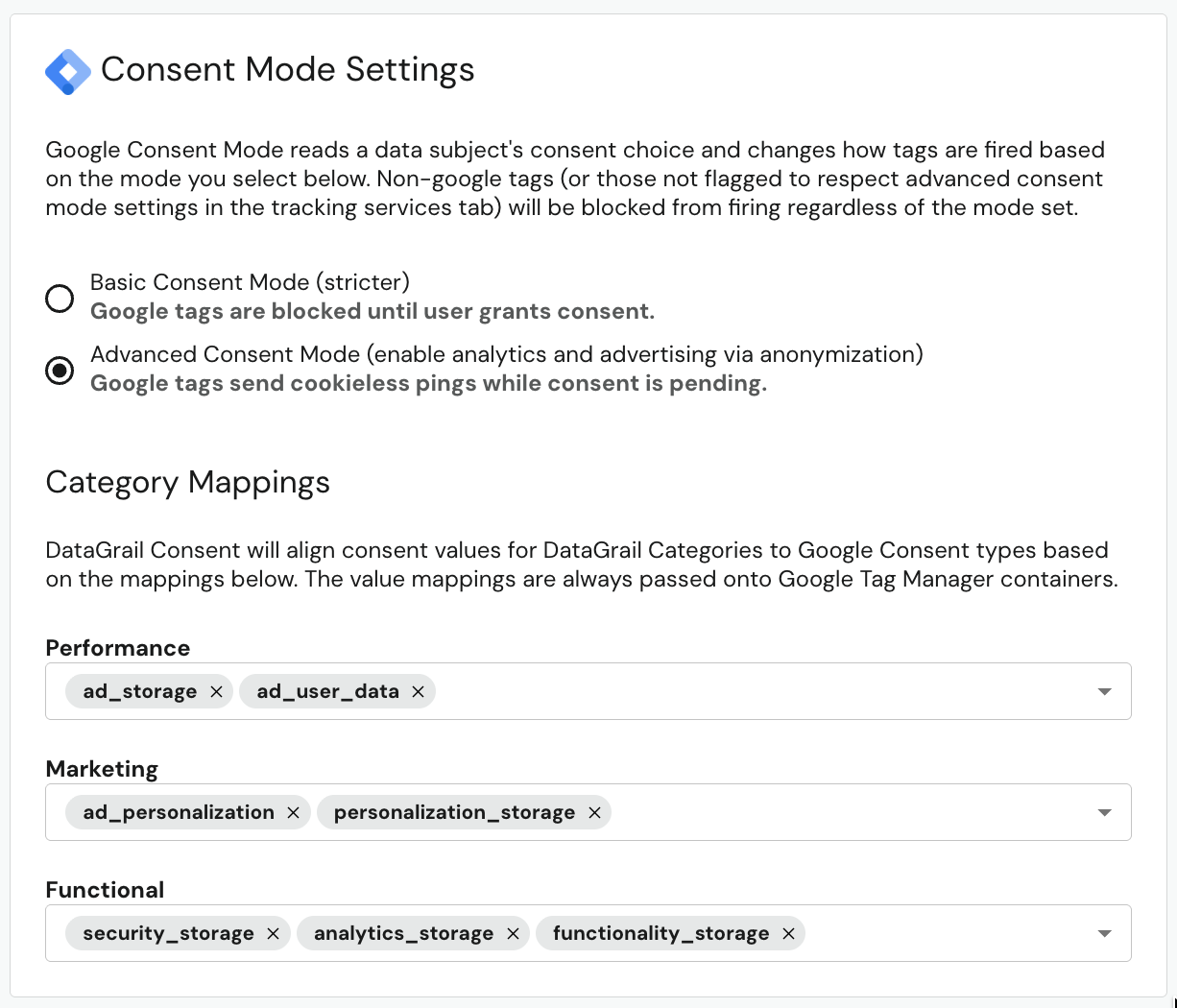
- Locate the Map DataGrail Categories to Google Consent Types toggle.
- Choose your mode:
- Advanced Consent Mode — DataGrail sends consent signals to Google without adding consent checks to consent-aware tags. Google's tags handle their own blocking behavior, allowing cookieless pings and modeled conversion data when consent is denied.
- Basic Consent Mode — DataGrail adds consent checks to all consent-aware tags, blocking them entirely until consent is granted.
- Configure your category mappings. DataGrail maps your internal consent categories to Google Consent Mode types (e.g.,
ad_storage,analytics_storage). When a visitor rejects a mapped category, DataGrail updates the corresponding Google consent signal todenied. - Publish your changes.
Use the DataGrail Privacy Inspector browser extension to verify your Google Consent Mode configuration is working correctly. The extension's Google Consent Mode page displays your GTM container, consent types, and the values set for each category.
Remove Additional Consent Checks
In Basic mode, DataGrail adds consent checks to all consent-aware tags. However, some tags—like third-party analytics tools—read Google consent signals directly and manage their own blocking behavior. For these tags, you can remove DataGrail's consent checks so they rely solely on the Google consent signals.
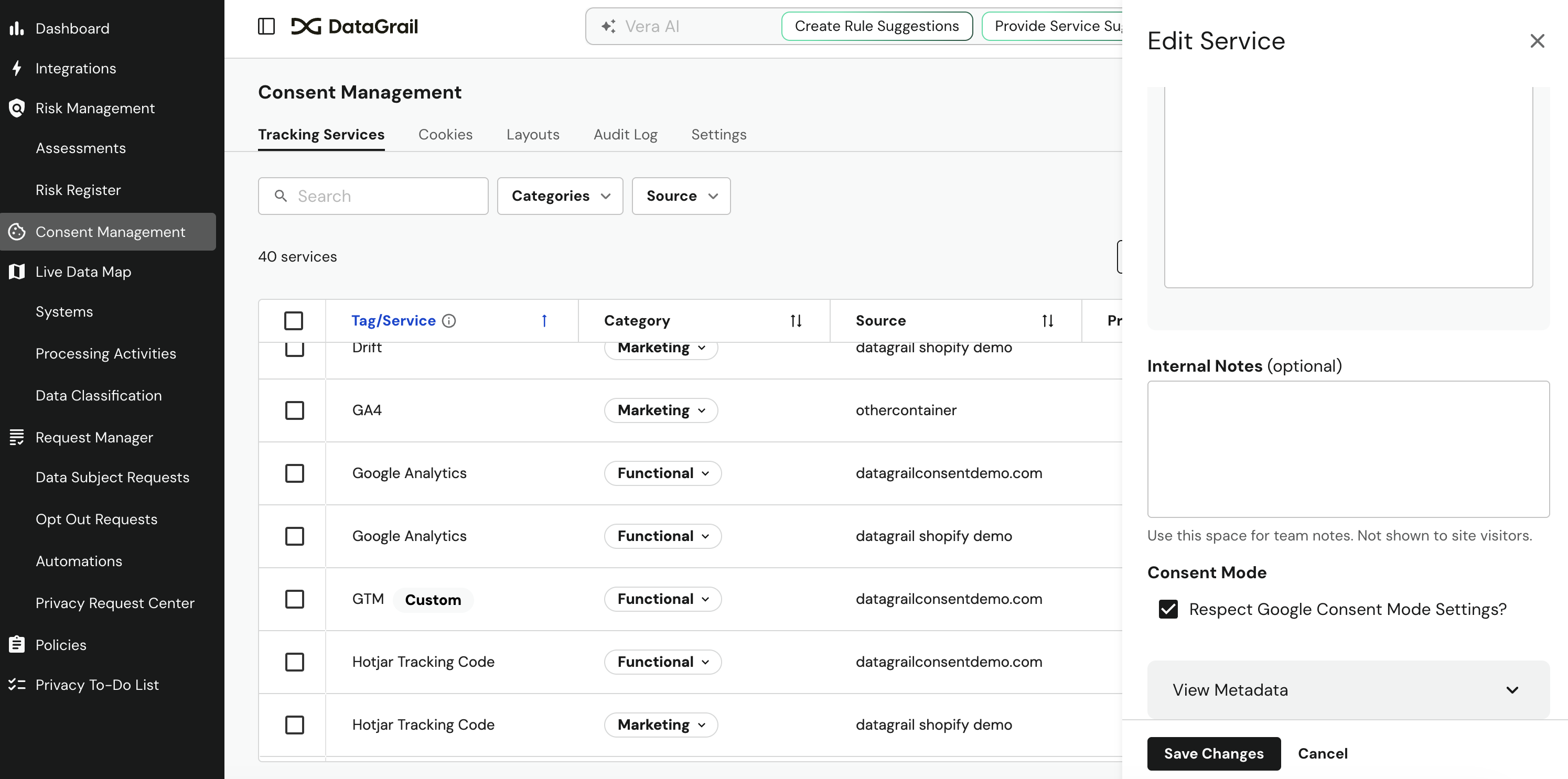
To configure a tag to skip DataGrail consent checks:
- Navigate to the Tracking Services page.
- Select the relevant tag and then Edit Service.
- Enable Respect Google Consent Mode Settings?.
- Select Save Changes.
- Publish your changes.
Google Tag Gateway
Google Tag Gateway (GTG) is a Google feature that lets you serve Google tags (such as GA4 and Google Ads) from your own first-party domain rather than from Google-owned servers. GTG can be configured through a CDN like Cloudflare, a load balancer, or your web server.
GTG has an important implication for consent: when GTG is enabled, the Google tag is injected at the very top of the page — before all other scripts. This means consent-aware tags may fire before DataGrail has set the default consent state to denied. The result is a late consent signal, where a tag reads consent state before any defaults have been established.
This timing issue is especially common with the one-click automated CDN setup (e.g., via Cloudflare), where tag injection is handled automatically and you have no control over script load order.
Verify GTG Enrollment
You can check whether your Google tag or GTM container is running through GTG using any of these methods:
| Method | How to check |
|---|---|
| GTM Admin | In Google Tag Manager, go to Admin > Google tag gateway. If GTG is active, you will see your configured domains and measurement path listed. |
| Browser DevTools | Open the Network tab and filter for your measurement path (e.g., /metrics/gtm.js). If tag scripts load from your own domain instead of googletagmanager.com, GTG is active. |
| Cloudflare Dashboard | Navigate to Tag Management > Google Tag Gateway to check if the feature is enabled for your domain. |
You can also use Google Tag Assistant to inspect tag load order and verify whether consent defaults are set before any tags fire. For detailed debugging steps, see Google's guide to troubleshooting consent mode with Tag Assistant.
Resolve Late Consent Signals
If a scan flags a late consent signal, first verify whether the late tag has adopted Google Tag Gateway using the Verify GTG Enrollment steps above.
If the tag is not running through GTG, move your consent default configuration earlier in the page so it runs before Google Tag Manager loads — set the default consent state to denied above the GTM snippet in your page source.
If the tag is running through GTG, GTG injects the Google tag ahead of other scripts, so there are three paths to resolve the issue.
Option 1 (Recommended): Enable Advanced Consent Mode
Advanced Consent Mode is the recommended approach for GTG-enabled tags. Rather than blocking tags entirely until consent is granted, Advanced Consent Mode allows Google tags to load early while sending only anonymous, cookieless pings when consent is denied.
To implement this:
- Enable Advanced Consent Mode in DataGrail under Consent > Settings > Category Mapping (see Choosing a Mode above).
- In your GTM container, configure a tag that fires on a Consent Initialization trigger to set the default consent state to
deniedforad_storage,analytics_storage,ad_user_data, andad_personalization. See Google's consent mode setup guide for details.
Because GTG injects the Google tag before other scripts — and automated CDN setups remove your control over load order — Advanced Consent Mode ensures tags operate in a privacy-safe, cookieless mode until your visitor's consent signal arrives.
Option 2: Consolidate Tags Into GTM
If you have Google tags deployed outside of a GTM container (e.g., standalone gtag.js snippets), migrating them into a single GTM container managed by DataGrail ensures consistent consent signal handling. DataGrail's consent initialization fires before tags in the container execute, eliminating the timing problem.
Option 3: Configure GTG Manually
The manual GTG setup allows you to control script placement in your page source. By placing DataGrail's banner initialization code above the GTG-served Google tag snippet, you ensure consent defaults are established before any Google tags fire. This option requires developer involvement but gives you full control over load order — unlike the one-click CDN setup.
For most configurations, enabling Advanced Consent Mode resolves GTG timing issues without additional infrastructure changes. Try this option first before exploring manual GTG setup or tag consolidation.
Disclaimer: The information contained in this message does not constitute as legal advice. We would advise seeking professional counsel before acting on or interpreting any material.