IAB TCF
IAB TCF (Transparency and Consent Framework) v2.3 support in DataGrail Consent enables your organization to achieve GDPR compliance through a standardized CMP (Consent Management Platform) UI. When enabled, DataGrail generates a TC String that communicates user consent choices to advertising vendors across the ad tech ecosystem, and optionally integrates with Google Consent Mode and Google Additional Consent.
TCF settings are configured per consent policy and apply only to users in TCF-applicable regions (primarily GDPR jurisdictions). TCF must be enabled at both the policy level and the container level before it is active on your site.
IAB TCF Settings
- Open Consent Management from the top-level navigation.
- Select your policy from the Policies page under Settings.
- Select the Settings tab within your policy.
- Select IAB TCF on the left-hand menu.
The IAB TCF settings page contains four tabs: Configuration, Purposes, Publisher Restrictions, and Vendors.
Configuration
The Configuration tab controls your CMP identity, banner behavior, and Google integration settings.
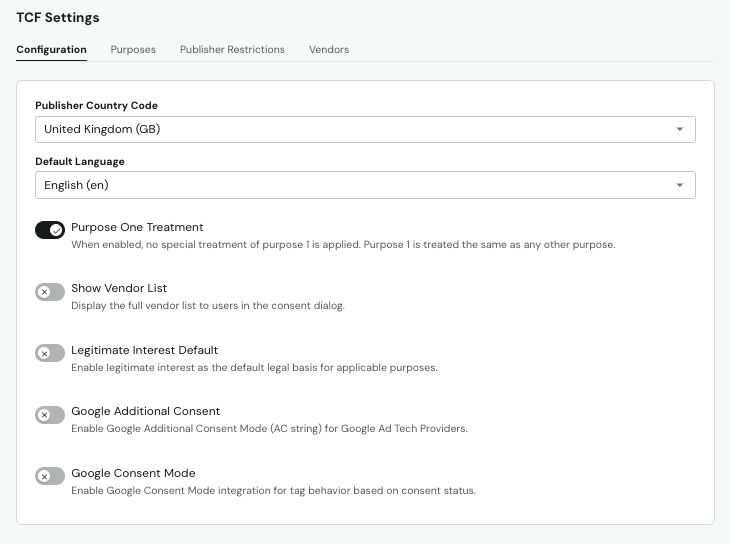
Publisher Country Code
Select the country where your organization is established. This value is used to populate the Publisher TC segment, which is required for TCF 2.3 compliance.
Default Language
Select the language in which purpose and vendor descriptions are shown to users in the consent dialog. DataGrail automatically syncs translations from the IAB Global Vendor List (GVL) on a weekly basis.
Purpose One Treatment
Controls how Purpose 1 is flagged in the TC String. By default, some CMPs treat Purpose 1 as requiring special handling — this toggle overrides that behavior.
| Setting | Behavior |
|---|---|
| Enabled | Purpose 1 (store and/or access information on a device) is treated the same as all other purposes — it receives no special treatment in the TC String. |
| Disabled | Purpose 1 is flagged as receiving special treatment in the TC String, which some CMPs use to indicate that consent for Purpose 1 was not explicitly requested. |
Most publishers should leave this setting enabled.
Show Vendor List
Controls whether users can see and interact with the full list of advertising vendors in the consent dialog.
| Setting | Behavior |
|---|---|
| Enabled | Users will see a searchable vendor list in the consent dialog (the Vendors tab in the banner). Commonly-used vendors are surfaced at the top of the list. |
| Disabled | The Vendors tab is not shown to end users. |
Legitimate Interest Default
Sets the default legal basis used for purposes where legitimate interest is permitted.
| Setting | Behavior |
|---|---|
| Enabled | Legitimate interest is used as the default legal basis for purposes where it is permitted. |
| Disabled | Consent is used as the default legal basis for all applicable purposes. |
Legitimate interest is prohibited for Purposes 3, 4, 5, and 6 (personalized advertising and content profiles) regardless of this setting. See Purposes for details.
Google Additional Consent
Controls whether DataGrail generates and exposes a Google AC String for Google Ad Tech Providers (ATPs).
AC String format and behavior
When enabled, DataGrail generates an AC String (v2) and exposes it via addtl_consent in the TCData object. The AC String uses the format 2~{consented IDs}~dv.{disclosed IDs}. Vendors that appear on both the IAB GVL and Google's ATP list are represented using their GVL ID in the TC String and are excluded from the AC String to avoid duplication. Required if you use Google Ad Manager or Google DFP.
When disabled, no AC String is generated and Google ATPs are not included in TCF signaling.
Google Consent Mode
Controls whether DataGrail maps TCF consent signals to Google Consent Mode v2, which governs tag behavior in Google's ad and analytics products.
Google Consent Mode signal mapping
When enabled, DataGrail maps TCF purpose consent to Google Consent Mode v2 signals. All signals default to denied on page load and are updated when the user submits their consent preferences. The mapping is as follows:
| Google signal | TCF basis |
|---|---|
ad_storage | Purpose 1 consent |
analytics_storage | Purpose 1 consent |
ad_personalization | Purpose 3 + 4 consent |
ad_user_data | Vendor 755 (Google) consent |
When disabled, Google Consent Mode signals are not updated by DataGrail. Tags will fire according to your existing Google Consent Mode configuration, if any.
ad_user_data and ad_personalization signals are required for compliance with the EU Digital Markets Act (DMA) as of March 2024. If you serve ads in the EU, this setting should be enabled.
Purposes
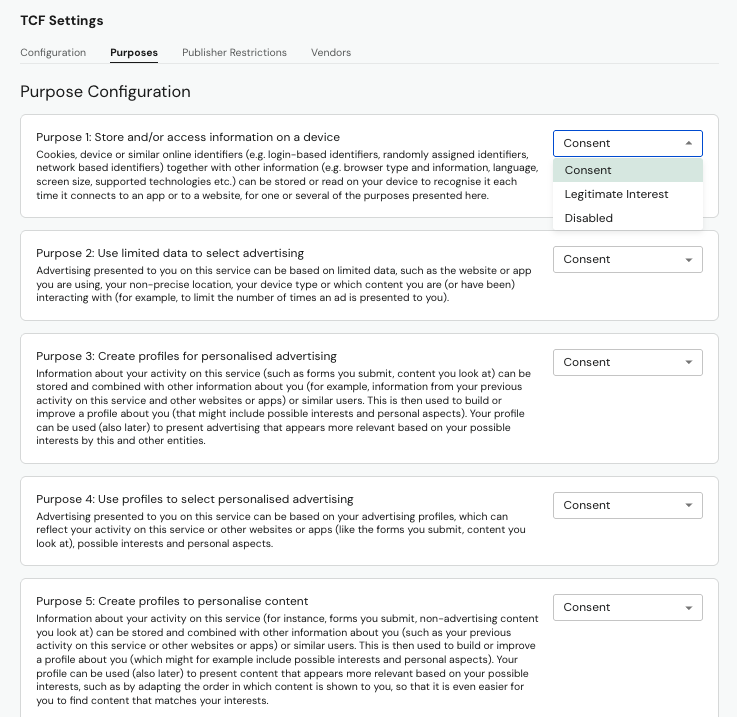
The Purposes tab lets you configure the legal basis for each of the 11 IAB TCF purposes. Your configuration is reflected in both the consent banner UI and the TC String.
Legal Basis Options
Each purpose can be assigned one or more legal bases:
- Consent — the user must actively opt in.
- Legitimate Interest — processing proceeds by default unless the user objects.
Default Configuration
| Purposes | Consent | Legitimate Interest |
|---|---|---|
| 1, 2 | Allowed | Allowed (Off by default) |
| 3, 4, 5, 6 | Allowed | Prohibited -- cannot be enabled |
| 7, 8, 9, 10, 11 | Allowed | Allowed (Off by default) |
Legitimate interest is permanently prohibited for Purposes 3 (create profiles for personalised advertising), 4 (use profiles to select personalised advertising), 5 (create profiles to personalise content), and 6 (use profiles to select personalised content). This is an IAB TCF framework requirement and cannot be overridden.
Special Purposes
Special Purposes (SP1: Security/Fraud Prevention, SP2: Deliver Ads/Content) always use legitimate interest and are not configurable. They are disclosed to users but cannot be toggled off.
Publisher Restrictions
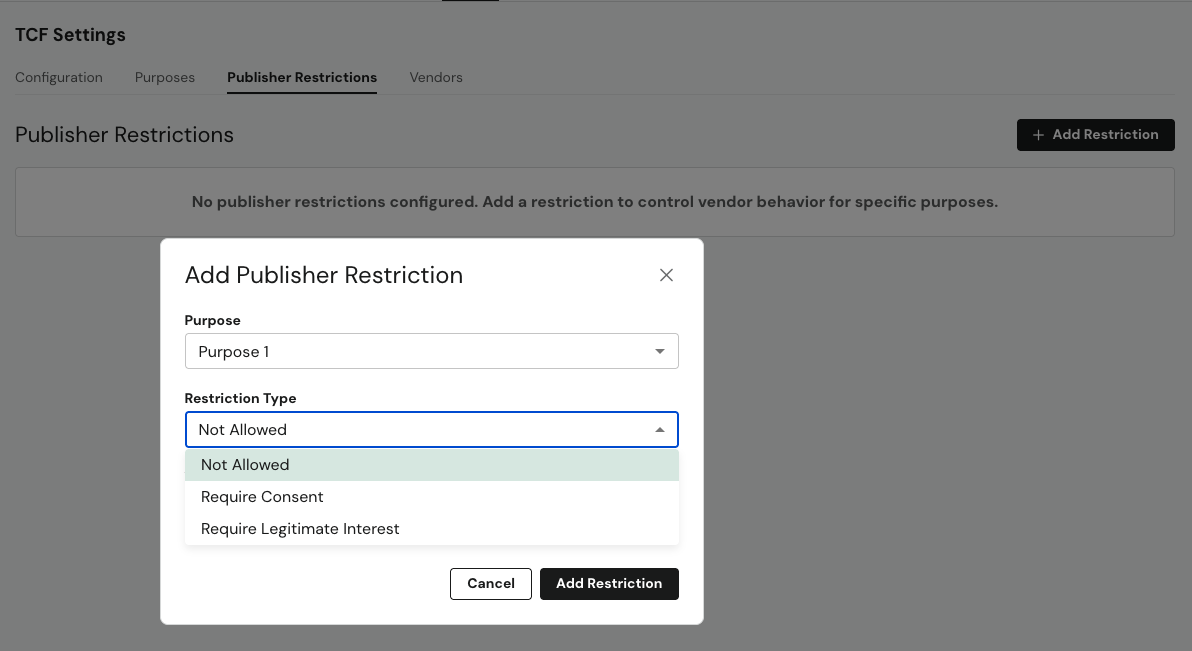
Publisher Restrictions allow you to override the default legal basis for specific purposes on a per-vendor basis. Use this tab to restrict or require certain behaviors from vendors beyond the GVL defaults.
Restriction types include:
- Not Allowed — vendor is not permitted to process data for this purpose.
- Require Consent — vendor must use consent, even if legitimate interest is their declared basis.
- Require Legitimate Interest — vendor must use legitimate interest, even if consent is their declared basis.
Vendors
The Vendors tab displays all vendors your organization has selected from the IAB Global Vendor List (GVL). DataGrail syncs the full GVL (1,200+ vendors) on a weekly basis and automatically republishes your TCF configuration when a new GVL version is released.
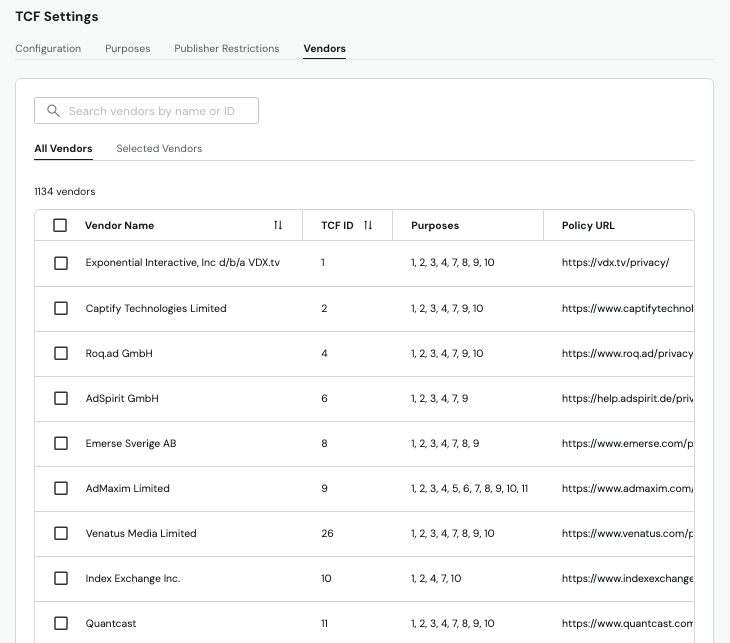
To add or remove vendors:
- Navigate to the Vendors tab under IAB TCF Settings.
- Use the search field to find vendors by name (typeahead search is supported).
- Select the checkbox next to Vendor Name to manage multiple vendors at once.
- Commonly-used vendors appear at the top of the list by default.
Vendors that appear on both the IAB GVL and Google's Additional Tech Provider (ATP) list are represented using their GVL ID only in the TC String. These vendors are excluded from the AC String to prevent duplication.
Banner Experience
When TCF is enabled, the consent banner presents users with a layered experience:
- Summary layer — brief overview with Accept All / Reject All / Manage Preferences options.
- Purposes layer — expandable list of all 11 TCF purposes with consent toggles and vendor counts. Users can select View Vendors on any purpose to see which vendors use it.
- Vendors layer — full searchable list of GVL vendors (if Show Vendor List is enabled).
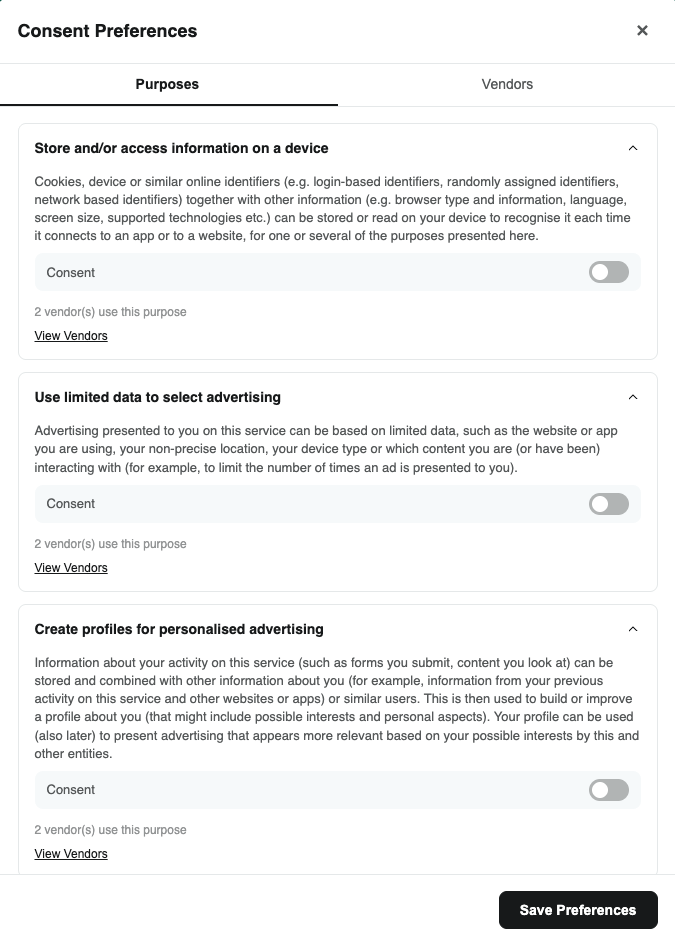
When the user saves their preferences, DataGrail writes the TC String to the euconsent-v2 cookie (with localStorage as a backup) and fires any Google Consent Mode or AC String updates as applicable.
Disclaimer: The information contained in this message does not constitute as legal advice. We would advise seeking professional counsel before acting on or interpreting any material.