Integrating Kayako
DataGrail’s Kayako Integration provides data mapping and privacy request functionality allowing your business to do the following:
- Identify Data Subject PII stored in Kayako for automatic fulfillment of privacy requests.
- Delete Data Subject PII stored in Kayako for automatic fulfillment of privacy requests.
**Note: if you do not have admin rights in Kayako you will not be able to complete this integration. Please contact your Kayako Admin for assistance.
**NOTE: We do not currently support Kayako Classic (self-hosted).**
Step 1: Create a Kayako OAuth App
-
Log in to Kayako
-
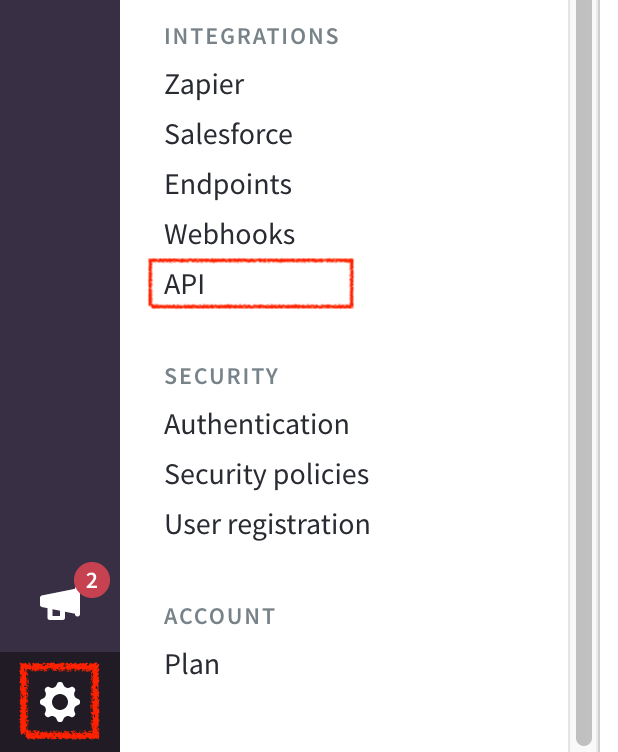
In the bottom-left corner of the screen, click on the Configure (Gear) Icon
-
Under the Integrations section, click on API
-
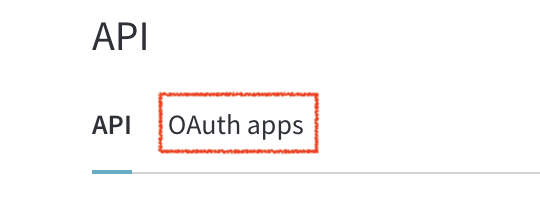
Navigate to OAuth Apps
-
In the top-right corner, click New OAuth App
-
Enter a Name for the application, we'd suggest DataGrail
-
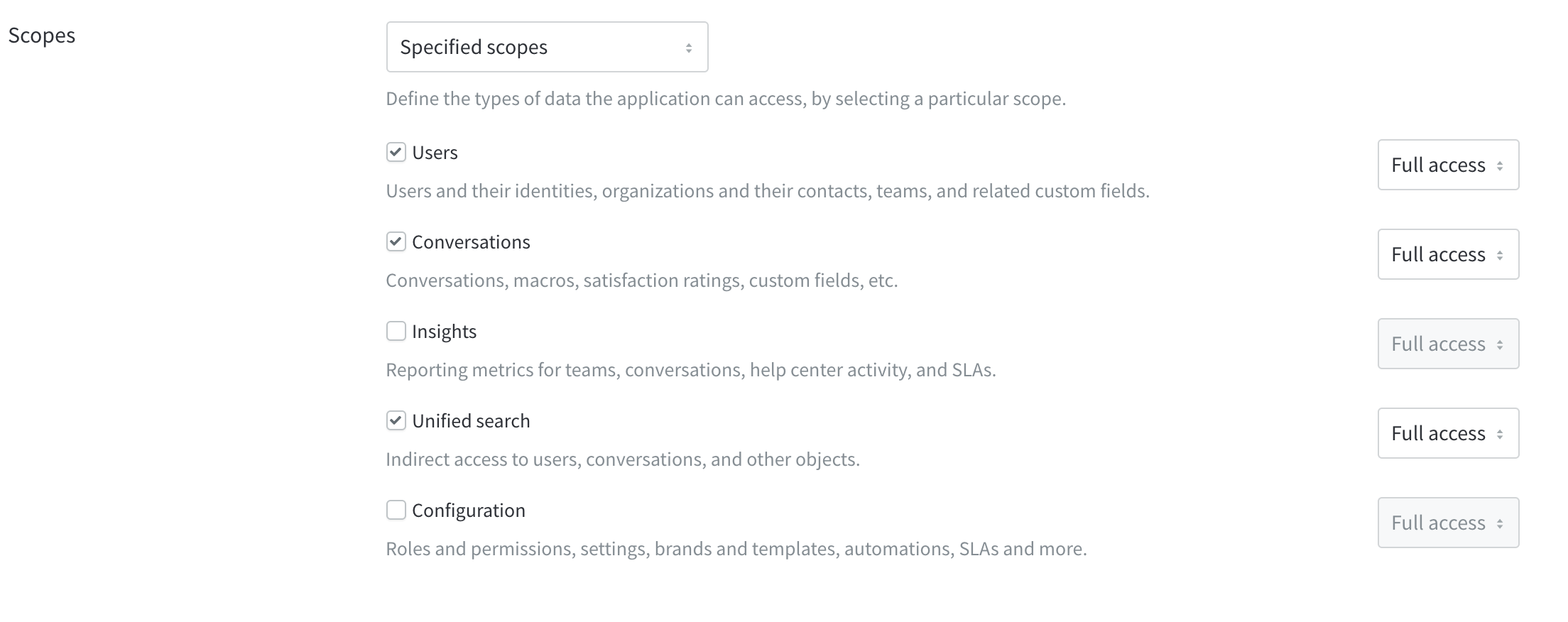
Under Scopes, select: Specified Scopes then choose:
- Users
- Conversations
- Unified Search
-
Click Save
-
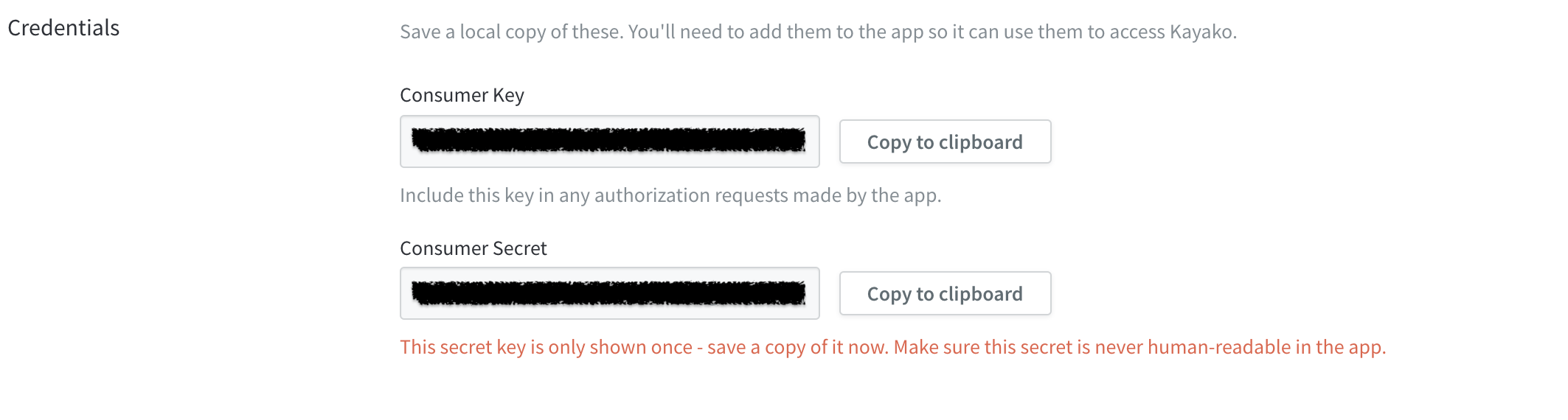
On the next page, copy the Consumer Key and Consumer Secret and save them in a temporary secure location (you will not be able to access your Consumer Secret again once you leave the page)
Step 2: Connect Kayako
-
Return to DataGrail (window should be open in separate tab)
-
Enter your Kayako Subdomain and the Consumer Key and Consumer Secret from Step 1 and click Connect Kayako
-
You Subdomain can be found in the address bar of your browser when logged into the Kayako app, between the
https://and the next forward slash (/). For example, our Kayako subdomain isdatagrail.kayako.com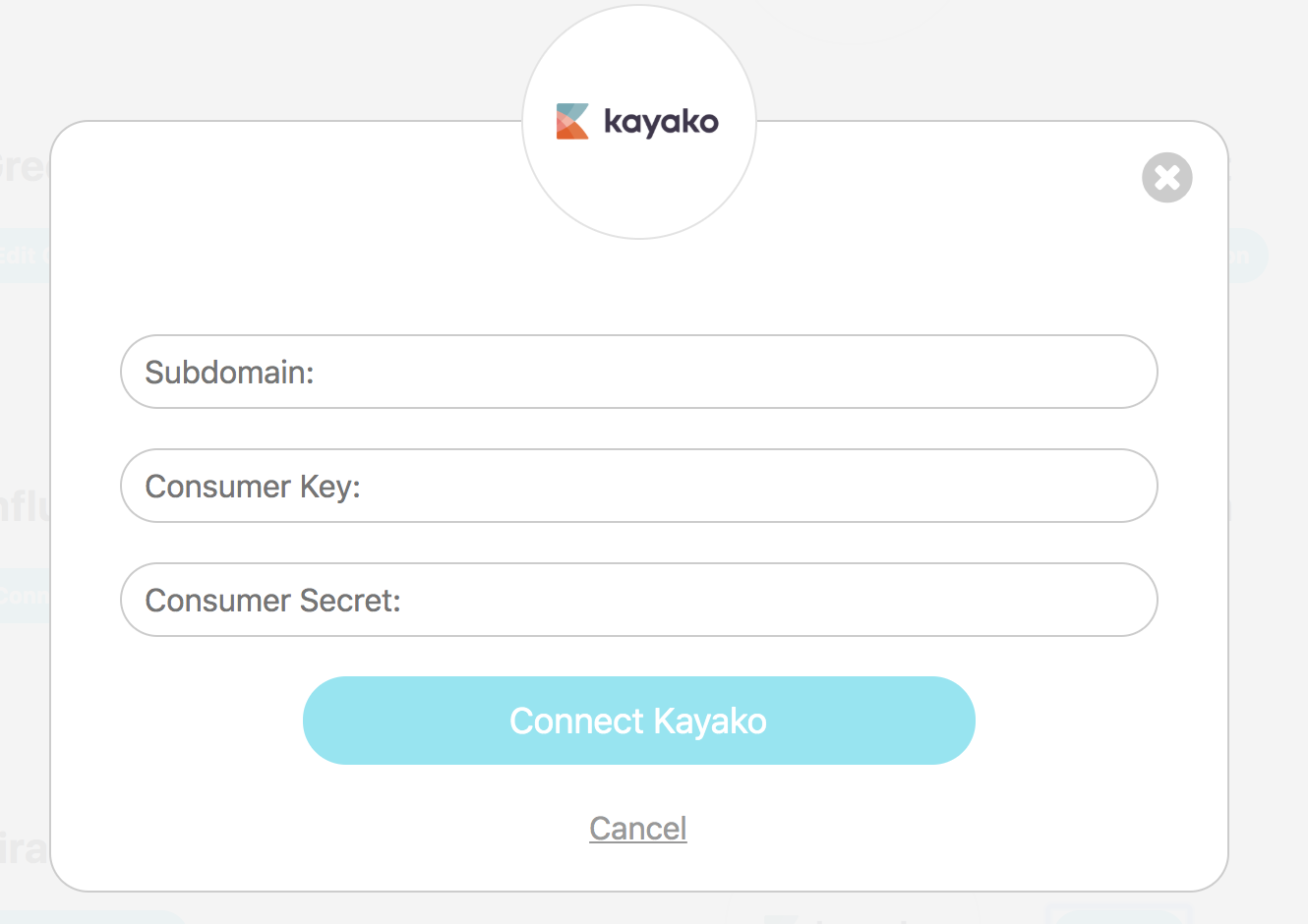
-
-
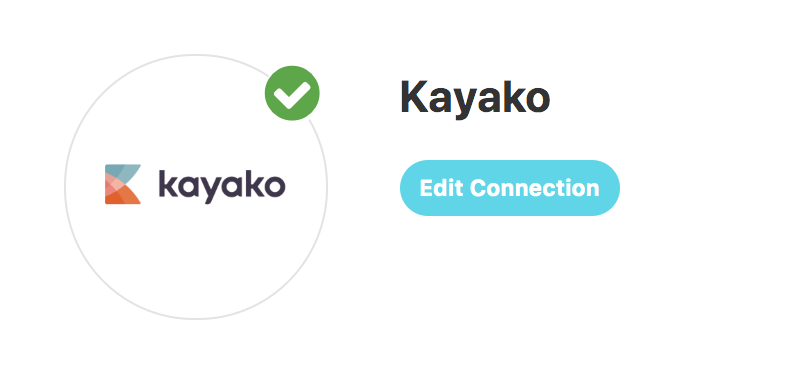
Once connected a Green check mark will appear in the top right corner of the Kayako tile
Disclaimer: The information contained in this message does not constitute as legal advice. We would advise seeking professional counsel before acting on or interpreting any material.