Integrating Khoros
Capabilities
DataGrail's Khoros integration provides the following capabilities:
| Product | Capability | ||||
|---|---|---|---|---|---|
| Request Manager |
|
Before You Start
To successfully configure this integration, please ensure you have sufficient privileges:
- DataGrail User Role: Super Admin, Connections Manager
- Khoros User Role: Admin
Configure Khoros API Access
- Log in to your Khoros Community account.
- Get your Community Domain from the browser URL, for example
community-stage.acme.comorcommunity.khoros.com - Navigate to Community Admin.
- Navigate to System, then API Apps, and select Create Web App.
- Configure application in the Create API App modal with the following values, and select Save:
App Configuration
Display Name: DataGrail
Authorization Redirect URL: https://datagrail.io/oauth/khoros
- Copy your Client ID and Client Secret from the API Apps tab and store them in a temporary, secure location.
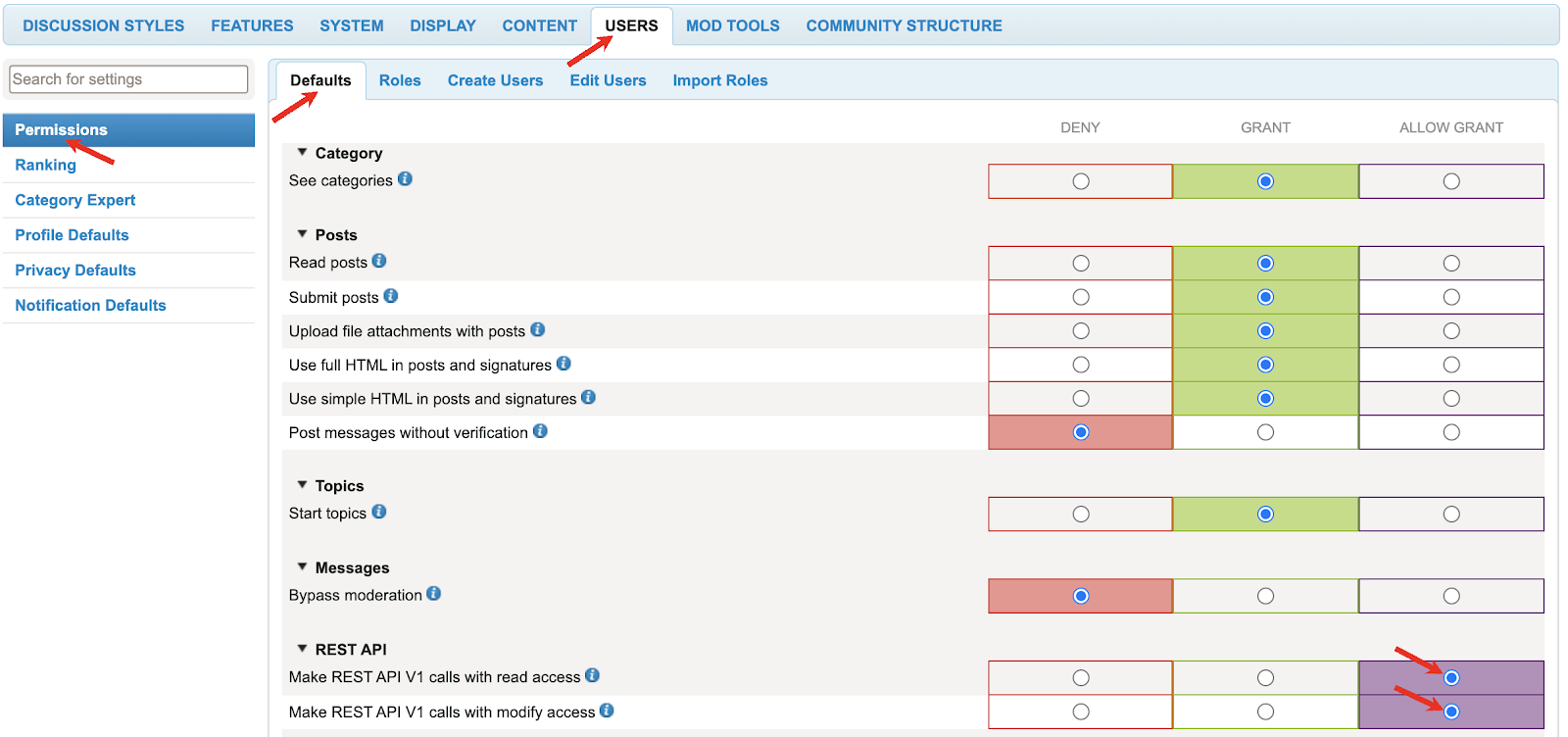
- Navigate to Users, then Permissions, then Defaults.
- Under the REST API section, select Allow Grant for the following permissions:
Required User Permissions
Make REST API V1 calls with read accessMake REST API V1 calls with modify access
-
Navigate to Users, then Permissions and find your user using Select User.
-
Validate that the user is assigned at least the Administrator role.
-
Scroll down, and check that your user has the following permissions marked as Allow Grant:
Required Permissions
REST API
- Make REST API V1 calls with read access.
- Make REST API V1 calls with modify access.
API Apps
- Manage API Apps.
User Management
- Close accounts of other users.
Users may be required to have their IP address added to an allowlist in order to connect to Khoros.
Connect to DataGrail
- Navigate back to DataGrail.
- Enter the Client ID, Client Secret, and Community Domain.
- Select Login to Configure.
Next Steps
Now that you've successfully connected the integration, check out the following resources:
Troubleshooting
If you are unable to successfully connect the integration, review these common troubleshooting steps:
Ensure Required Permissions Are Granted on API Keys/Resources
DataGrail checks required permissions and scopes on API keys/resources used by each integration. If all necessary permissions are not granted, new connections will fail.
Review Required Account Types and User Roles
If users do not have the necessary permissions or the minimum required user role in the connecting system, the connection to DataGrail will fail. Additionally, connections will fail if your account type does not match the one required by the integration.
See Before You Start to review these requirements.
Technical Details
| Access Type | Synchronous |
|---|---|
| Deletion Type | Synchronous |
API Documentation
Learn more about this API implementation and DataGrail functionality in our API Integration Documentation.
Disclaimer: The information contained in this message does not constitute as legal advice. We would advise seeking professional counsel before acting on or interpreting any material.