Integrating PingOne
DataGrail’s PingOne Enterprise Integration provides data mapping and privacy request functionality allowing your business to do the following:
- Identify Data Subject PII stored in PingOne Enterprise for automatic fulfillment of privacy requests.
- Delete Data Subject PII stored in PingOne Enterprise for automatic fulfillment of privacy requests.
- Scan PingOne Enterprise for additional business systems used across your organization.
**Note: if you do not have admin rights in PingOne Enterprise you will not be able to complete this integration. Please contact your PingOne Enterprise Admin for assistance.
Step 1: Configure PingOne Enterprise Application
- Log in to PingOne (PingIdentity) Enterprise with your account.
- Go to the Administrators environment.
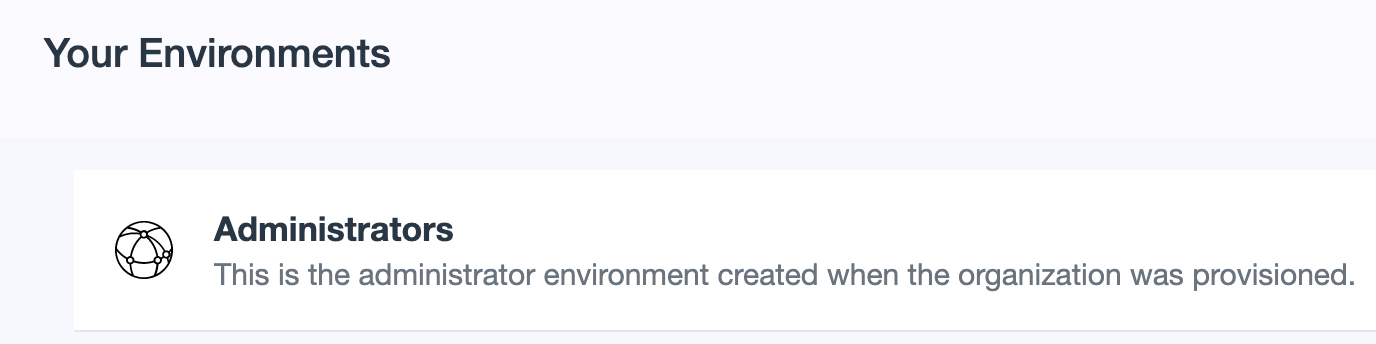
- Click the Environment on the left side menu to find your Region.

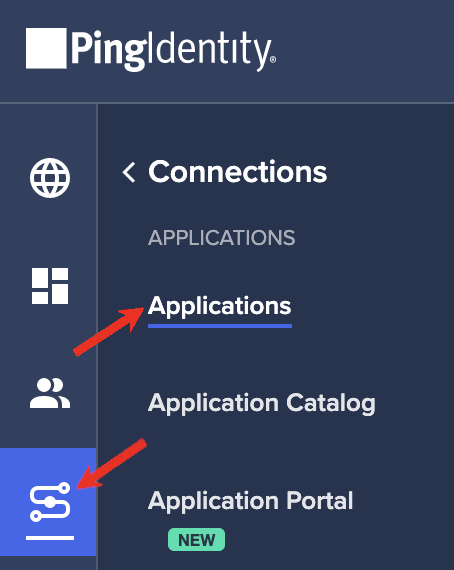
- Click the Connections on the left side menu.
- Click the Applications.
-
Click the + icon next to Applications.
-
Enter an Application Name and Description.
-
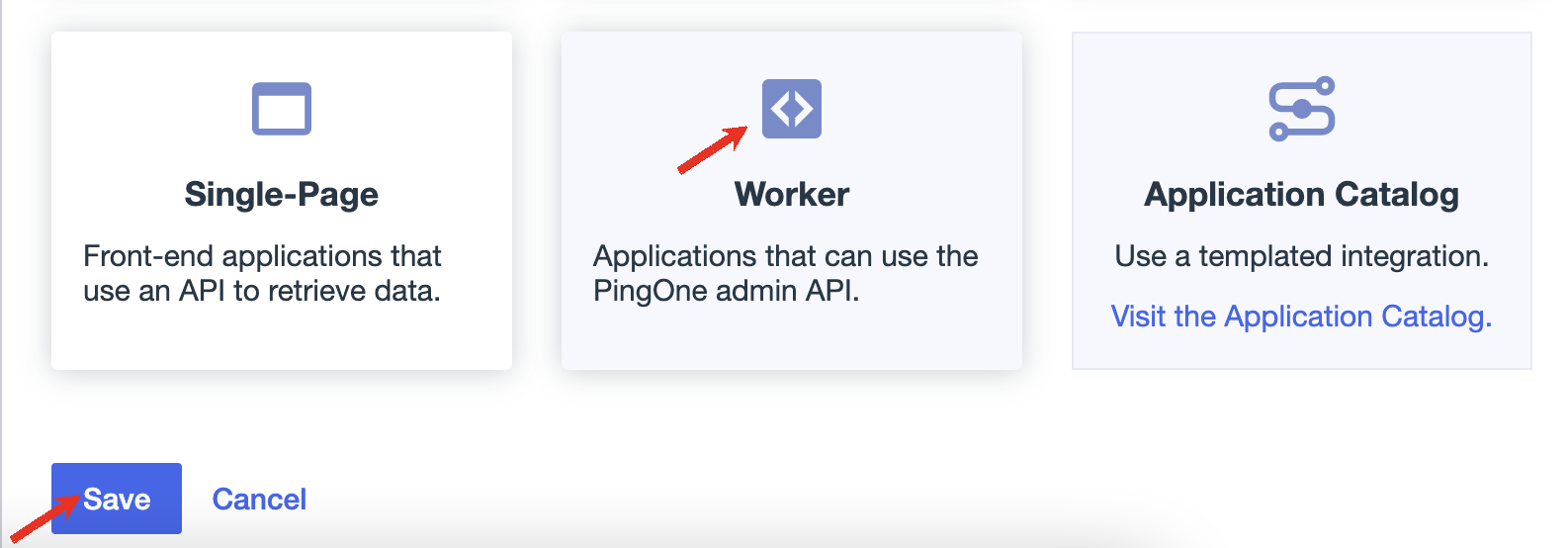
Under Choose Application Type, click Worker.
-
Click Save.
- Click the application's Configuration tab.
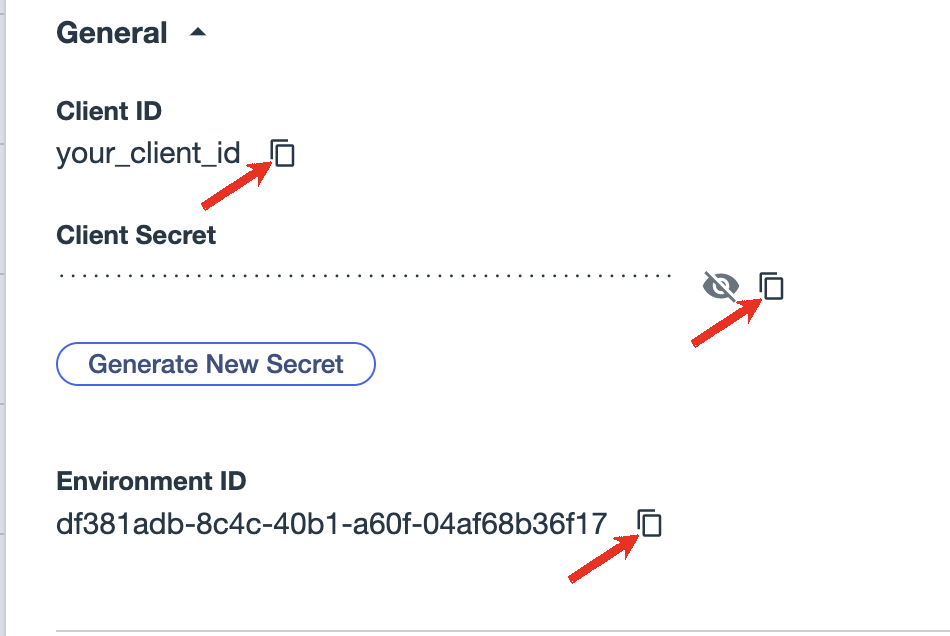
- Scroll down and click to expand the General section.
- Copy application’s Client ID, Client Secret and Environment ID temporarily in a secure location.
- On the application's Overview page, click the toggle at the upper right to enable the application.
Step 2: Connect PingOne Enterprise
- In DataGrail, navigate to Integrations and select Configure New Integration to search for .
- Click Configure New Integration button.

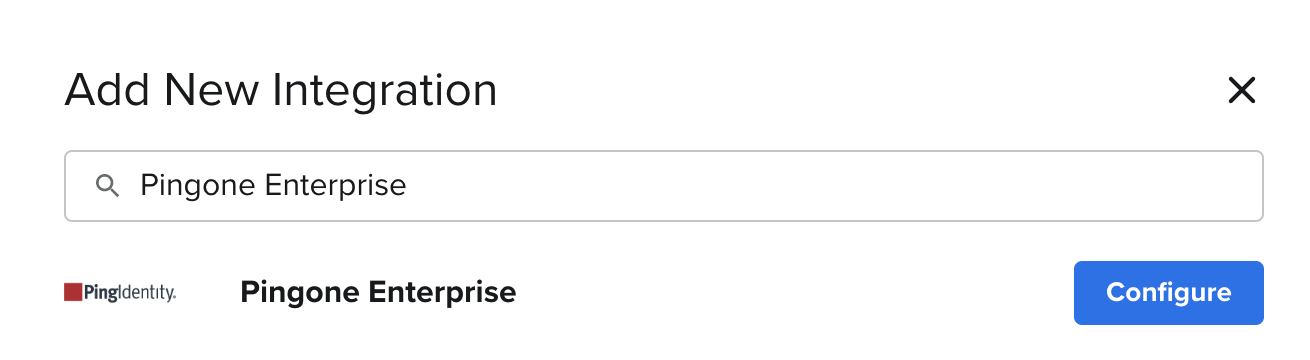
- Enter the PingOne Enterprise integration name in the search line.
- Click the Configure button.
- Enter the Client ID, Client Secret and Environment ID obtained from Step 1.
- Select the Region obtained from Step 1.
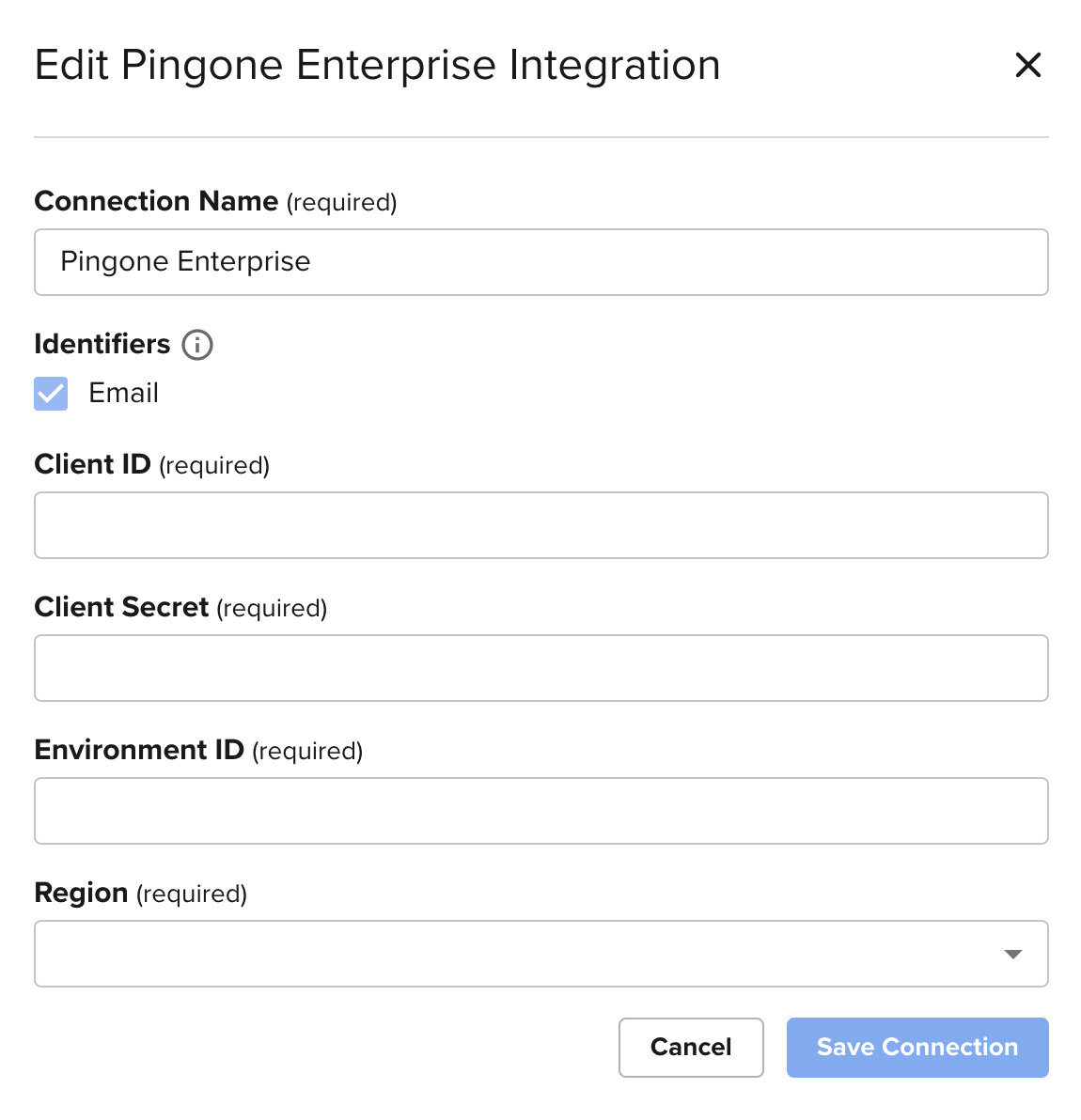
- Click Save Connection.
- If there are additional PingOne Enterprise accounts to integrate follow these instructions:
-
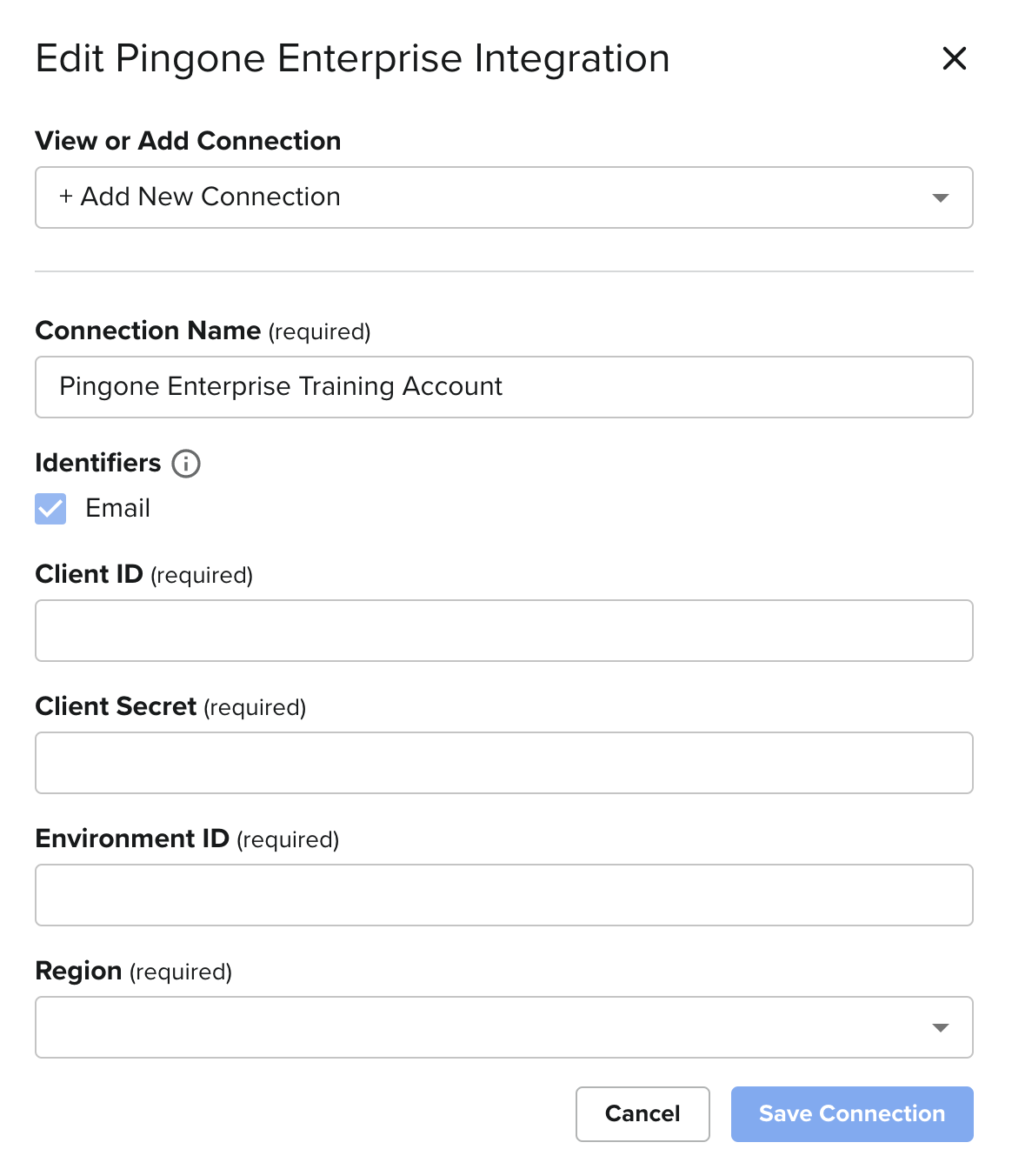
- Click Edit Connection within the Integration page for PingOne Enterprise.

- From the drop-down, select +Add New Connection.
- Under Connection Name, enter a new name to identify this separate account [ex: PingOne Enterprise Training Account].
- Enter the Client ID, Client Secret and Environment ID obtained from Step 1.
- Select the Region obtained from Step 1.
- Click Save Connection.
- In DataGrail, if you have any other integrations not connected (no green check mark) please click Connect to complete the configuration and reference the Help Docs link for instructions
For more information on API endpoints/specifications and DataGrail functionality, please view our API Integration Documentation.
Disclaimer: The information contained in this message does not constitute as legal advice. We would advise seeking professional counsel before acting on or interpreting any material.