Integrating Returnly
DataGrail’s Returnly Integration provides data mapping and privacy request functionality allowing your business to do the following:
- Identify Data Subject PII stored in Returnly for automatic fulfillment of privacy requests.
- Delete Data Subject PII stored in Returnly for automatic fulfillment of privacy requests.
**Note: if you do not have admin rights in Returnly you will not be able to complete this integration. Please contact your Returnly Admin for assistance.
Step 1: Get Returnly API Key
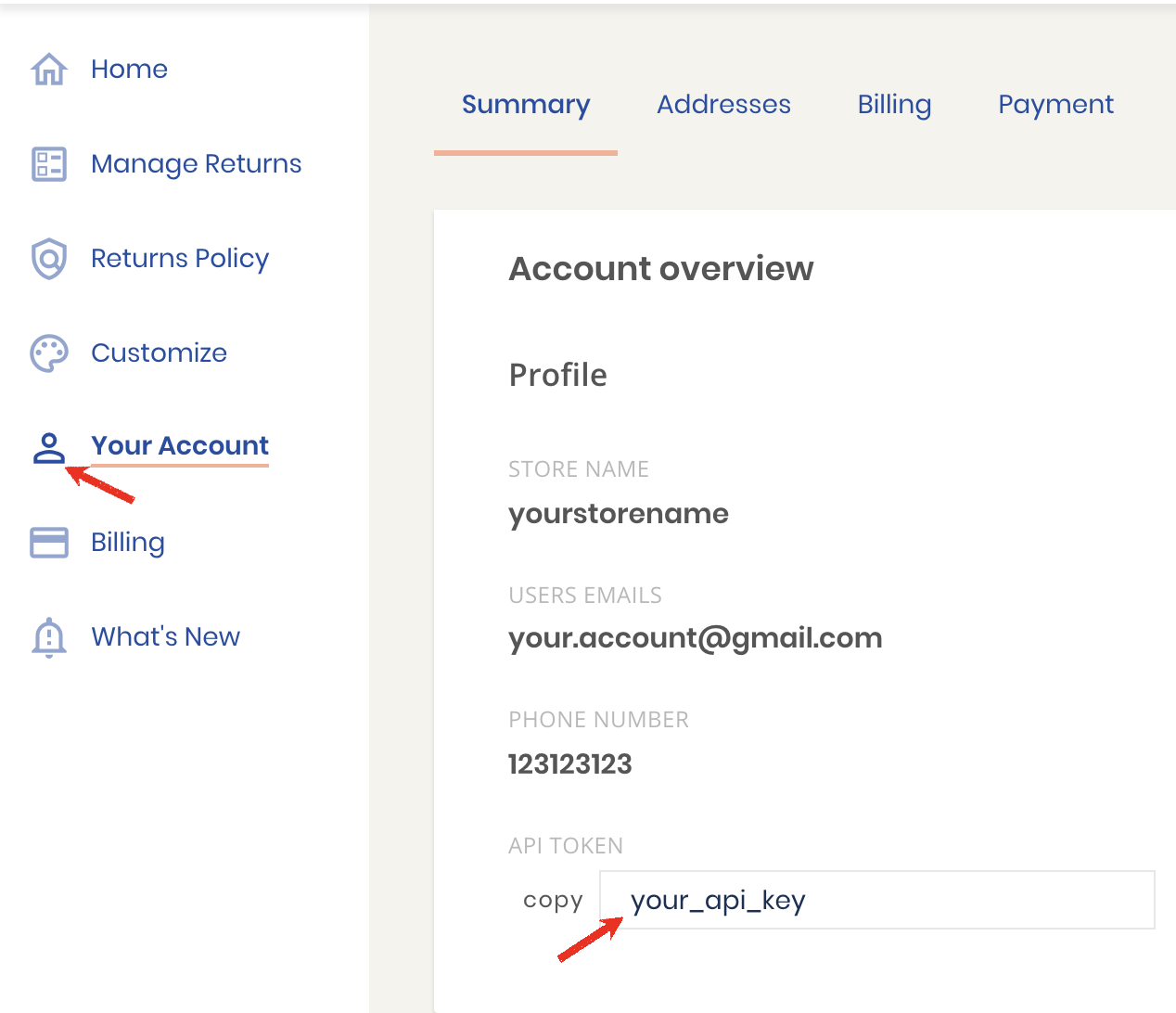
- Log in to your Returnly account.
- Click Your Account on the left side menu.
- Copy your API Key.
Step 2: Connect Returnly
-
Return to DataGrail (window should be opened in a separate tab).
-
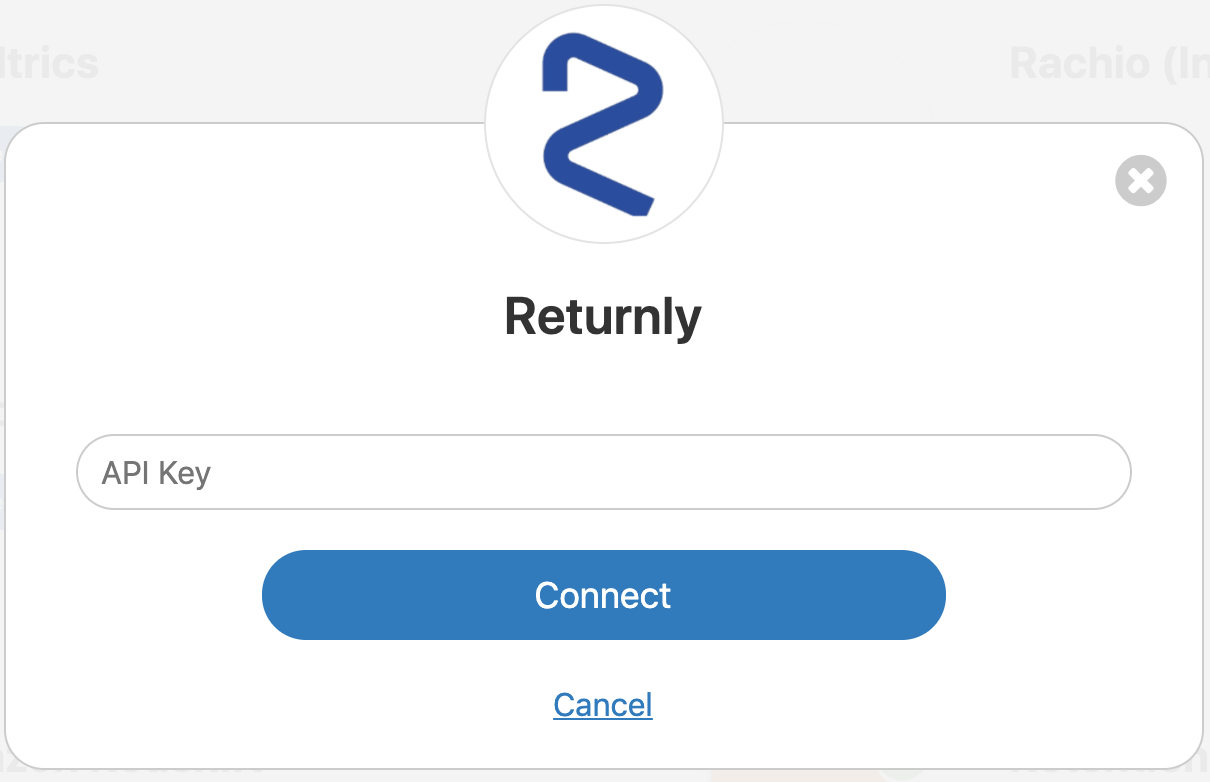
Click Connect within the Integration page for Returnly.

-
Enter the API Key obtained from Step 1.
-
Click Connect.

-
If there are additional Returnly accounts to integrate follow these instructions:
-
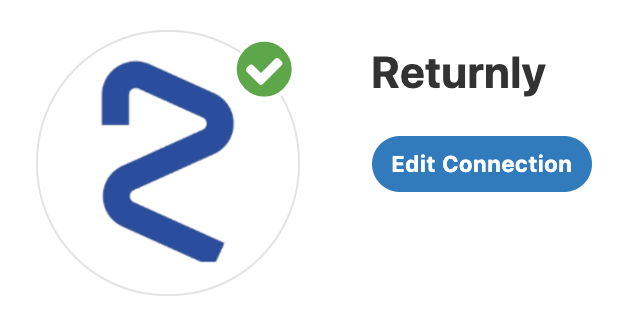
Click Edit Connection within the Integration page for Returnly.
-
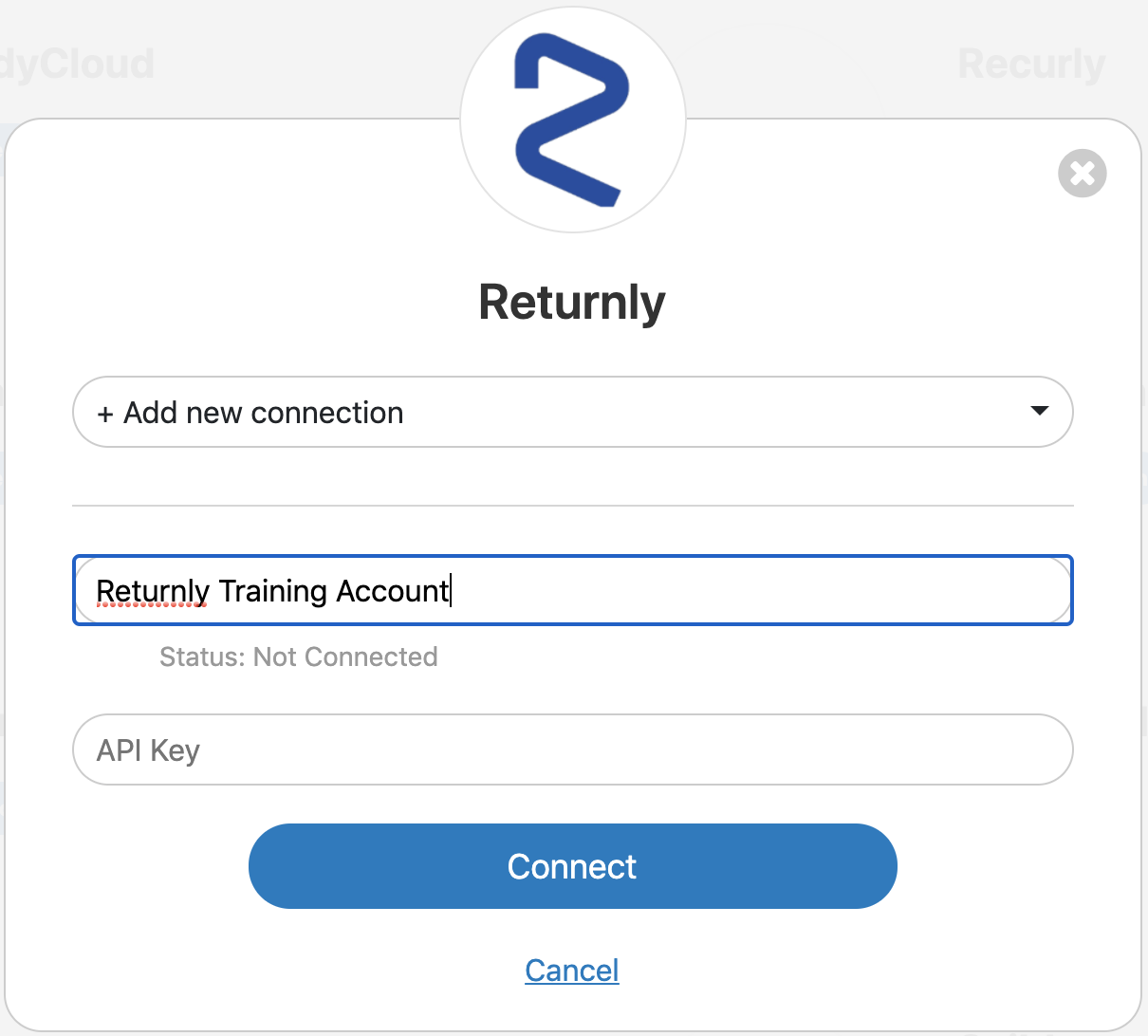
From the drop-down, select +Add New Connection.
-
Under Connection Name, enter a new name to identify this separate account [ex: Returnly Training Account].
-
Repeat Step 1 to copy API Key for this new account.
-
Enter the API Key.
-
Click Connect.
-
-
In DataGrail, if you have any other integrations not connected (no green check mark) please click Connect to complete the configuration and reference the Help Docs link for instructions
Disclaimer: The information contained in this message does not constitute as legal advice. We would advise seeking professional counsel before acting on or interpreting any material.