Integrating SupportBee
DataGrail’s SupportBee Integration provides data mapping and privacy request functionality allowing your business to do the following:
- Identify Data Subject PII stored in SupportBee for automatic fulfillment of privacy requests.
- Delete Data Subject PII stored in SupportBee for automatic fulfillment of privacy requests.
**Note: if you do not have admin rights in SupportBee. you will not be able to complete this integration. Please contact your SupportBee. Admin for assistance.
Step 1: Get SupportBee API Token
-
Log in to SupportBee with your account.
-
Check the URL when you are logged in to the application to get your Company.

-
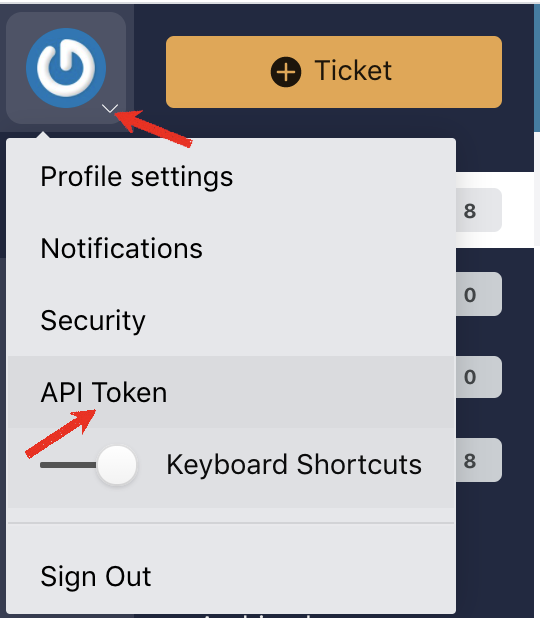
Click on your profile picture at the top left corner of your SupportBee desk and then click on API Token.
-
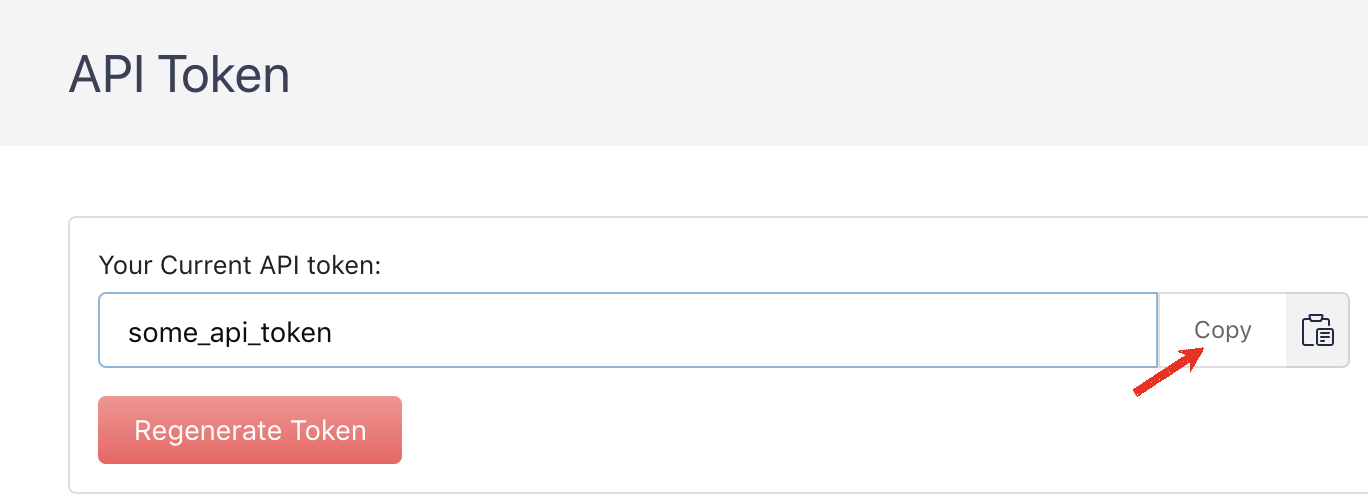
Copy your API Token.
Step 2: Connect SupportBee
-
Return to DataGrail (window should be open in a separate tab).
-
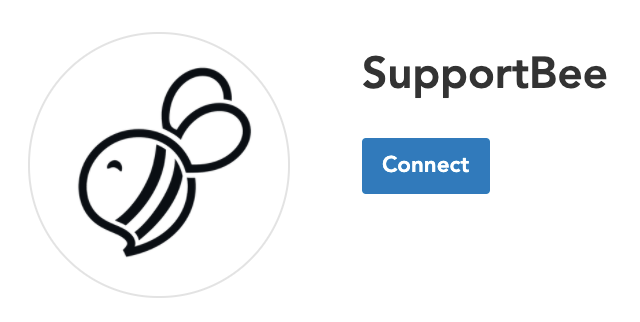
Click Connect within the Integration page for SupportBee.
-
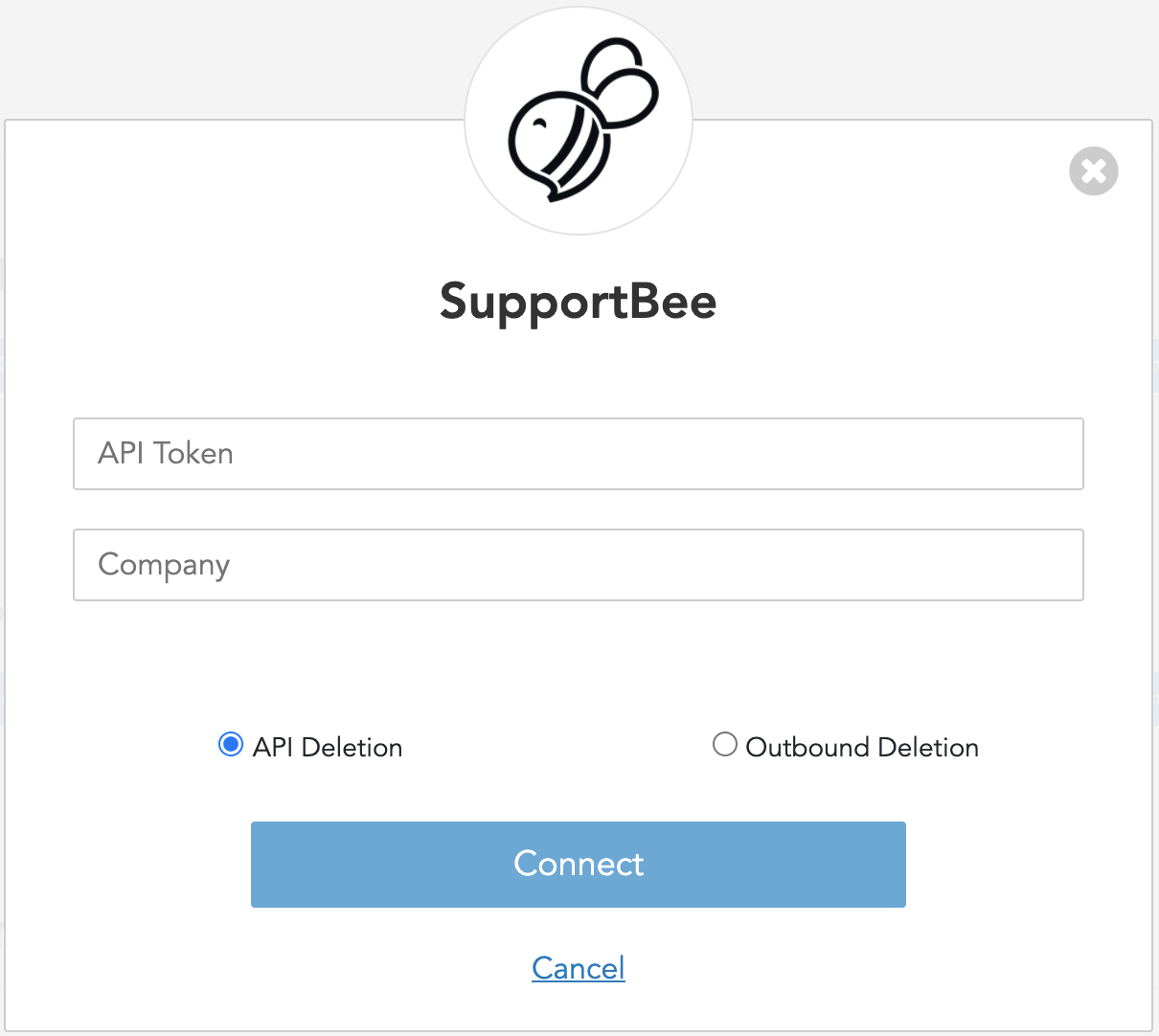
Enter API Token and Company obtained from Step 1.
-
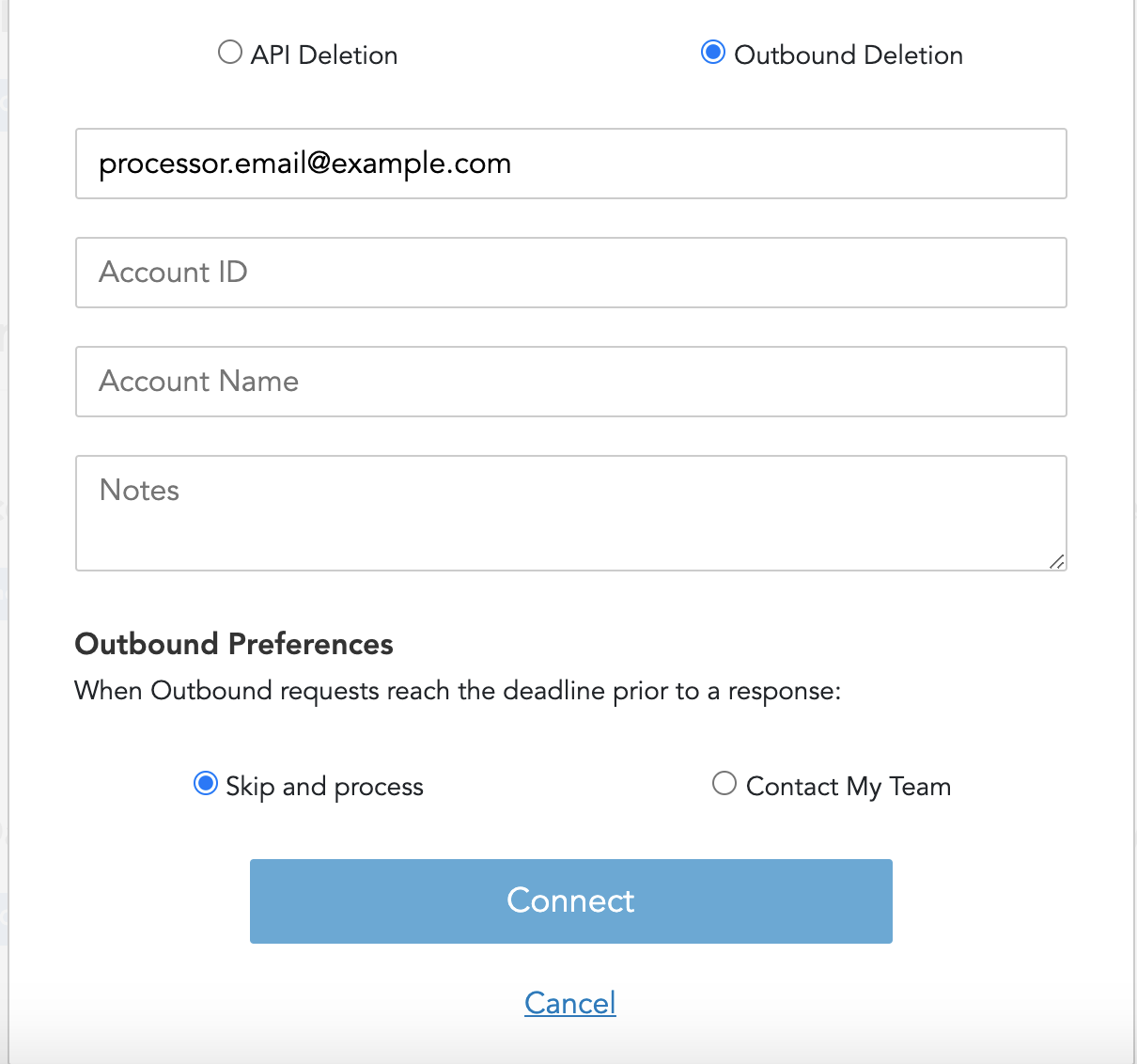
SupportBee supports both API and Outbound Deletion.
-
If you selected Outbound Deletion to configure deletion through the outbound process, add your SupportBee Internal System Owner email as Processor Email (this is the email that will receive the privacy request to execute the deletion). Optionally, you can also add additional information to help complete privacy request:
-
Account ID: your Account ID in the system
-
Account Name: your Account Name in the system
-
Notes: any notes with instructions on how to proceed with the request internally
-
-
Click Connect.

-
If there are additional SupportBee accounts to integrate follow these instructions:
-
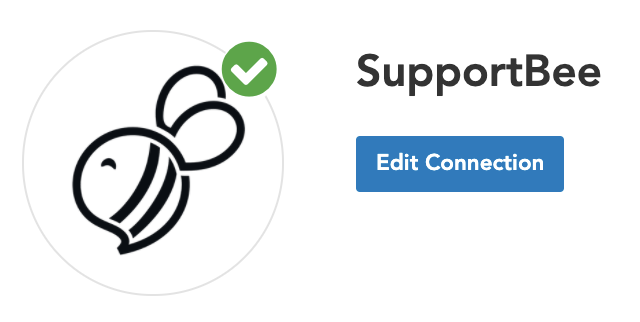
Click Edit Connection within the Integration page for SupportBee.
-
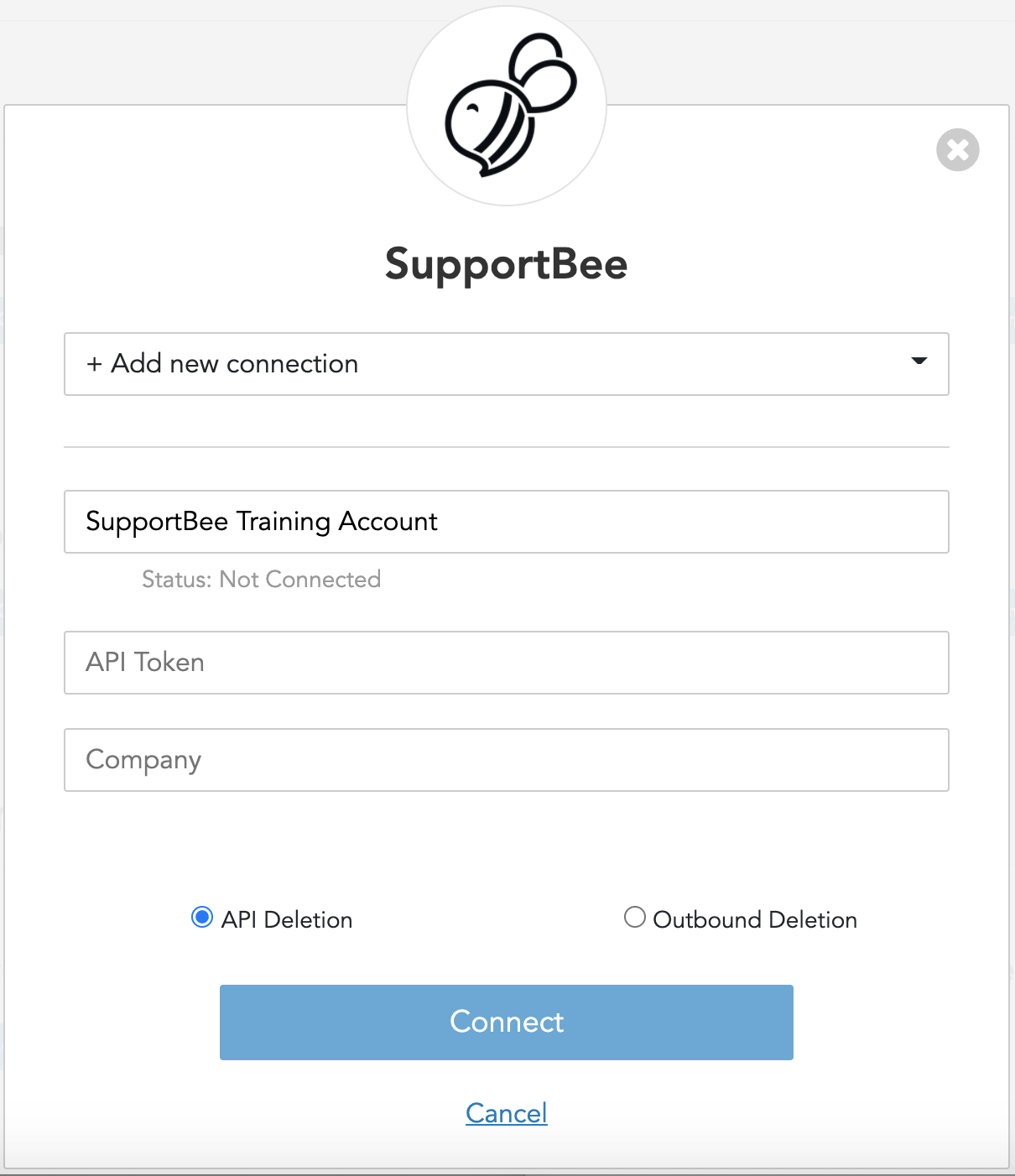
From the drop-down, select +Add New Connection.
-
Under Connection Name, enter a new name to identify this separate account (ex: SupportBee Training Account).
-
Repeat Step 1 to get API Token and Company for this new account.
-
Enter API Token and Company.
-
Select between API Deletion and Outbound Deletion.
-
Click Connect.
-
-
In DataGrail, if you have any other integrations not connected (no green check mark) please click Connect to complete the configuration and reference the Help Docs link for instructions
Disclaimer: The information contained in this message does not constitute as legal advice. We would advise seeking professional counsel before acting on or interpreting any material.