Integrating Teradata
DataGrail’s Teradata Integration provides data mapping and privacy request functionality allowing your business to do the following:
- Identify Data Subject PII stored in Teradata for automatic fulfillment of privacy requests.
- Delete Data Subject PII stored in Teradata for automatic fulfillment of privacy requests.
Connecting to Teradata
The following guides you through the process of connecting your Teradata database to the DataGrail Data Privacy Platform.
Before You Begin
-
You will need valid credentials (username/password) for a Teradata user having access to the target system
Admin credentials will work for this case but it's recommended to supply credentials of a less privileged user.
-
Host name of the Teradata database
-
The target system for the Teradata connection
-
Network access to the Teradata database from DataGrail's secure network
- All DataGrail access to your API server will originate from IP address 52.36.177.91. Verify that access to this address has explicitly been granted
Connect
- Navigate to the DataGrail Connections page
- Choose Connect on the Teradata tile
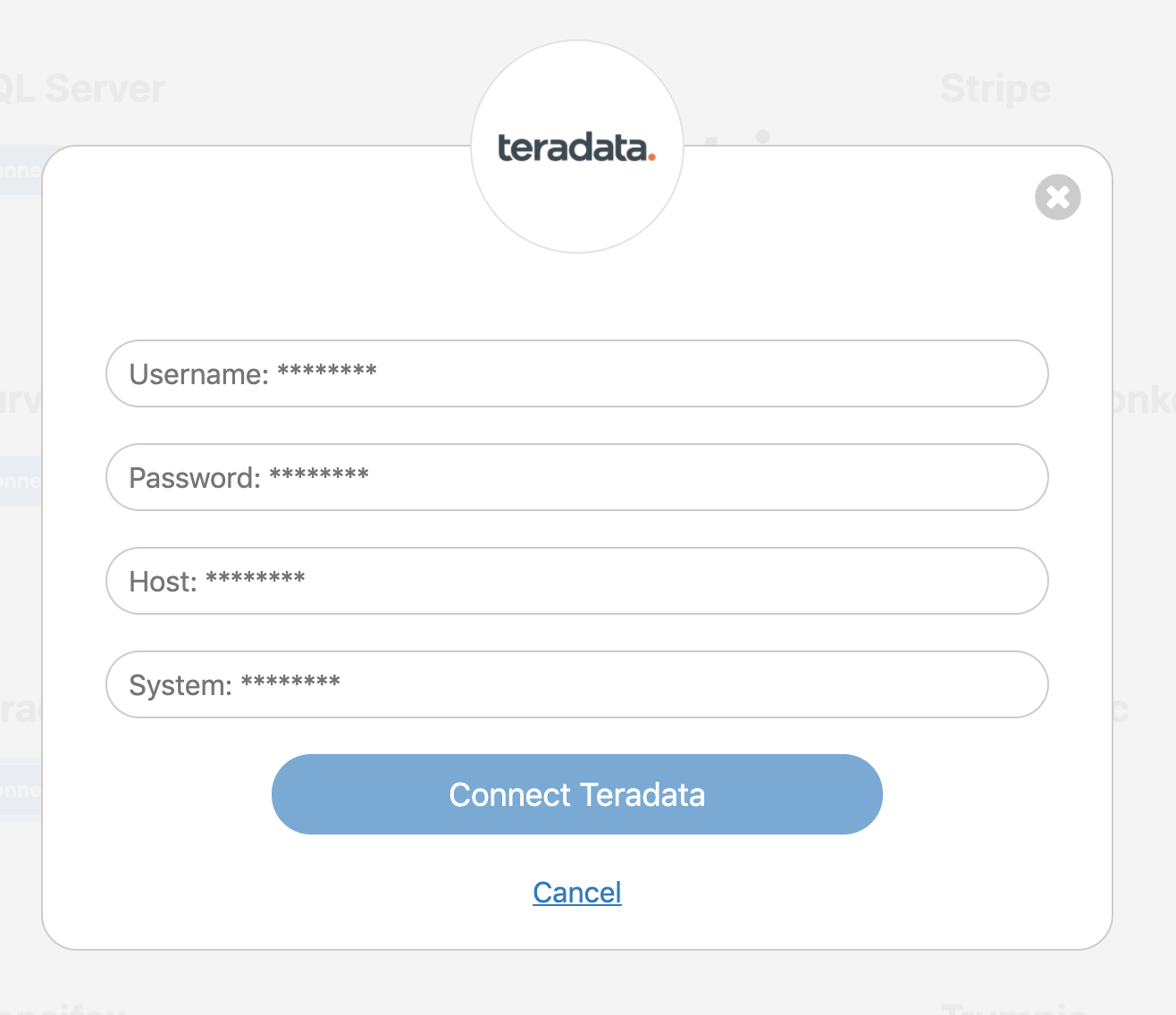
- Enter the following connection parameters
- Username and Password - credentials of a Teradata user as specified above
- Host - IP Address or DNS name of your Teradata database
- System - The Teradata system requests will be issued against
- If the connection is successful, you will see a success notification banner, and a green check mark will appear next to the Teradata integration tile.
Disclaimer: The information contained in this message does not constitute as legal advice. We would advise seeking professional counsel before acting on or interpreting any material.