Field Level Controls
Field Level Controls let you choose which fields DataGrail includes when processing Access requests for an integration. Most fields are included by default, though some are excluded by default depending on the integration. You can exclude or re-include specific fields on a per-integration basis without affecting other connected integrations.
Super Admin and Connections Manager users can configure Field Level Controls.
Field Level Controls apply to Access requests only. They have no effect on Deletion requests, including the phase where DataGrail extracts personal data for review before deletion.
Accessing Field Level Controls
The integration must be connected before the Field Level Controls tab is available.
- Navigate to Integrations in the left sidebar of DataGrail.
- Select the integration you want to configure.
- Select the Field Level Controls tab.
Viewing Configuration
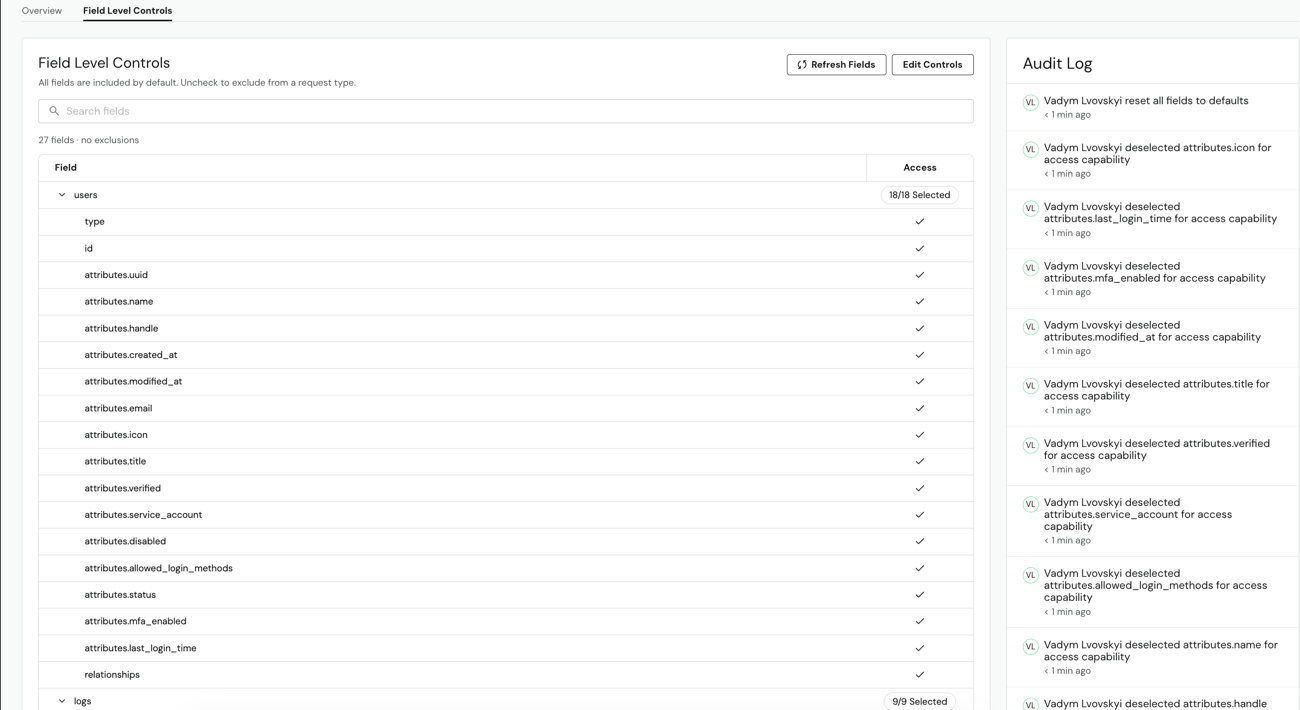
The Field Level Controls tab displays a table of fields grouped by category (e.g. users, logs), with an Access column showing whether each field is currently included in Access requests.
The table uses the following indicators to show a field's status:
| Indicator | Meaning |
|---|---|
| Checkmark | The field is included in Access requests |
| Dash | The field is excluded from Access requests |
Each category row shows a running count of selected fields, such as "17/18 Selected", so you can quickly see how many fields in that category are currently included.
Some fields are required to identify the record and cannot be excluded. Required fields appear in the table with their checkboxes selected and disabled.
The integration's schema is fetched in real time whenever you open the Field Level Controls tab. Select Refresh Fields to re-fetch the schema on demand and pick up any recent changes.
Editing Configuration
Select Edit Controls to open an editable view of the field table.
- Select Edit Controls.
- Use the search bar to locate a specific field, if needed.
- Select or clear the Access checkbox for an individual field, or select a category's checkbox to update every field within it at once.
- Select Save to review your changes.
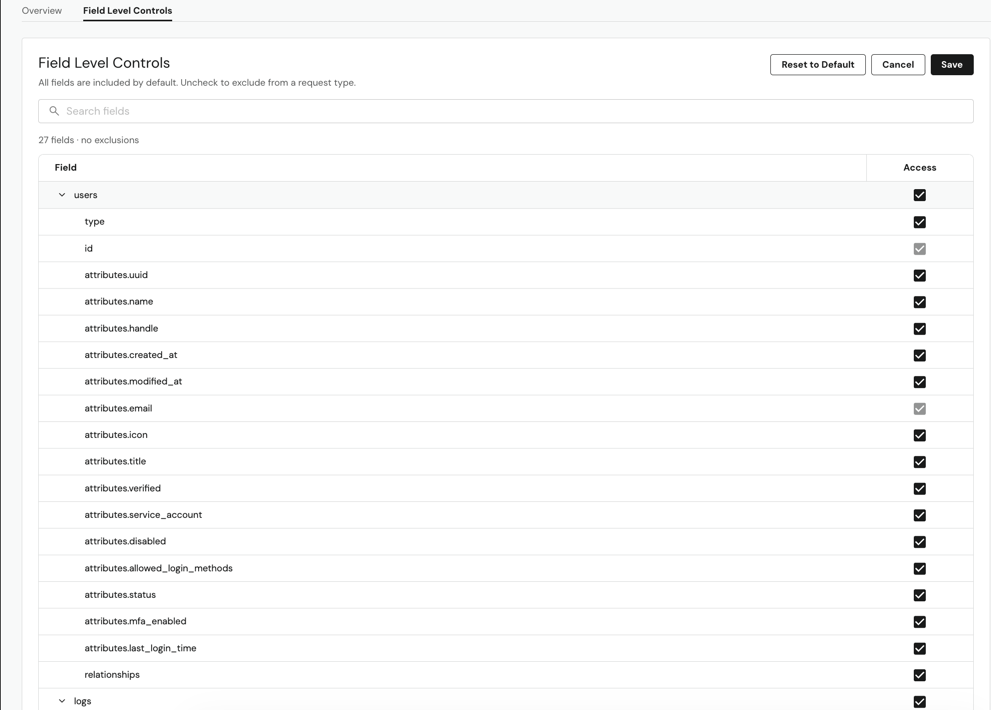
A category's checkbox reflects the selection state of the fields within it. Selecting the checkbox includes the entire category in Access requests; clearing it excludes the category, except for any required fields, which remain included. When only some fields within a category are selected, the checkbox displays an indeterminate state to reflect the partial selection.
If you want to undo your changes, select Reset to Default to restore all fields in the integration to their initial state.
Confirming Changes
Before your changes are saved, a confirmation dialog summarizes the pending updates as Enabling and Disabling lists, each with a field count.
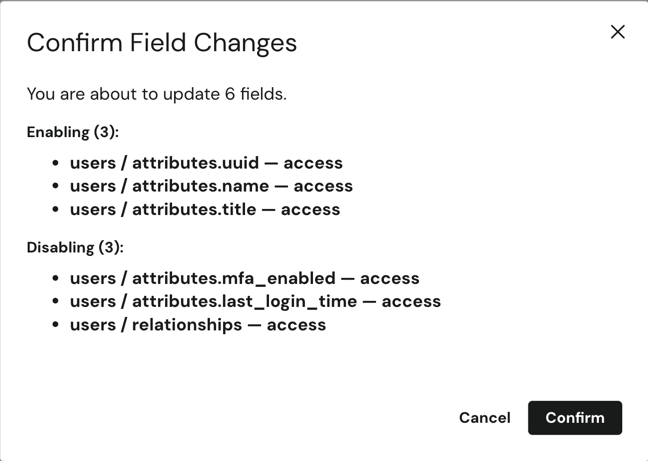
Select Confirm to apply the changes, or Cancel to return to the editable view without saving.
Field Level Control changes apply as soon as they're saved, but they do not apply retroactively. Requests that have already started processing use the configuration that was in place when they began.
Audit Log
Every change to Field Level Controls is recorded in the audit log, whether made by a user or attributed to the system, and includes the action taken, the affected field, the capability, and a timestamp. These entries are available in both the read-only and editable views. For example:
- "Emma Morgan selected
firstNamefor access capability" - "Alex Rivera deselected
phoneNumberfor access capability"
If you have SIEM Audit Log Export configured, Field Level Control changes also appear under the Integration Connection Log category.
Disclaimer: The information contained in this message does not constitute as legal advice. We would advise seeking professional counsel before acting on or interpreting any material.