Security Audit Logs
Security Audit Logs give Super Admins a searchable record of who signed in to your DataGrail account and what they were allowed or denied to do. Use it to review failed sign-ins, investigate access, and keep evidence for security and compliance audits.
What's Recorded
The audit log records two types of events:
| Type | What it captures |
|---|---|
| Login | Each sign-in attempt, including the sign-in method (Password, Google SSO, Microsoft SSO, OIDC, or SAML), whether it succeeded, and the reason it failed, such as invalid credentials, a locked account, or a sign-in from an IP address outside your IP allowlist. |
| Permission | Each decision about whether a user, API key, or Agent was allowed to perform an action, including the action, the item it was performed on, and the HTTP method. |
Every entry also includes the date, the actor, the outcome (Allowed or Denied), and the source IP address.
DataGrail keeps audit log entries for 12 months. Older entries are deleted.
Activity from Support Access sessions and DataGrail staff isn't recorded in this log.
Viewing the Log
Follow these steps to open the audit log:
- Navigate to Settings and select Security.
- Select the Audit Log tab.
Viewing the audit log requires a Super Admin role. Other roles don't see the tab.
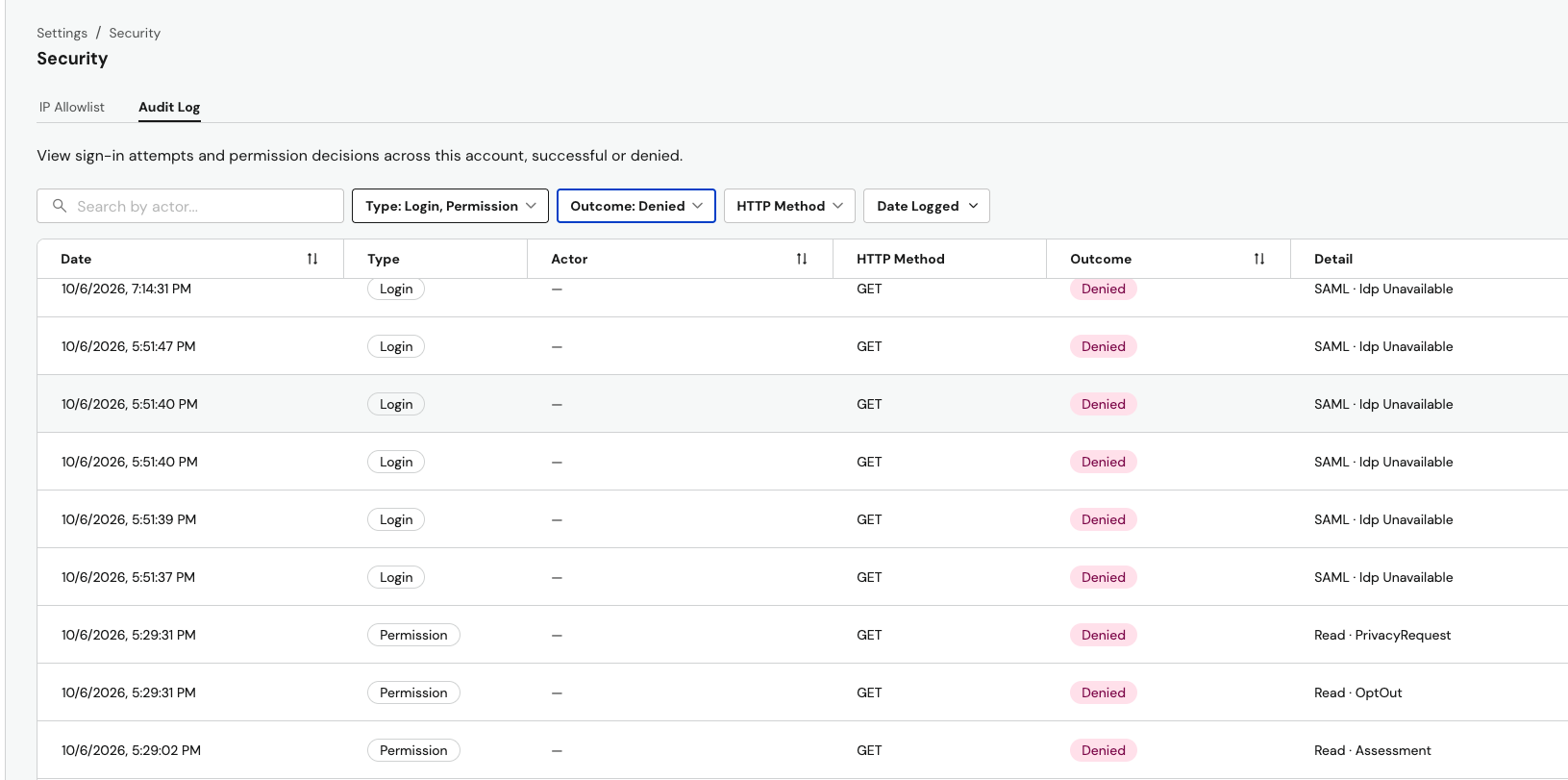
Filtering Entries
Use the search field and filters above the table to narrow the results:
| Filter | Options |
|---|---|
| Search by actor | Enter an email address, or part of one. |
| Type | Login, Permission |
| Outcome | Allowed, Denied |
| HTTP Method | GET, POST, PATCH, PUT, DELETE, HEAD, OPTIONS |
| Date Logged | Last 30 Days, Last 60 Days, Last 90 Days, or a Custom Range within the last 12 months |
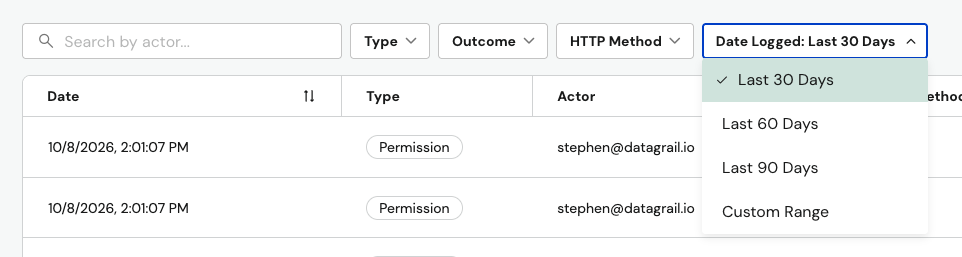
Select the Date, Actor, or Outcome column header to sort the table by that column.
Set Type to Login and Outcome to Denied to see only failed sign-in attempts. The Detail column shows the sign-in method and the reason each attempt failed.
Accessing via API
You can retrieve the same entries programmatically with the List security audit logs endpoint. This lets you pull audit data into your own reporting or monitoring tools.
- Navigate to Settings and select API Keys.
- Create a new API key, or select an existing one.
- Under Security::AuditLog, select Read.
- Call
GET /api/v2/security/audit_logswith the key, as described in API authentication.
The endpoint returns a 403 if the audit log isn't enabled for your account or the key doesn't have the Read permission. If you don't see the Audit Log tab under Settings > Security, contact support@datagrail.io.
Retrieving all entries: A request with no pagination parameters returns at most 1,000 entries, so a larger audit trail is cut off without any warning. To retrieve everything, add page_size (up to 1,000, default 50) to your request. The response metadata then includes a next_page URL. Request that URL, and repeat until a response no longer includes next_page. Add include_total=true to also receive the total number of matching entries in metadata.total.
The endpoint supports additional filters, such as sign-in method and failure reason. See the API reference for the full list.
Disclaimer: The information contained in this message does not constitute as legal advice. We would advise seeking professional counsel before acting on or interpreting any material.