Custom Domain
Your Privacy Request Center is a hosted form that lives on your own domain, so Data Subjects submit requests from an address that matches your brand (for example, privacy.example.com). You can set up and manage this domain yourself from Settings. DataGrail generates the DNS records you need, verifies your ownership, and provisions the SSL certificate automatically.
You manage your domain from the Privacy Request Center page under Settings.
Before You Start
To set up a custom domain, you will need the following:
- An Admin role in DataGrail
- Access to your organization's DNS provider to add records
- The subdomain you want to use for your Privacy Request Center
Your domain must be a subdomain that begins with privacy, privacyrequest, or preferences. You choose the prefix from a dropdown when adding the domain, so you only enter the base domain yourself.
| Prefix | Example |
|---|---|
privacy | privacy.example.com |
privacyrequest | privacyrequest.example.com |
preferences | preferences.example.com |
To use a domain that doesn't begin with one of these prefixes (for example, dsr.example.com), choose Custom domain (requires approval) from the dropdown and enter the full domain. Contact support@datagrail.io to approve it before you set it up—an unapproved custom domain is rejected with isn't a domain the Privacy Request Center can serve. A custom domain that already begins with one of the prefixes above doesn't need approval.
Adding A Domain
To begin, add the domain you want to use for your Privacy Request Center.
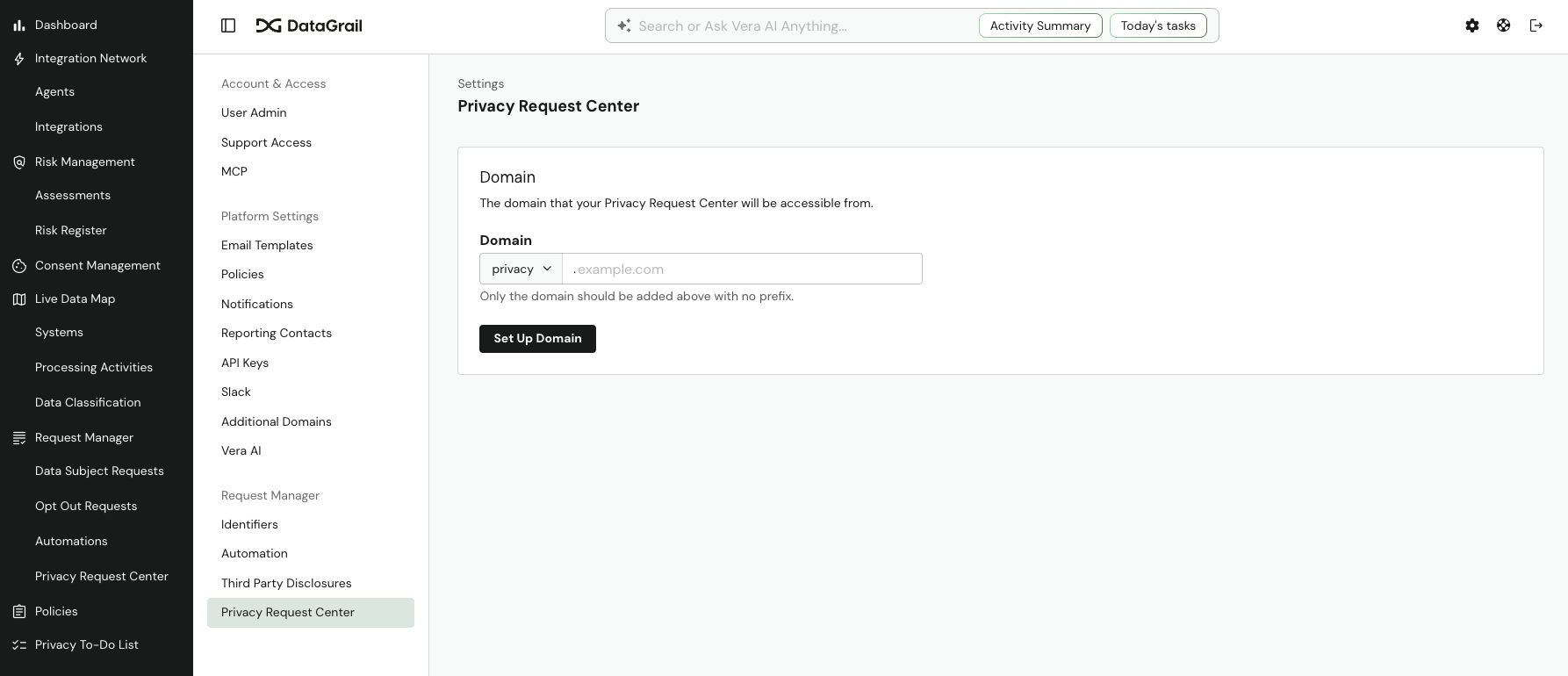
- Go to Settings and select Privacy Request Center.
- Select a prefix (privacy, privacyrequest, or preferences) from the dropdown, or Custom domain (requires approval) for an approved custom domain.
- Enter your base domain in the Domain field—only the domain, with no prefix (for example,
example.com). For a custom domain, enter the full domain instead (for example,dsr.example.com). - Optionally, add additional domains.
- Select Set Up Domain.
After you add the domain, DataGrail generates the DNS records you need and begins provisioning your SSL certificate.
Additional Domains
Your Privacy Request Center can also be reachable from up to 5 additional domains, such as a second brand's domain (for example, preferences.example-brand.com). All of your domains share one SSL certificate, and each one needs its own DNS records.
- Under Additional domains, select Add Domain.
- Choose a prefix or Custom domain (requires approval), and enter the domain the same way as your main domain.
- Repeat for each additional domain. To remove one, select the X next to it.
Each additional domain follows the same rules as your main domain, including approval for custom domains. An additional domain can't be listed twice, match your main domain, or already be in use by another organization.
You can add or remove additional domains only while setting up a domain. To change them on a live domain, replace the domain.
Adding DNS Records
Once your domain is added, the DNS Records section lists two CNAME records to add at your DNS provider. Both records are required. If you added additional domains, each domain has its own two records, listed in a separate table.
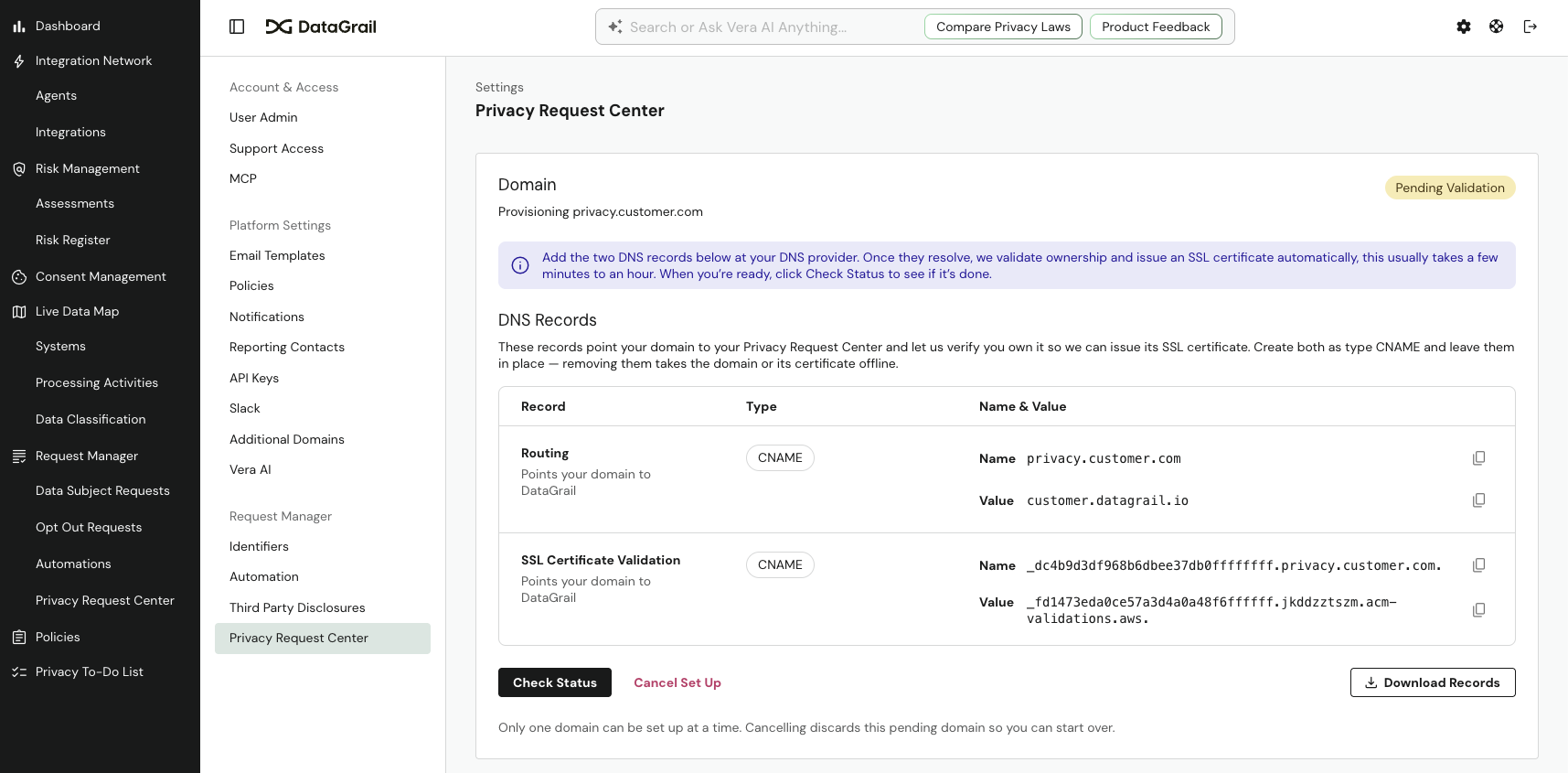
| Record | Type | Purpose |
|---|---|---|
| Routing | CNAME | Points your domain to your Privacy Request Center |
| SSL Certificate Validation | CNAME | Lets DataGrail verify you own the domain and issue its SSL certificate |
You can copy each value individually, or select Download Records to export the records as a CSV file to share with whoever manages your DNS.
- Copy the Name and Value for each record, or select Download Records for a CSV.
- At your DNS provider, add both records exactly as shown, using the type CNAME.
- Leave both records in place—removing either one takes your domain or its certificate offline.
The Routing and SSL Certificate Validation records must stay in your DNS permanently. DataGrail uses them to keep your domain reachable and to automatically renew your SSL certificate. Removing them will take your Privacy Request Center offline.
DataGrail issues your SSL certificate through Amazon. If your domain uses CAA records—a DNS setting that limits which certificate authorities can issue certificates for your domain—they must allow Amazon, or the certificate cannot be issued and verification will fail. Most domains don't use CAA records, so you can usually skip this step.
To check, run dig example.com caa against your base domain in a terminal, or use any online CAA lookup tool. If nothing is returned, no action is needed. If records are returned and none of them reference an Amazon certificate authority (amazon.com, amazontrust.com, awstrust.com, or amazonaws.com), add a record at your DNS provider with the type CAA and the value 0 issue "amazon.com".
Add the CAA record to your base domain (for example, example.com), not to privacy.example.com. Your Privacy Request Center subdomain already has a Routing CNAME record, and DNS doesn't allow other records on the same name as a CNAME.
Verifying The Domain
After you add the records at your DNS provider, DataGrail verifies them and issues your SSL certificate.
Select Check Status to see whether verification is complete. The page also refreshes automatically about every 30 seconds, so you can leave it open while DNS changes take effect. Verification usually takes a few minutes, but can take up to an hour depending on how quickly your DNS provider propagates the records.
When you have additional domains, each domain's table shows whether DataGrail has verified it:
| Domain Status | Meaning |
|---|---|
| Verified | The domain's records are verified |
| Waiting | DataGrail hasn't verified the domain's records yet |
| Failed | The domain's records could not be verified |
Your SSL certificate is issued only after every domain is verified. If some domains are verified and others are still waiting when you select Check Status, DataGrail names the ones still waiting so you know which records to check. Domain statuses update when you select Check Status.
Your domain's overall status is shown as a badge:
| Status | Meaning |
|---|---|
| Pending Validation | DataGrail is waiting to detect your DNS records and issue the certificate |
| Ready to Activate | Your records are verified and the certificate is issued—you can now make the domain live |
| Active | The domain is live for your Privacy Request Center |
| Failed | The records could not be verified or the certificate could not be issued—fix the cause and start over |
Starting Over
A Failed domain doesn't recover on its own. Selecting Check Status or waiting for the page to refresh won't change its status. Fix the cause first (see Troubleshooting), then start over:
- On the failed domain, select Start Over.
- In the Cancel Domain Setup window, select Cancel Setup.
- Select the same prefix, enter the same domain and any additional domains, and select Set Up Domain.
If you set up the same domain again, its DNS records stay the same, so you don't need to change the records you already added. You can set up a domain only once every 5 minutes. If you see Please wait up to 5 minutes before setting up another domain, wait a few minutes and select Set Up Domain again.
Activating The Domain
Once the status shows Ready to Activate, you choose when to switch your Privacy Request Center to the new domain.
Select Make Active to switch your Privacy Request Center to the new domain. This can take a few minutes. When it finishes, the domain shows as Active with its SSL certificate active and set to auto-renew. Select Open to view your live Privacy Request Center.
Replacing A Domain
You can move your Privacy Request Center to a different domain at any time without downtime.
- On the Privacy Request Center settings page, select Replace Domain.
- Add the new domain and its DNS records, following the same steps above.
- When the new domain is verified, select Make Active.
Your current domain stays live the whole time—the new one does not take over until you select Make Active. Once you activate the new domain, DataGrail decommissions the previous one automatically.
When you replace a domain, its additional domains are filled in for you. Only the additional domains you keep are served once the new domain is active—remove one to stop serving it.
SSL Certificates
DataGrail provisions and manages your SSL certificate for you—there is no manual certificate setup. As long as the Routing and SSL Certificate Validation records remain in your DNS, your certificate renews automatically before it expires. If you remove the records, the certificate cannot renew and your Privacy Request Center will go offline.
Availability
The Availability card at the top of the Privacy Request Center settings page controls whether your hosted portal is publicly reachable. Use the toggle to turn it Enabled or Disabled without changing your domain or DNS records—both take effect immediately.
- On the Privacy Request Center settings page, find the Availability card.
- Select the toggle. Enabling takes effect right away; disabling opens a confirmation window—select Disable to confirm or Keep Enabled to cancel.
When you disable your Privacy Request Center, visitors can no longer reach it, including anyone with a direct link. Your domain and DNS records stay in place, so re-enabling restores the portal without any additional setup.
Troubleshooting
If you run into issues while setting up your domain, review the following.
Verification failed or the records can't be found
DataGrail could not find your CNAME records. Confirm that both records are added at your DNS provider and that each Name and Value matches exactly what is shown—even a small difference will prevent verification. DNS changes can also take time to propagate. Once the records are correct, start over to try again.
One of my domains still shows Waiting
Your SSL certificate isn't issued until every domain is verified, so a single domain can hold up the rest. Check that the domain's Routing and SSL Certificate Validation records are added at its DNS provider exactly as shown. Each domain can be managed by a different DNS provider or team. Then select Check Status again. If every domain isn't verified within 72 hours, the setup fails with Timed out waiting for certificate validation and you need to start over.
Isn't a domain the Privacy Request Center can serve
This error means the domain doesn't begin with privacy, privacyrequest, or preferences, and hasn't been approved as a custom domain. Use one of these prefixes, or contact support@datagrail.io to approve the custom domain before you set it up.
ACM certificate failed: CAA_ERROR
This error means your domain has CAA records that don't allow Amazon to issue certificates. DataGrail always issues your SSL certificate through Amazon, and the certificate authority can't be changed, so you must update your CAA records to allow Amazon.
- Run
dig example.com caaagainst your base domain (or use an online CAA lookup tool) to see your current CAA records. - At your DNS provider, add a record to your base domain (for example,
example.com) with the type CAA and the value0 issue "amazon.com". Don't add it toprivacy.example.com—that name already has a Routing CNAME record, and DNS doesn't allow other records alongside a CNAME. - Keep your existing Routing and SSL Certificate Validation records in place. They don't change when you set up the same domain again.
- Start over with the same domain.
If your CAA records already reference an Amazon certificate authority (amazon.com, amazontrust.com, awstrust.com, or amazonaws.com), no CAA change is needed.
My records look right, but the domain still won't validate
Some DNS providers—including GoDaddy—automatically append your base domain to the Name of every record you add. If you paste the full Name from DataGrail, your record can end up doubled (for example, privacy.example.com.example.com), and verification will fail.
If your provider does this, enter only the subdomain portion in the Name field—leave off your base domain—so the provider appends it for you. Check the record after saving to confirm it resolves to the exact Name shown in DataGrail.
Disclaimer: The information contained in this message does not constitute as legal advice. We would advise seeking professional counsel before acting on or interpreting any material.