Creating a Custom Assessment Template
DataGrail's Template Editor allows you create custom risk assessment templates to meet your organization's use case, whether that is evaluating new tools or conducting DPIAs on high risk processing activities.
The Template Editor allows you to build custom Risk Assessment Templates with the following functionality:
- Multiple Question Types: Choose from multiple question types, including multi-select, radios, drop-downs and more.
- Pre-filled Answers: Auto-populate fields from DataGrail's Intelligence Library or from existing system reports to streamline reporting.
- Conditional Logic: Show or hide questions and sections based on one or more earlier answers, or automatically create a follow-up assessment or send an email when conditions are met.
Getting Started
To get started, navigate to the Risk Assessments page and select the Templates tab. From here, you can create a new template for your use case.
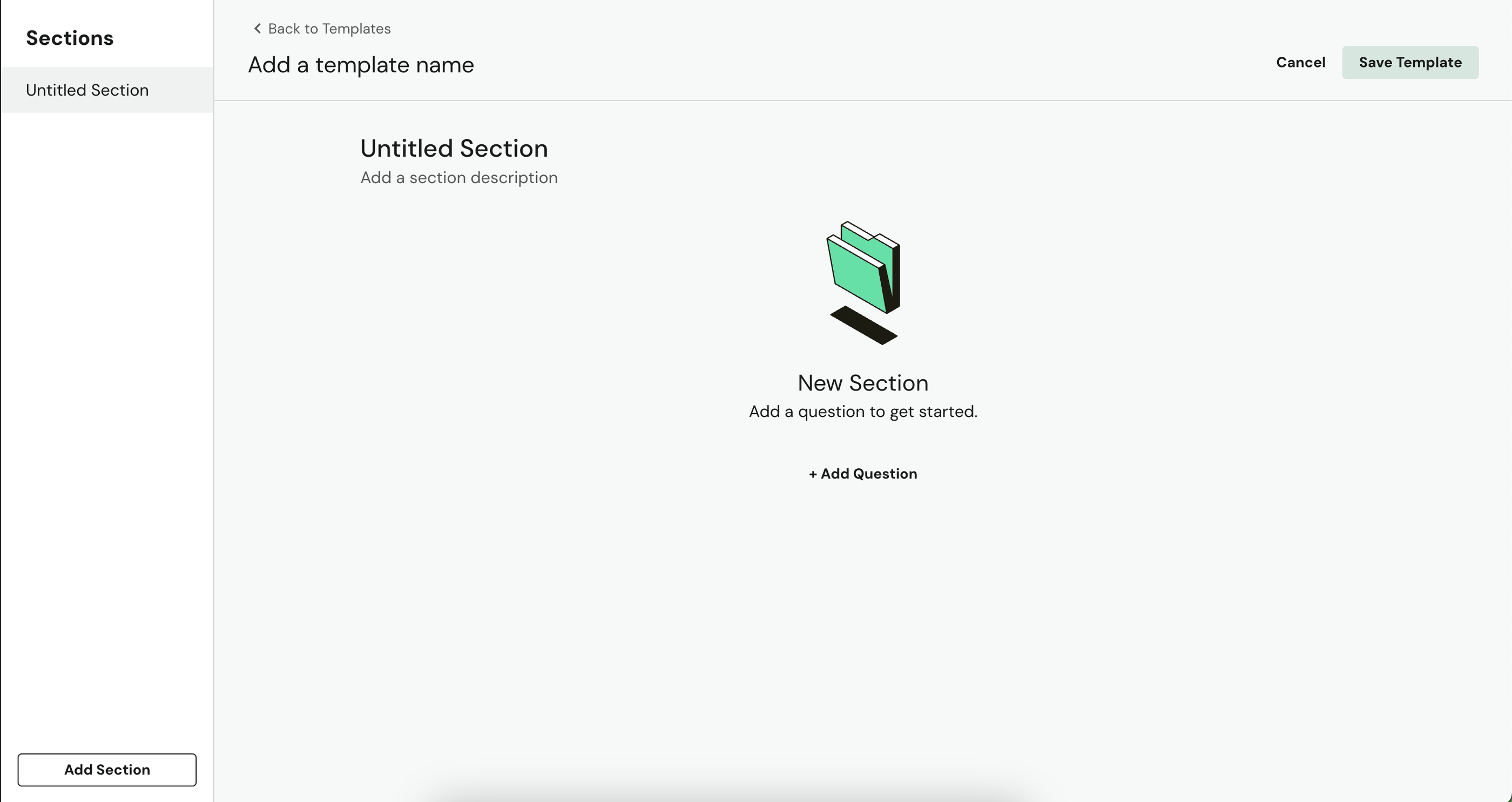
When you have completed adding the relevant Sections, Questions, and Conditional Questions (Optional) to your template, select Save Template. The newly-created template will now be visible when you go to create a new Assessment.
Template Settings
Each template has a Settings panel where you can set a Default Approver and one or more Owners. Select Settings in the Template Editor to open the panel, then select Save Template to apply your changes.
- From the Template Editor, select Settings.
- Under Default Approver, select the user who should approve assessments created from this template. Only active Super Admin and Risk Monitor Admin users are available.
- Under Owner(s), select one or more users to record as owners of the template. Any active user is available.
- Close the panel and select Save Template.
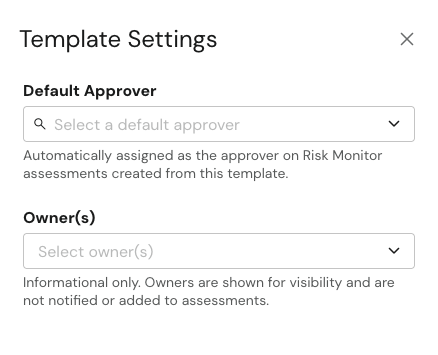
The Default Approver is automatically assigned as the approver on every Risk Monitor assessment created from this template, and that user is notified. Owners are informational only: they're shown for visibility and are never notified or added to assessments.
Both the Default Approver and Owner(s) also appear as columns on the Templates tab.
Sections
Assessment Templates are driven by sections. A section is a collection of Questions that help provide an understanding to a particular aspect of your assessment.
As an example, the following sections are present in the standard DPIA Template:
- General Information
- Need for DPIA
- Consultation Process
- Data Processing Content
- Benefits of Processing
- Lawfulness & Fairness
- Privacy Rights & Expectations
- Protective Measures
- Special Topics
- Risks & Mitigations
When creating an Assessment Template, it is helpful to first outline your sections before adding questions.
Create your first section by selecting Add Section in the bottom-left corner of the page. Once your section is named, you can start to add Questions.
Questions
To populate your sections with questions, select Add Question from the center of the page.
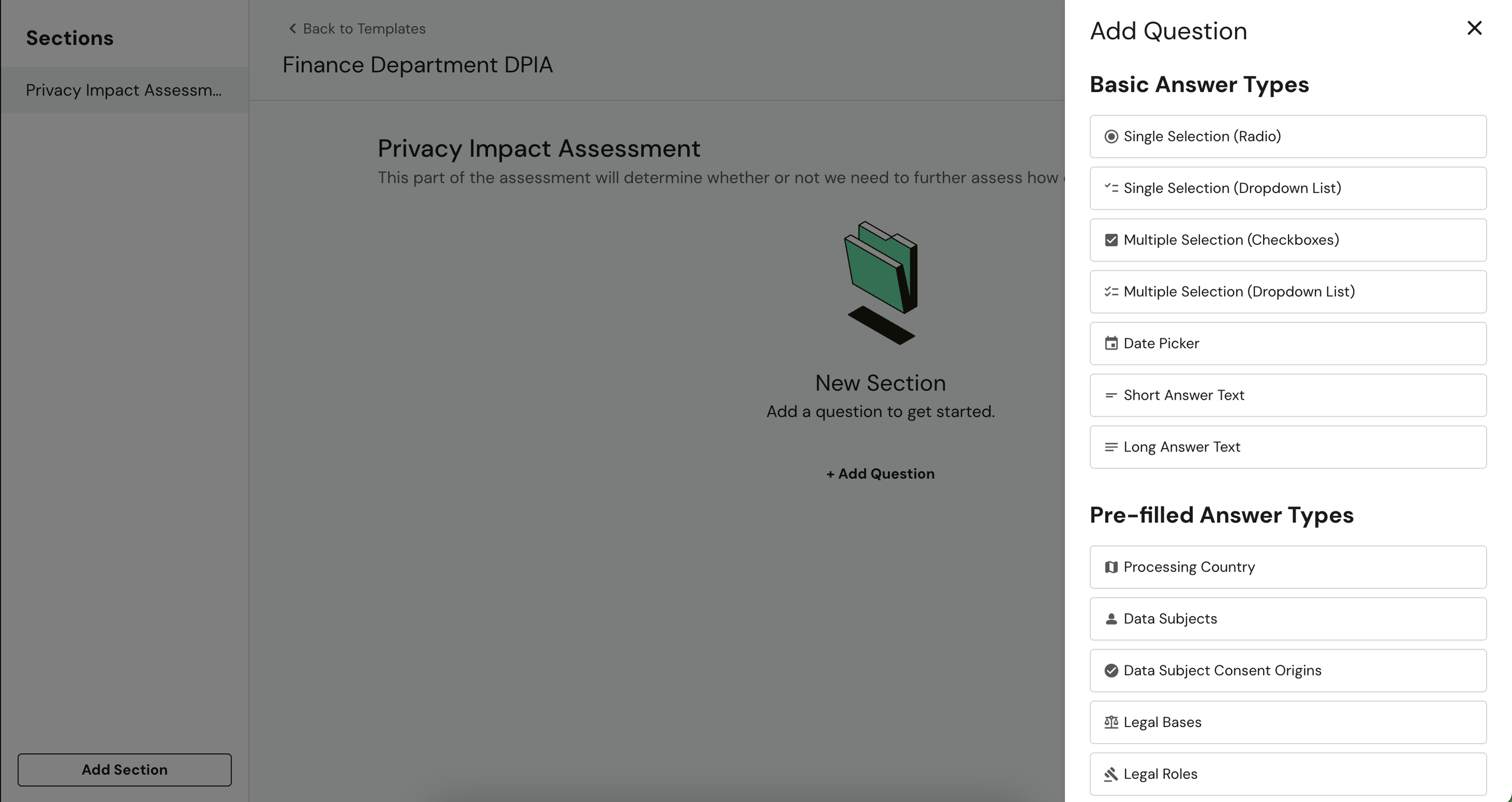
DataGrail provides two different questions types to meet a broad variety of use cases: Basic Answer Types and Pre-filled Answer Types
Basic Answer Types
Basic Question Answer Types always require input from a contributor completing an Assessment.
Available Basic Answer Types include:
- Single Selection (Radio)
- Single Selection (Dropdown List)
- Multiple Selection (Checkboxes)
- Multiple Selection (Dropdown List)
- Date Picker
- Short Answer Text
- Long Answer Text
Pre-filled Answer Types
Pre-filled Answer Types automatically pre-fills questions with existing system metadata from the DataGrail Intelligence Library or from your own system inventory.
If you have completed a report on a system in your inventory, that data will pre-fill the assessment.
Available Pre-filled Answer Types include:
- Processing Country
- Data Subjects
- Data Subject Consent Origins
- Legal Bases
- Legal Roles
- Personal Data Categories
- Personal Data Origins
- Purposes of Processing
- Protective Measures
Conditional Questions
Collecting the right responses to a DPIA or Risk Assessment is a complex task. There's a balancing act between knowing when to ask for additional information and making the assessment as easy to complete as possible for business stakeholders.
Conditional Questions let you show or hide a question based on one or more conditions, so contributors only see it when it's relevant.
A condition can only be based on a question with a fixed set of possible answers — a Basic Answer Type other than Date Picker, Short Answer Text, or Long Answer Text, or a Pre-filled Answer Type. Free-text and date questions can't be used to trigger a condition.
- Select a question that comes after at least one eligible question in the template, then select Add Condition.
- Choose whether the question should Show or Hide when the conditions below are met.
- For each condition, choose the trigger question, an operator (is or is not), and one or more answers. Select or to add another condition to the same group, or and to start a new group.

- Select Apply Condition to save.
A question with a condition applied to it shows a Conditional label. Depending on the effect you chose, the question is hidden until the condition is met (Show) or visible until the condition is met (Hide). A condition can only reference an earlier question in the template — you can't base a condition on a question that comes after it.

How conditions combine: Conditions joined by or stay in the same group — the group is met if any one of them is met. Choosing and starts a new group, and every group must be met for the condition to apply. For example, a condition built as A, then and B, then or C is met when A is true, and either B or C is also true.
An is not condition isn't met until the trigger question has been answered — it never fires while the trigger is still blank. On a Show condition, this means the question stays hidden until the trigger has an answer that doesn't match. On a Hide condition, the question stays visible until then.
Section Rules
Conditions can also target an entire section, so every question in it shows or hides together. Once a rule is added, the section header shows a rule count, and a summary of the rule appears below the section description with a Manage link to edit it.

Select Add Section Rule in the section header to create one. Section rules work the same way as Conditional Questions — choose Show or Hide and build one or more conditions — except a section rule's conditions can only reference questions in an earlier section. The first section in a template can never have a rule, since there's no earlier section to reference.

Select Apply Condition to save the section rule.
Assessment Conditions
Instead of showing or hiding a question or section, a condition can automatically create a related assessment or send an email. These effects run only when the assessment is approved with the condition met — not while a contributor is still filling it out, and not on submission alone. From the template editor, select Add Assessment Condition at the top of the page, then choose Create Assessment or Send Email for the rule's effect.
You can add more than one of these conditions to a template — each appears as its own numbered rule, and each can use a different effect.
Automatically Creating Assessments
Creating a related assessment is useful for triggering a more detailed assessment — like a full DPIA — once earlier answers indicate it's needed.
- With Create Assessment selected, choose the template to use for the new assessment under Assessment Configuration.
- Optionally, turn on Invite contributors from the original assessment to carry over the same contributors, and Include the same systems as the original assessment to carry over the same systems.
- Build one or more conditions, the same way you would for a Conditional Question.

- Select Apply to save.
If approving the assessment will create a new one, you'll see a notice before you confirm. Once the new assessment exists, admins receive an email with a link to it.
An assessment that was automatically created this way can't itself trigger the creation of another assessment — even if its own template has a condition that would otherwise be met by its answers. Chains are capped at one hop, so a multi-step cascade (e.g. Screening → DPIA → Vendor Review) needs each step after the first to be created manually.
Sending an Email
Sending an email is useful for routing specific assessments to the people who need to act on them — like notifying a compliance team the moment a particular kind of review is approved.
- With Send Email selected, enter one or more addresses under Email Recipients, separated by commas.
- Select an Email Template from the dropdown, or select Add New Template to create one. See Email Templates for details on authoring template content.
- Optionally, turn on BCC the assessment creator to also send a copy to whoever created the assessment.
- Build one or more conditions, the same way you would for a Conditional Question.
- Select Apply to save.
Disclaimer: The information contained in this message does not constitute as legal advice. We would advise seeking professional counsel before acting on or interpreting any material.