Getting Started With Risk Assessments
DataGrail makes it easy to start creating Risk Assessments and collaborating with your team to better understand the privacy risk in your organization.
DataGrail User Roles
Only the following will have access to the Risk Assessments tab without being added as a Contributor to an assessment:
- Super Admin
- Risk Monitor Admin
- Assessment Creator
- Assessment Requester
Users with only the Assessment Creator, Assessment Requester, or Assessment Contributor role see a simplified view of DataGrail limited to their assessments, without the side navigation or other product areas.
An Assessment Requester has every Assessment Creator capability except approval authority: they can't approve an assessment, submit one for approval, or assign an approver. Use this role when the people who request assessments need to stay separate from the people who approve them.
Workflow
In the Risk Assessments tab of DataGrail, you will find:
- All previously created assessments and their associated: identifier, name, state, contributor assignee, personal data likelihood, percentage of completion, due date, renewal date, and the approving user
- The ability to create a new assessment
- The total count of all created assessments
All previously created assessments will be sorted in ascending order based on creation date, with the earliest assessment created displaying last on the list.
Select Download CSV on the Risk Assessments page to download a CSV export of all Assessments created in DataGrail.
Creating New Assessments
To get started, select Create New Assessment and choose the Assessment Template that best aligns with the risk or activity being documented. There are a variety of prebuilt templates available by default for DPIAs, AI Risk Assessments, and more! DataGrail also allows you to create a Custom Assessment Template for more unique use cases.
After selecting a Template, you will be prompted to enter the following details:
- Assessment Name
- System(s)
- Processing Activity (optional)
- Due Date (optional)
- Renewal Cycle
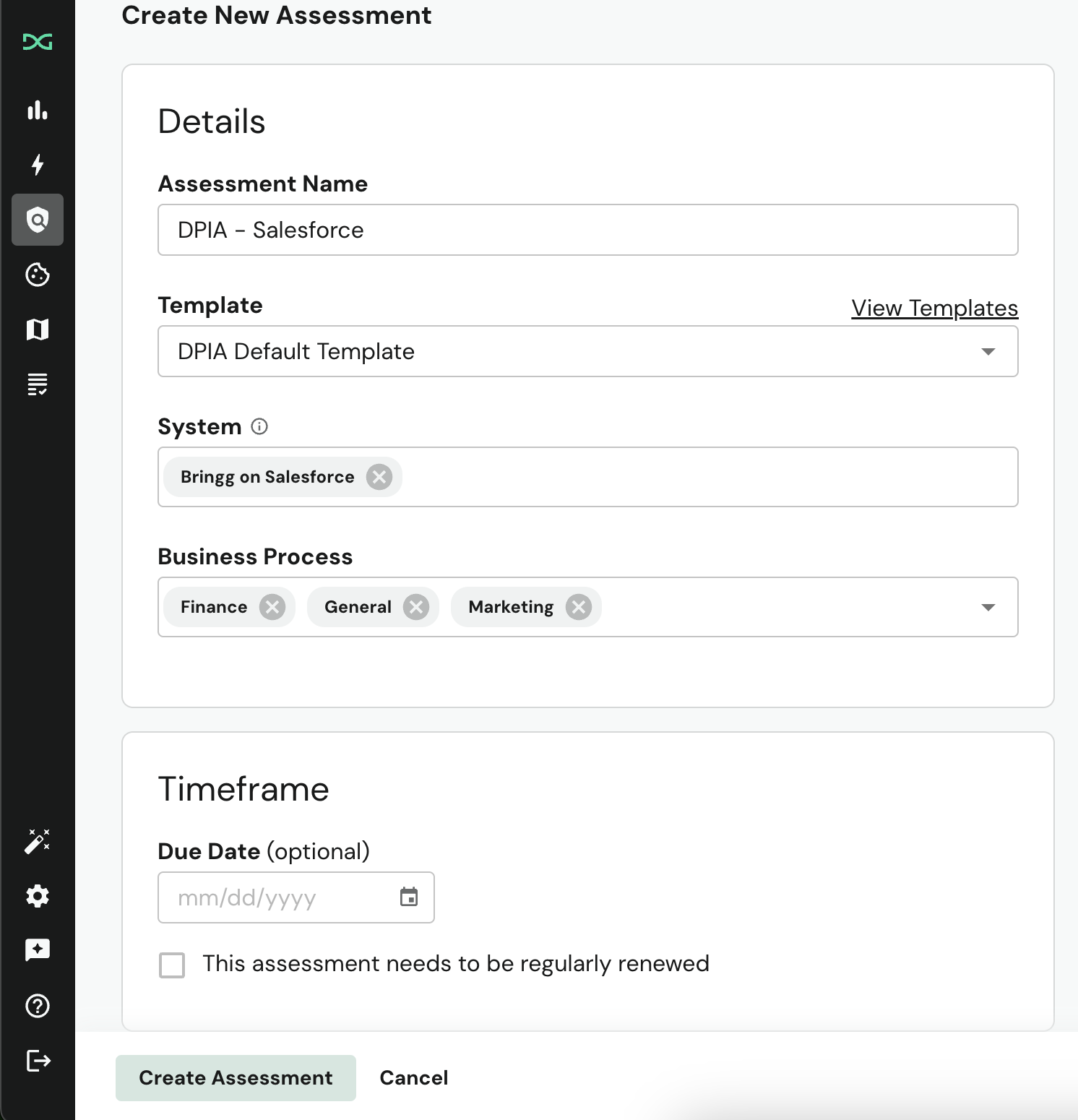
With the Assessment created, you can start to Add Contributors, who can help populate it.
Assessment Identifiers
Each assessment is automatically assigned a unique identifier in the format RA-N (e.g., RA-1, RA-2, RA-3). This identifier appears below the assessment name in the table, overview, and form views.
Assessment identifiers serve as a stable, human-readable reference for your assessments. They are especially useful for disambiguating between assessments that share similar or identical names (e.g., multiple annual DPIAs for the same system). You can use them to:
- Quickly reference a specific assessment in conversations or audit trails
- Navigate directly to an assessment using the identifier in the URL (e.g.,
/risk/assessments/RA-42-...) - Search for assessments by identifier in the table filter
Identifiers are permanent and never change, even if the assessment is renamed or versioned. Each new version of an assessment receives its own unique identifier.
Adding Contributors
A Contributor is someone who has information on the relevant system that will help populate the Assessment. Contributors can be internal to your business, like a system owner, or external to your business, such as a contact for the vendor.
To add a Contributor, select Add New Contributor from your newly-created Assessment, then choose one of the following options.
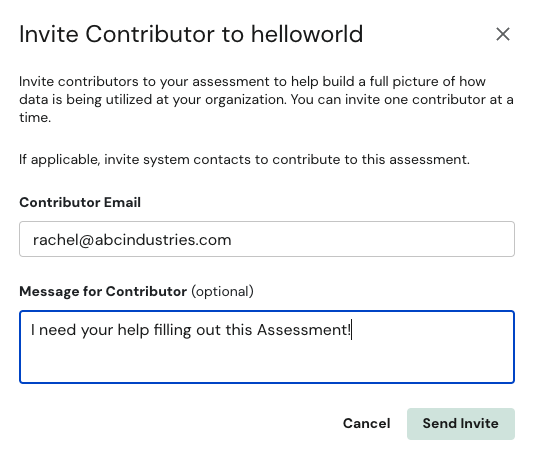
Contributor: Adds an existing DataGrail user to the assessment. Enter the user's email address — if it matches an active user on your account, they're granted the Assessment Contributor role (if they don't already have assessment access) and can view and fill in the assessment by logging into DataGrail directly. If the email doesn't match an existing user, you're prompted to send an External Contributor invite instead.
External Contributor: Sends an email to the invitee with a link to view and edit the assessment, along with an optional message from the user who sent the invite. External Contributors don't need a DataGrail account and access the assessment through the emailed link.
A Contributor can only be added to an Assessment in the Not Started or In Progress state.
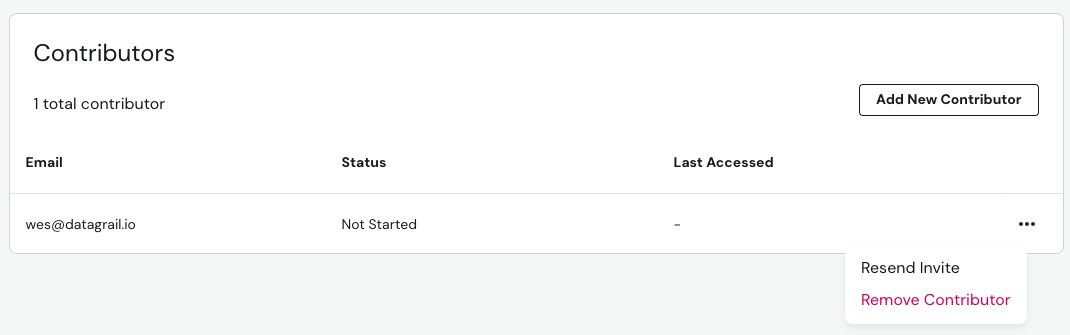
Existing Contributors (who have not completed the Assessment) can be removed, or, for External Contributors, resent the invitation, by selecting the ellipsis on the far right.
Comments
Comments let you and your contributors discuss specific questions and sections without leaving the assessment. Select the Comment button on any question or section to open the comment panel, then add your comment, reply to an existing one, or @-mention a user or contributor to bring them into the conversation.
Comment Notifications
When someone interacts with a comment, DataGrail sends an email to the relevant person so they can respond without checking the assessment manually. Each email links directly to the comment.
The following interactions trigger an email:
| Interaction | Who Is Notified |
|---|---|
| Reply | The author of the comment being replied to |
| @-mention | The user or contributor who was mentioned |
| New comment | The assessment owner |
Both DataGrail users and external contributors receive these emails. When a contributor selects the link in their email, they are taken straight to the comment — no separate login is required. For security, each link is valid for 7 days, and links stop working as soon as a contributor is removed from the assessment.
DataGrail users can turn comment emails on or off using the Assessment Emails setting in the Notifications section of the Settings page. Contributors always receive comment emails.
Assignments
Assignments let you delegate an individual question or section to the person best positioned to answer it. Select the Assign button on any question or section to open the assignment panel, then choose the user or contributor you want to assign. The same item can be assigned to more than one person, each as a separate assignment.
You can assign an item to any user or contributor on the assessment. Once an assignment exists, the question or section displays an assignment count so everyone can see what has been delegated and to whom.
Assignment Statuses
Each assignment carries a status that reflects where it stands:
| Status | Meaning |
|---|---|
| Open | The assignment is active and awaiting completion |
| Resolved | The assignee has marked the assignment complete |
| Cancelled | The assignment was withdrawn and no longer needs to be completed |
The assignee — whether a user or a contributor — can select Resolve to mark their assignment complete, and Unresolve to reopen it. The user who created the assignment, along with Risk Monitor Admin users, can Cancel an assignment at any time.
Assignment Notifications
DataGrail sends an email for each assignment event so the relevant person is notified without checking the assessment manually. Each email links directly to the assigned question or section.
The following events trigger an email:
| Event | Who Is Notified |
|---|---|
| Assignment created | The person assigned to the item |
| Assignment resolved | The user who created the assignment |
| Assignment cancelled | The person who was assigned to the item |
Both DataGrail users and external contributors receive these emails. When a contributor selects the link in their email, they are taken straight to the assignment — no separate login is required.
DataGrail users can turn assignment emails on or off using the Assessment Emails setting in the Notifications section of the Settings page. Contributors always receive assignment emails.
Weekly Emails
At the start of each week, DataGrail sends two summary emails to help you keep assessments moving. Both arrive on Monday mornings, and you can turn each one on or off independently in the Notifications section of the Settings page.
Assessment Summary
This email gives you an at-a-glance overview of the active assessments across your account, showing each assessment's name, status, and due date so you can see where everything stands without opening them one by one. It's aimed at the people who manage assessments and is on by default for the Super Admin, Risk Monitor Admin, and Live Data Map Admin roles. Each assessment links directly to its Overview tab. You only receive this email while your account has active assessments to report.
DataGrail users can turn this email on or off using the Assessment Weekly Digest setting in the Notifications section of the Settings page.
Your Outstanding Work
This email is personalized to you. It lists only the assessments where you still have something to do, each linking straight to the assessment.
An assessment appears in your list when:
| Item | When It Appears |
|---|---|
| Sections or questions to complete | You have an incomplete assignment on an active assessment |
| Awaiting your approval | You are the assigned approver and the assessment is ready for your approval |
If you have no outstanding work, you don't receive this email that week.
DataGrail users can turn this email on or off using the Assessment Pending Work Digest setting in the Notifications section of the Settings page.
Assessment Context
After creating an assessment, you can provide additional context and supporting documentation to help Vera generate more accurate suggestions when auto-filling assessment responses. The Assessment Context panel is on the Overview tab of any assessment.
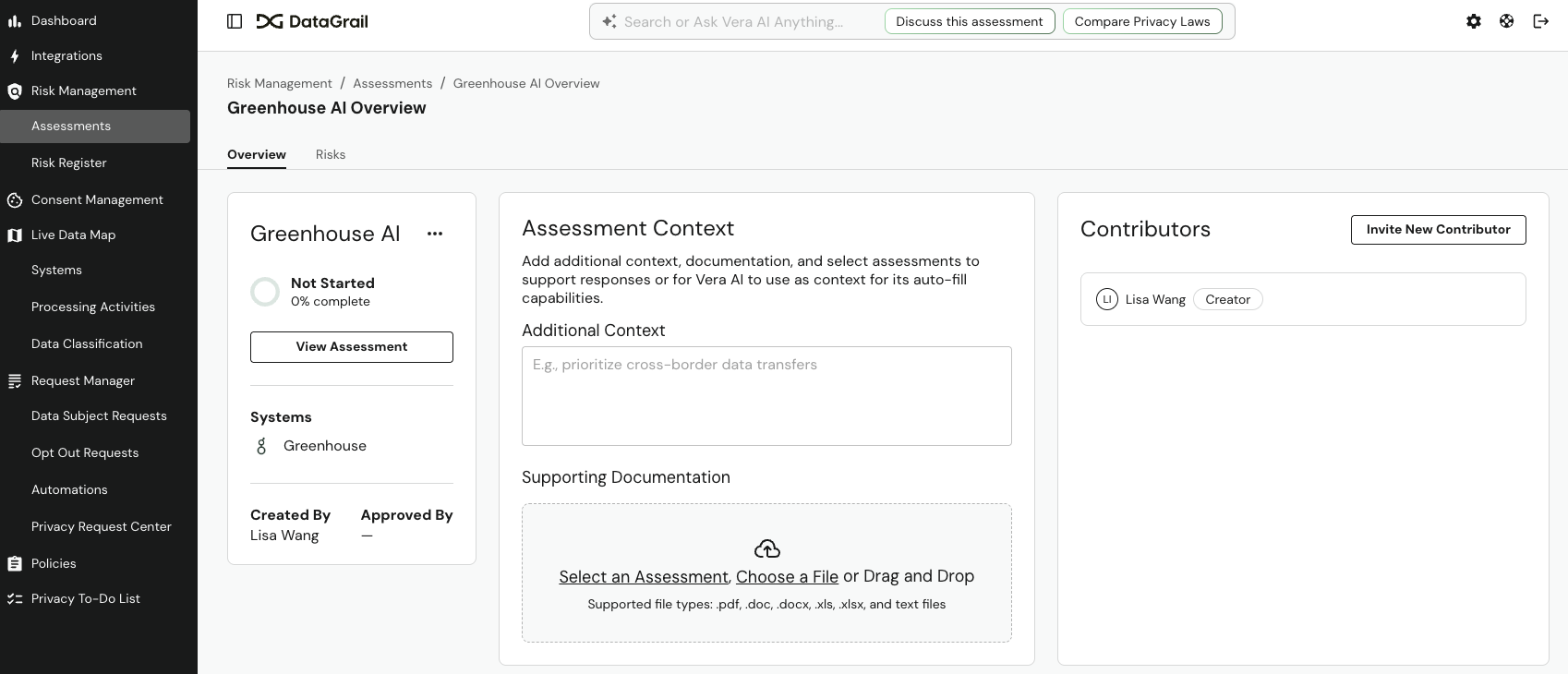
Additional Context
The Additional Context field is a free-text area where you can describe priorities, constraints, or other relevant details specific to the assessment. For example, you might note that the system primarily handles cross-border data transfers or processes children's data.
- Open the assessment and select the Overview tab.
- Enter your context in the Additional Context text field.
- Your input auto-saves as you type — no need to manually save.
Supporting Documentation
You can upload documents such as PRDs, functional requirements, privacy notices, or terms of service for Vera to reference when generating suggestions.
- In the Supporting Documentation section, select Choose a File or drag and drop files onto the upload area.
- Wait for each document to finish processing — uploaded files go through a virus scan and vectorization step before Vera can use them. Status indicators display next to each document.
- Optionally, select Select an Assessment to link a previously approved assessment as a reference. Vera uses linked assessments as additional context when suggesting answers, and lists the ones it drew on under Linked Assessment Sources on each suggestion.
Supported file types: pdf, docx, xls, xlsx, txt, csv, tsv, md, json, xml, yaml, and yml. Maximum file size is 10 MB per file.
Add your context and documentation before starting the assessment or running Vera's auto-fill. Vera draws on all available context — including uploaded documents, linked assessments, and your additional context — to generate its suggestions.
Change History
The Change History panel tracks every modification made to an assessment, providing a complete audit trail of who changed what and when. This feature is visible on the Overview tab and records activity from both DataGrail users and contributors.
Tracked events include:
| Category | Events |
|---|---|
| Questions | Answer added, edited, or cleared |
| Contributors | Contributor added, removed, or name changed |
| Documents | Document uploaded or deleted |
| AI Suggestions | Suggestion generated or accepted |
| Status Changes | Assessment status transitions |
| Metadata | Name, due date, or additional context changed |
| Risks | Risk added from an assessment question |
Each entry displays the actor's name (or "API Submission" for programmatic changes), the action taken, and a timestamp. Recent activity (within 24 hours) shows relative times like "2 hours ago," while older entries display the full date and time.
Select any entry to expand it and view details such as before/after values for edits, affected question numbers, or document filenames.
Use the Filter dropdown to narrow the history by category (Questions, Contributors, Documents, etc.). When viewing question changes, you can further filter by specific question number (e.g., Q1.1, Q2.3). Select Export CSV to download the filtered history — useful for audit documentation or sharing activity summaries with stakeholders.
Completing Assessments
To complete an Assessment, you must review and populate all required fields in each Assessment section.
Long-form text answer fields support rich text formatting. Use the toolbar above the field to apply bold, italic, and underline formatting, create bulleted or numbered lists, and add hyperlinks. Formatting is preserved when the assessment is exported as a PDF.
You can move back and forth between sections by:
- Utilizing the Back and Next buttons respectively
- Selecting the desired section directly on the left-hand menu
The currently selected section will always be highlighted in the left-hand menu.
Submitting Assessments
When an invited Contributor has completed filling in the Assessment, they are able to submit it. Selecting Submit prompts a confirmation to the user with:
- A notice about the implications of submitting the Assessment.
- A field to add an (optional) message to the Assessment Owner.
- Buttons to both Cancel and Submit Assessment.
Submitting an Assessment does not mean it is complete. This action will update the Contributor Status in the UI and only indicates that the Contributor has completed their review and contribution.
Email notifications for Risk Assessments — including comment notifications — can be toggled on/off for each DataGrail user in the Notifications section of the Settings page. You can also receive assessment notifications as Slack direct messages — see Slack Integration.
The content of these emails can be customized in Email Templates, under Platform Settings.
Approving Assessments
When all Contributors have completed their review, it is time for the Assessment Owner to approve the Assessment.
Super Admin and Risk Monitor Admin users can approve any Assessment. An Assessment Creator can approve an Assessment they own once no other approver is assigned, or assign another user as the approver instead of approving it themselves. Approving is available through the Approve Assessment button in the bottom left corner when viewing the Assessment.
An Assessment Requester has no approval authority at all: the Approve Assessment and Submit buttons don't appear for them, and they can't assign an approver. An Assessment worked on only by Assessment Requesters needs a Super Admin, Risk Monitor Admin, or Assessment Creator to move it forward.
Once the Assessment is approved, a PDF version is available to download directly within the app. This can be done by selecting the Download PDF option.
Assigning An Approver
Instead of approving an Assessment themselves, an Assessment Creator can delegate approval to another user with access to the Assessment. Once assigned, only that user (or a Super Admin or Risk Monitor Admin) can approve it.
Users whose only assessment role is Assessment Requester aren't available to select, because approval can't be delegated to them.
Once an Assessment has been approved, its sections cannot be modified and Contributors cannot be added or removed. If you would like to assess the given system again, you can select Create New Version which will create a new Assessment.
If the template includes a condition that automatically creates a follow-up assessment and that condition is met, you'll see a notice that approving will also create a new assessment.
Assessment Statuses
Assessments can be in one of five statuses, which reflect where the Assessment stands:
| Status | Meaning |
|---|---|
| Not Started | No changes have been made to the Assessment. |
| In Progress | The Assessment moves to this state if edits have been saved by the editing user, the invited Contributor was removed by an Admin, or the invited Contributor completed and submitted the Assessment. |
| Pending Approval | The invited Contributor(s) have completed the Assessment and submitted it for Approval. |
| Approved | A Super Admin, Risk Monitor Admin, or the Assessment Owner has approved the Assessment. |
| Cancelled | The Assessment was closed out without being approved. |
Cancelling and Reopening Assessments
If an assessment is no longer needed — for example, the engagement stalled or the initiative was de-scoped — you can cancel it instead of leaving it unfinished or deleting it outright. Cancelling closes out the assessment without approving it, and it can be reopened later if the initiative resumes.
To cancel an assessment, select the ellipsis next to it in the assessments table and select Cancel, or open the assessment, select Edit, then select Cancel Assessment. Either way, a confirmation appears with a notice about the implications of cancelling, along with buttons for both Go Back and Cancel Assessment.
Once cancelled, an assessment's sections cannot be modified and Contributors cannot be added or removed. External Contributors lose the ability to make further changes. The Assessment Creator and anyone with an open contribution or assignment are notified that it was cancelled.
To reopen a cancelled assessment, select Reopen from the same ellipsis menu (or Reopen Assessment from the Edit drawer). Reopening restores the assessment to an active state with its existing answers and progress intact, and notifies the same people who were notified when it was cancelled.
Cancelled assessments are excluded from due date reminder emails and completion reporting, so they never show up as overdue or unfinished.
Only Super Admin, Risk Monitor Admin, and the Assessment Creator or Assessment Requester (for assessments they created) can cancel or reopen an assessment. An Approved Assessment cannot be cancelled.
Disclaimer: The information contained in this message does not constitute as legal advice. We would advise seeking professional counsel before acting on or interpreting any material.