AI-Detected Risks
Stay proactive in your risk management with DataGrail's AI-Detected System Risks feature. This feature continuously monitors your integrated systems to identify potential privacy and compliance risks, such as high-risk AI usage or sensitive data processing.
This guide will walk you through the workflow of identifying, reviewing, and promoting these AI-detected findings into your official Risk Register.
AI-Detected Risks is one of several automated capabilities powered by Vera, DataGrail's AI agent. Learn more about Vera's capabilities.
System Risk Scoring
Before reviewing your risks, it is helpful to understand how DataGrail AI calculates them. The goal is to objectively quantify the privacy risk of your systems based on three core factors.
Components
DataGrail AI analyzes connected systems in three specific areas:
- Sensitive Personal Data: What type of data is being processed or collected by this system? (e.g. High Risk SPI, General PII, or Non-PII)
- High-Risk Data Subjects: Whose data is this system likely to collect? (e.g. Vulnerable people like children/patients, employees, or general consumers)
- AI Usage: How is Artificial Intelligence being used by this system? (e.g. AI for Automated Decision Making, Generative AI input, AI subprocessors or foundational model providers)
Calculation
DataGrail's AI agent assigns a score to detected risks based on the severity of the factors above. Currently, the agent assigns a level to each individual risk.
| Risk Level | Score Range | Description |
|---|---|---|
| 🔴 High Risk | 3 - 4 Points | Examples include handling children's data, handling medical data, collecting highly sensitive PII such as social security numbers, or using AI to make high-impact decisions about things such as employee data, financial data, or healthcare. |
| 🟡 Medium Risk | 2 Points | Examples include processing data about employees or job applicants, collecting sensitive PII such as bank details or specific location, or processing sensitive data with low-risk AI. |
| 🟢 Low Risk | 1 Point | Processing PII that is not highly sensitive, such as names, or minimal AI application. |
Supported Risks
Using this methodology, DataGrail AI currently detects and flags the following specific risk types:
- Sensitive Personal Data: Identification of SPI, Sensitive Personal Information, or PII. The risk description will include the specific categories processed.
- AI & Automated Decision Making: Flags the ways the system uses AI, and provides a description explaining this in detail. This could include providing Generative AI tools directly to users, serving foundational AI models, or applying AI to make automated decisions. We will also flag systems that use AI in a low risk fashion, with minimal interaction with personal data.
- AI Subprocessor: Identification of specific AI vendors, including links to the subprocessor URL where available.
- Vulnerable People's Data: Processing of data related to children, medical patients, employees, or job applicants.
Identifying Detected Risks
Your first step is to identify which systems have been flagged by the AI.
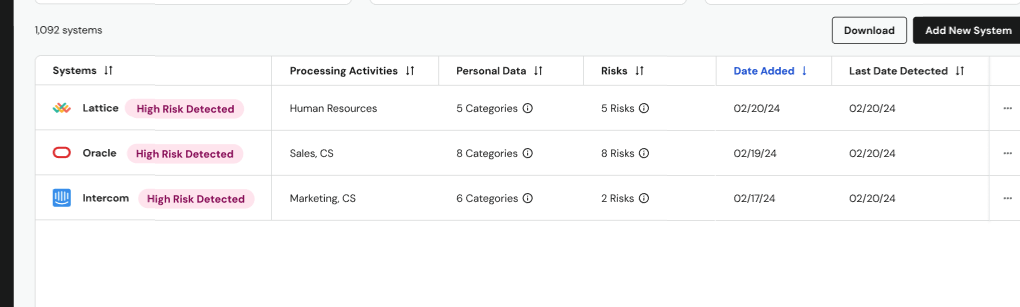
- Navigate to the main Systems page
- Filter for systems with a newly detected, unreviewed high-risk finding
- Look for systems clearly marked with a red High Risk Detected tag
The Risk Column in the Systems page now shows the total number of risks associated with that System instead of the "AI Detected" or "SPI" chip. Since systems can now be associated with a wide variety of risks, this allows you to filter and sort your systems by all risk types found across your systems.
Reviewing Detected Risks
Once you've identified a system with detected risks, you can review the details on its System Profile.
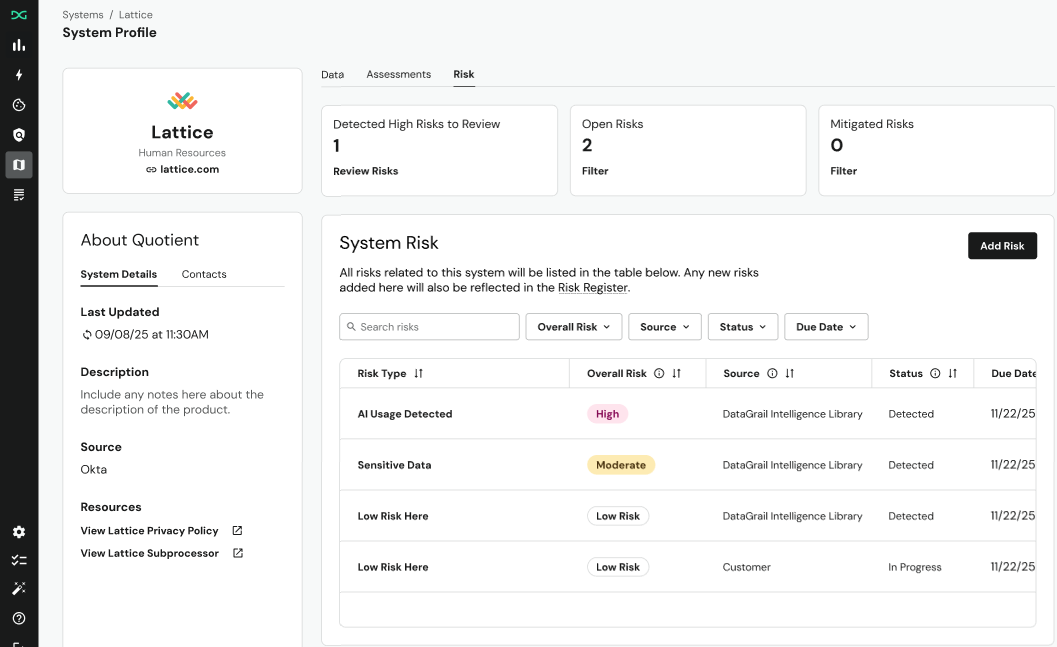
- Click on the name of any system tagged with "High Risk Detected" (e.g., Lattice)
- Navigate to the Risks tab on the System Profile page
- Review the detected risks in the System Risk table
In the System Risk table, you will see a new type of risk: "Detected Risks."
Risk Types
There are two types of Detected Risks:
| Source | Risk Types | Overall Risk | Status |
|---|---|---|---|
| DataGrail AI | Sensitive Personal Data: Identification of SPI (Sensitive Personal Information) or PII AI & Automated Decision Making: Flags the use of all AI, ranging from Generative AI tools, foundational models, systems that make meaningful automated decisions to systems that use AI with minimal interaction with personal data AI Subprocessor: Identification of specific AI vendors, including links to the subprocessor URL where available Vulnerable Individuals' Data/Children's Data: Processing of data related to children or patients | Default risk score assigned based on the risk level associated with the type of data category processed, data subjects involved and associated AI usage | Default status is "Detected." You can change the status if you choose to "Add" the detected risk to your risk register |
| Responsible Data Discovery (RDD) | Sensitive Data is the only risk type detected by RDD | Default risk score assigned based on the sensitivity of the sensitive data category | Default status is "Detected." You can change the status if you choose to "Add" the detected risk to your risk register |
Detected Risk Details
To review any detected risks, click on the risk to open the Add Detected Risk drawer. This is where you evaluate DataGrail AI's finding and decide its place in your risk program.
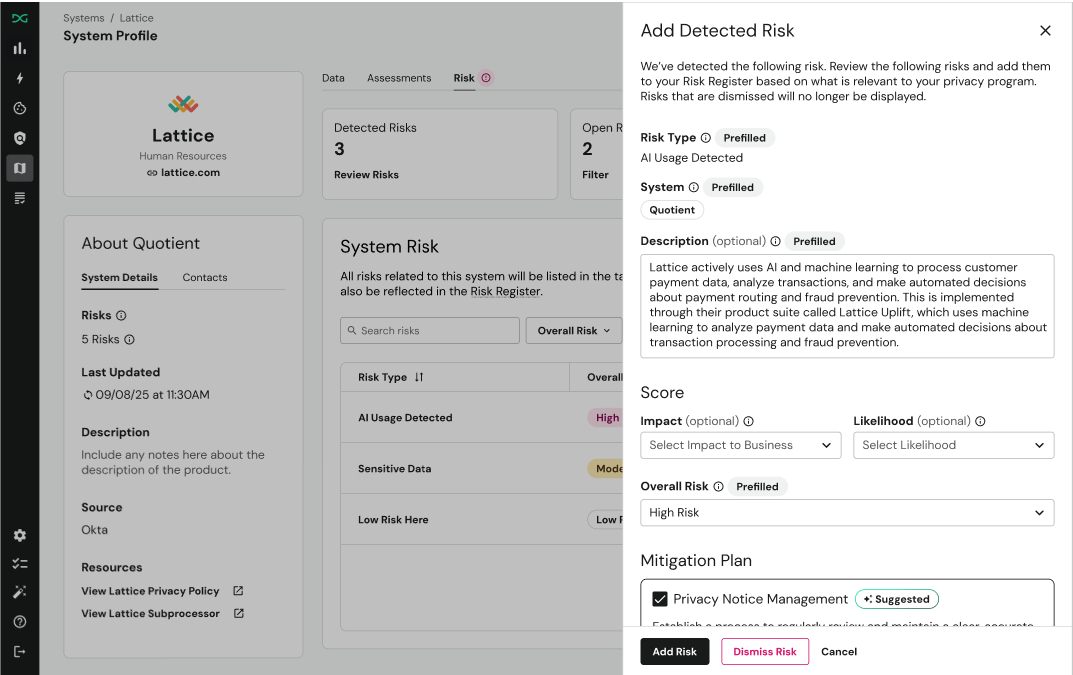
DataGrail AI pre-fills several key fields to save you time:
| Field | Description |
|---|---|
| Risk Type | The category of the risk (e.g., "AI Usage Detected") |
| System | The affected system |
| Description | A detailed explanation of the risk based on DataGrail AI's analysis |
| Overall Risk | A preliminary risk level assigned by DataGrail AI |
| Mitigation Plan | A suggested mitigation strategy, which you can accept or change |
Managing Detected Risks
When reviewing findings, you can choose to either Add or Dismiss a detected risk.
Add Risk
Select this option to promote a detected item to your formal Risk Register. This signifies that the risk is valid and requires tracking.
- Status Change: The status of the risk changes from "Detected" to "In Progress" to indicate that it is now an active risk entry
- Where to View: The new risk is accessible in two locations:
- The Risk tab of the specific System Profile
- Your central, organization-wide Risk Register
Dismiss Risk
Select this option to mark the finding as irrelevant to your organization's use case for this system.
- Status Change: The status changes to Dismissed. The item is not added to the Risk Register
- Impact: The risk is removed from the total risk count in the Systems Table and System Profile
Reviewing Pre-Filled Risk Data
DataGrail's Intelligence Library pre-fills system risk metadata when a system is first added to your inventory. This data follows a risk-presumptive approach — it surfaces every potential risk rather than risk missing one. As a result, you may see risk categories that don't apply to your organization's specific use of a system.
When reviewing pre-filled data, consider whether each flagged category reflects how your organization actually uses the system. If a risk category doesn't apply, you can dismiss it or edit the system data to remove it. This review process ensures your Risk Register accurately reflects your organization's real risk posture rather than a generic profile.
Disclaimer: The information contained in this message does not constitute as legal advice. We would advise seeking professional counsel before acting on or interpreting any material.