Overview
Risk Register allows you to create, track, and mitigate Privacy Risks across your organization. This functionality allows you to track risk proactively to support regulatory compliance and build customer trust.
Adding Risks
To add a new risk, select the Add Risk button in the top right corner of the Risk Register page.
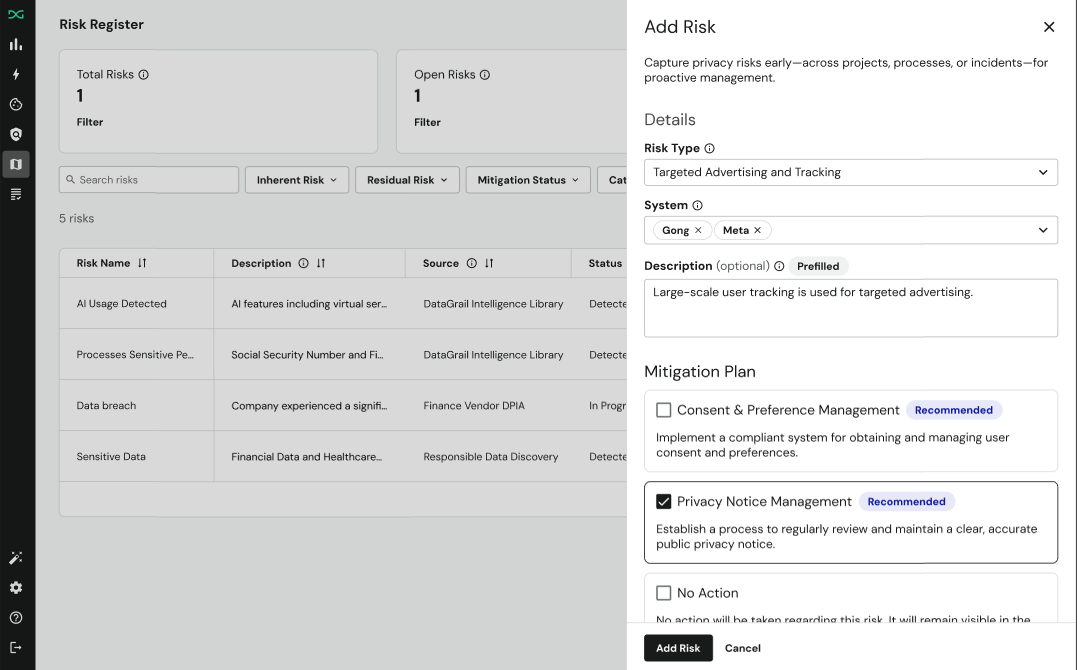
Risk Details
The following fields are available to describe a new Privacy Risk:
| Field | Required? | Description |
|---|---|---|
| Risk Type | Yes | Select a standardized risk from our pre-defined list. This ensures consistency and powers our recommendation engine. |
| Description | No | A default description will populate based on the risk type selected. Edit or add any additional context about the risk, including its causes and potential consequences. |
| System | No | If the risk is associated with a specific application or vendor, you can link it directly to a system from your inventory. |
| Impact & Likelihood | Yes | Assign a level for both the potential impact of the risk and its likelihood of occurring. The platform will automatically calculate an Overall Risk score for you. |
| Mitigation Status | Yes | Set the current status of the risk (e.g. In Progress, Mitigated, Accepted). By default, the status of a newly created risk will be Not Started. |
| Assigned Owner | No | Assign the risk to a specific person or team by entering their email to establish clear accountability. |
| Due Date | No | Set a target date for when the mitigation plan should be completed. |
| Comments | No | Add any relevant notes or links to resources for additional context. |
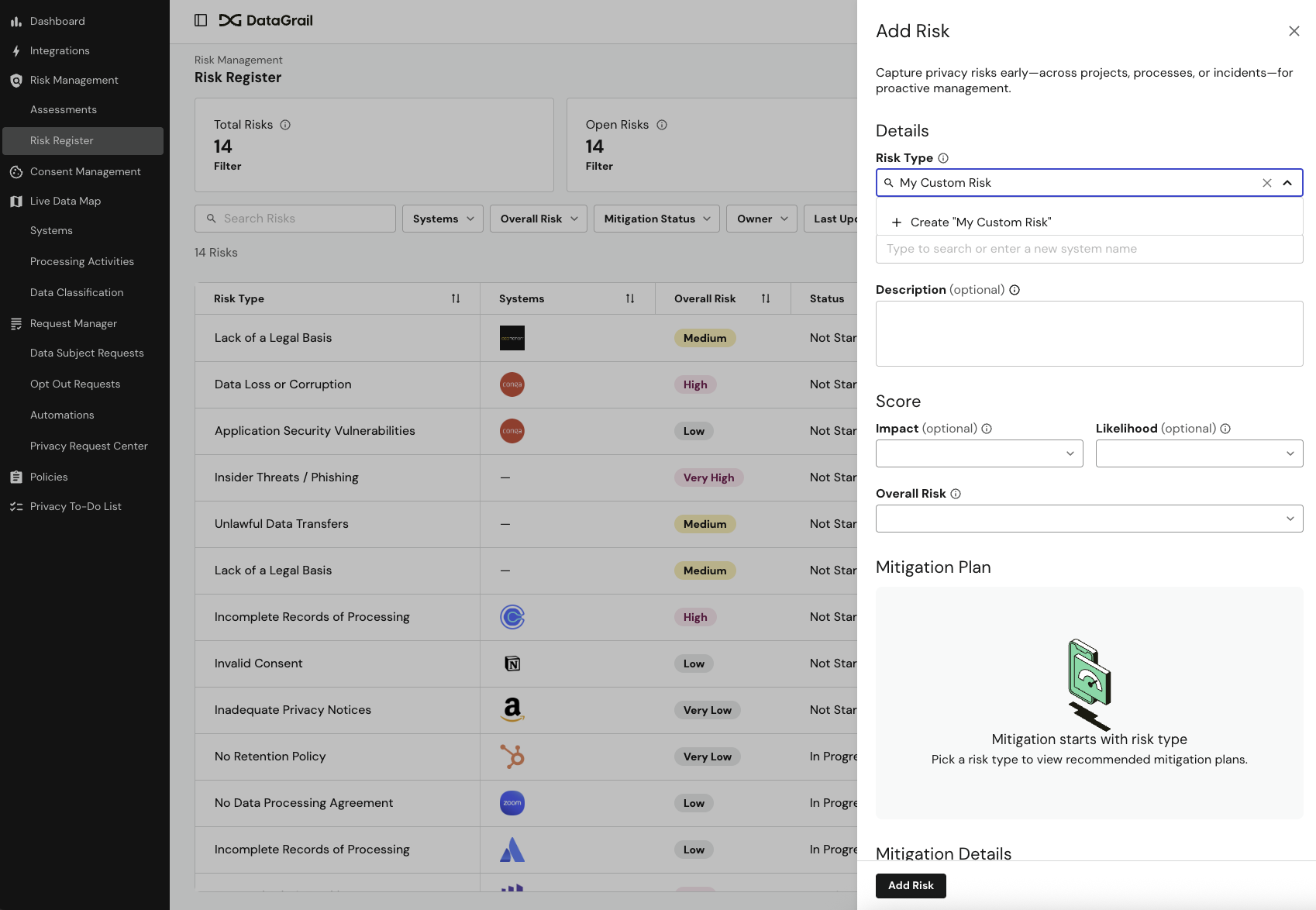
Don't see a risk from the default dropdown that meets your use case? Enter your desired name in the field and select Create to add a custom risk type.
Mitigation Plans
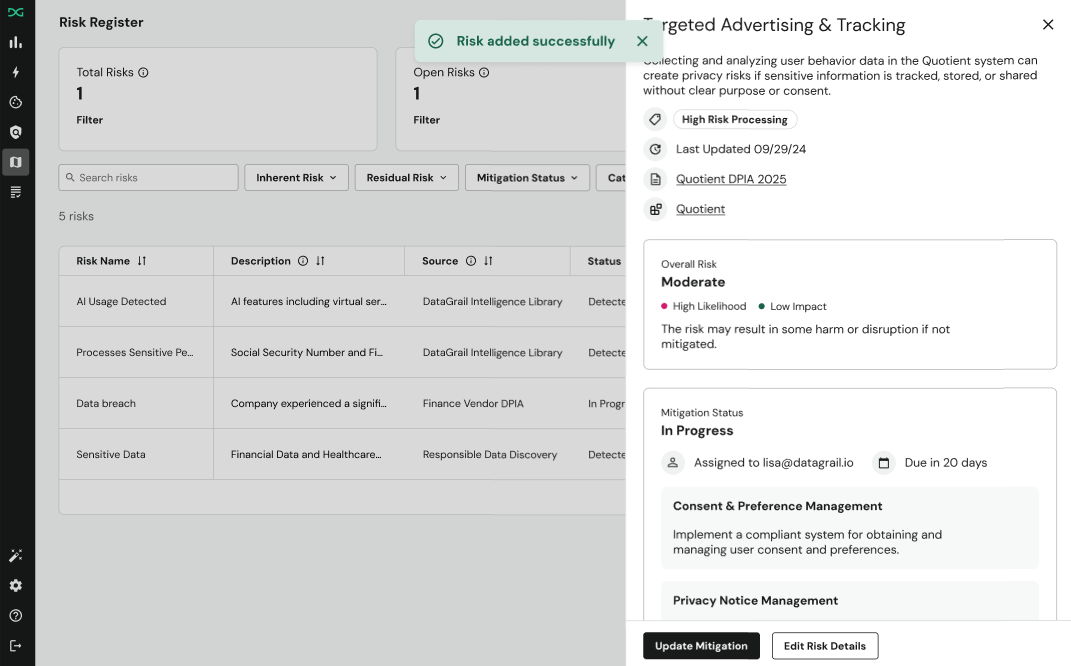
Once you've selected a Risk Type, the platform will automatically provide you with a list of Suggested Mitigation Plans.
- To select a suggestion: Simply check the box next to the recommended plan.
- To see more options: Select "View All Mitigation Plans" to open our full library of controls. You can select one or more plans from this list.
- No Action: If you determine no mitigation is needed, you can select the "No Action" option.
Deleting Risks
You can permanently remove a risk from your Risk Register when it's no longer needed.
- Select the risk you want to delete.
- Select the three dots in the bottom right corner.
- Select Delete Risk.
Deleting a risk is permanent and cannot be undone.
Create Risks From Assessments
Risks can also be created from Assessments to ensure all identified risks are captured in the Risk Register automatically.
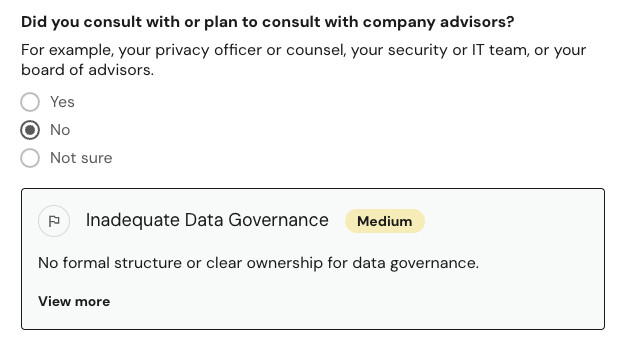
Risks can be attached to In Progress or Approved Assessments in two ways. Once flagged, risks will immediately populate in Risk Register to be reviewed and completed. Risks will additionally be made accessible from within the Assessment.
Flagging Answers
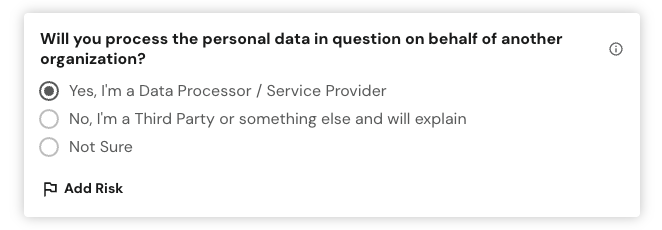
To associate an answer with a risk, hover over it, and select Flag as Risk.
Flagging an Entire Assessment
To associate an entire assessment with a risk, select Add Risk at the bottom of the page.

All risks added from an Assessment are automatically populated in Risk Register, linking them back to the Assessment as their source.
The following data points and indicators are additionally available to help you manage risks sourced from Assessments:
-
From Within an Assessment:
- Total Risk Counter: Counts the total risks associated with the entire Assessment. Located in the top right.
- Section Risk Counter: Counts the total risks associated with the Assessment section. Located next to section name in the sidebar.
-
From the Risk Assessments Table:
- Risks Filter: Use this filter to identify Assessments associated with certain types of risks.
- Risks Column This column shows the number of risks associated with each Assessment. Hover over each number for quick information on the specific risks.
Create Risks From Systems
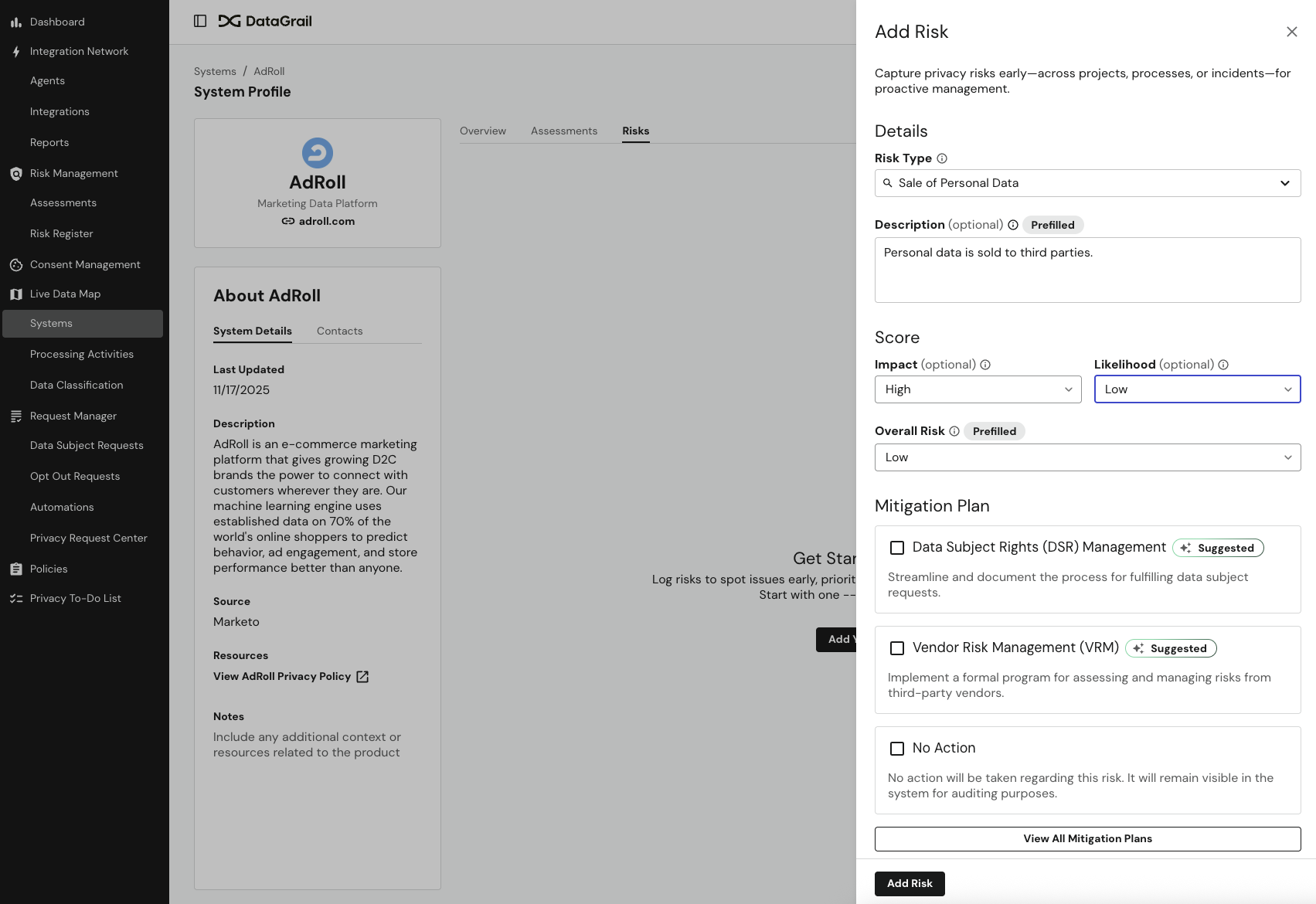
Risks can additionally be created from System Profile pages.
To create a risk on a System Profile, navigate to the Risks tab, where you will have the ability to view existing risks and add new ones.
Disclaimer: The information contained in this message does not constitute as legal advice. We would advise seeking professional counsel before acting on or interpreting any material.