Slack Integration
Vera is also available directly in Slack, allowing your team to get privacy guidance and assistance without leaving their primary communication tool. By connecting your Slack workspace to DataGrail, authorized users can have conversations with Vera through direct messages.
Connecting Your Slack Workspace
To enable Vera in Slack, an administrator must first connect your organization's Slack workspace to DataGrail.
- Navigate to Settings > Slack in your DataGrail dashboard.
- Click the Connect Slack Workspace button.
- You will be redirected to Slack to authorize the DataGrail Vera app.
- Review the requested permissions and click Allow.
- Once authorized, you will be redirected back to DataGrail with a confirmation that the connection was successful.
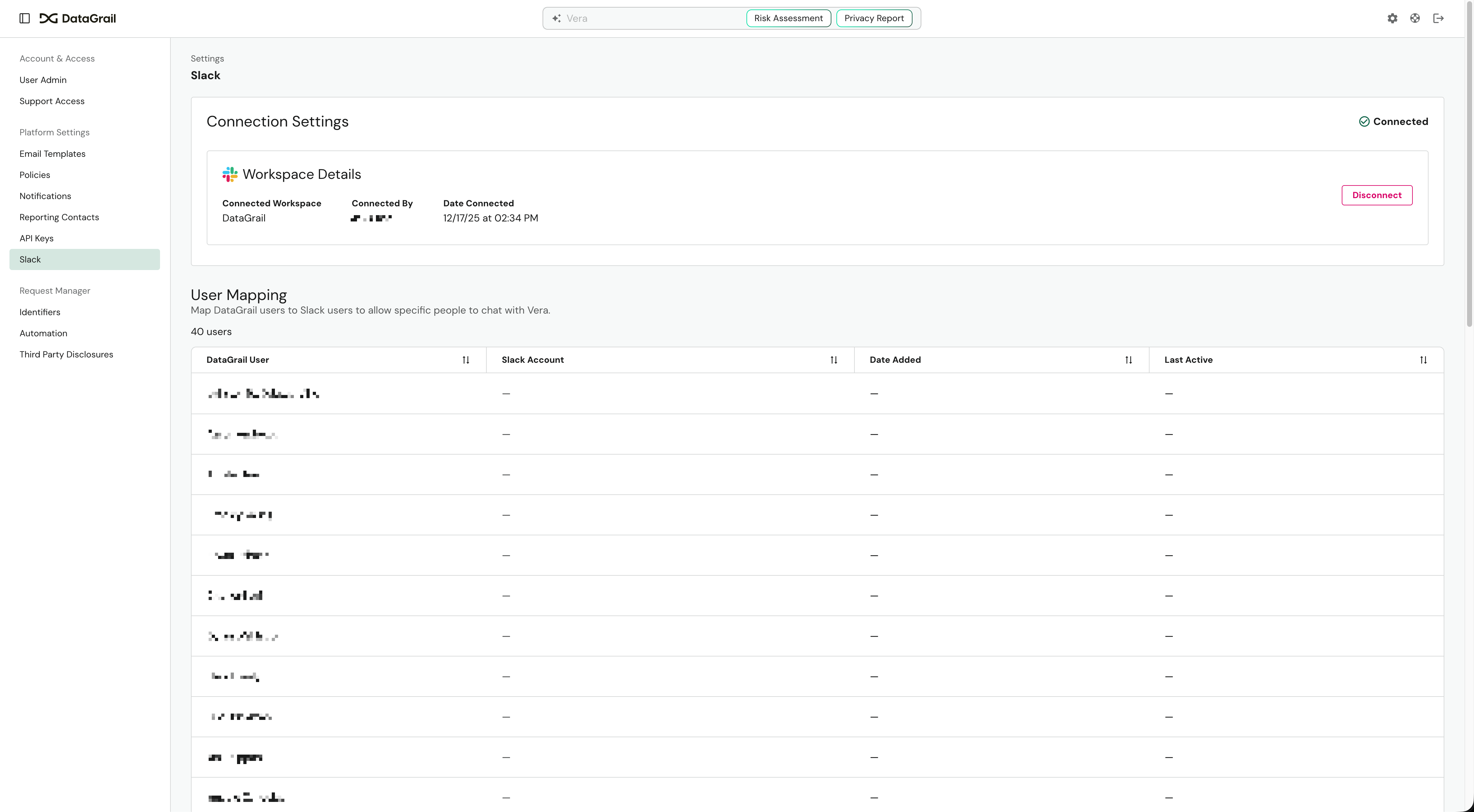
After connecting, you'll see your workspace details including the workspace name, who connected it, and when.
User Mapping
For security and access control, only users who are explicitly mapped can chat with Vera in Slack. This ensures that only authorized team members can access privacy guidance through the Slack integration.
To manage user access:
- Navigate to Settings > Slack in your DataGrail dashboard.
- In the User Mapping section, you'll see a list of DataGrail users.
- For each user you want to grant Slack access, select their corresponding Slack account from the dropdown (we search by email).
- Save the mapping.
The User Mapping table displays:
- DataGrail User: The user's name or email in DataGrail
- Slack Account: The linked Slack user (if mapped)
- Date Added: When the mapping was created
- Last Active: When the user last interacted with Vera in Slack
Users who attempt to message Vera without being mapped will receive a message directing them to contact their DataGrail administrator for access.
Chatting with Vera in Slack
Once your workspace is connected and your user account is mapped, you can start chatting with Vera directly in Slack.
- Open Slack and find the Vera bot in your direct messages.
- Send a message with your privacy question or request.
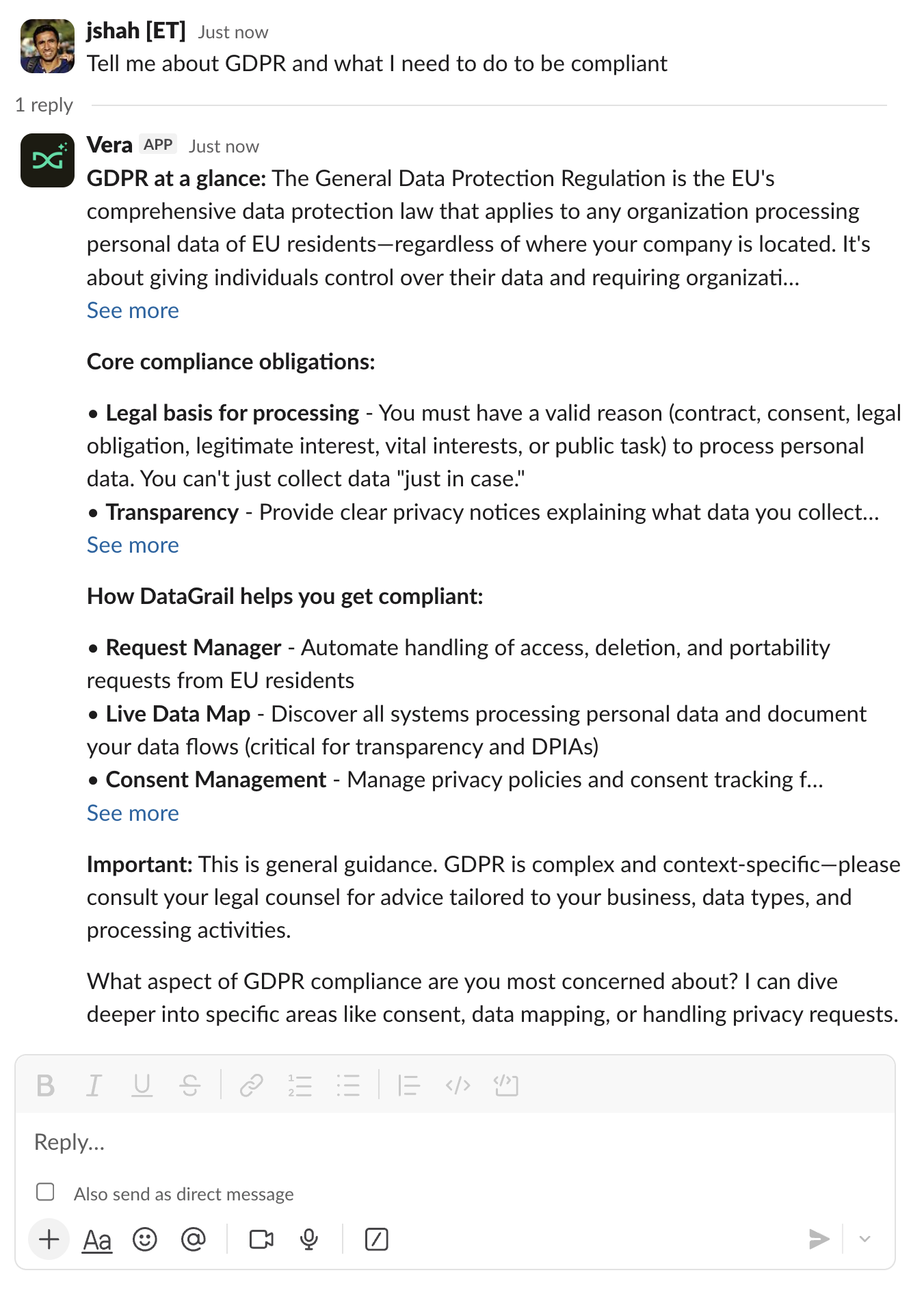
- Vera will respond in the same thread with guidance tailored to your DataGrail environment.
Vera in Slack has the same capabilities as Vera in the DataGrail web interface:
- Answer privacy and compliance questions
- Provide guidance on regulations like CCPA and GDPR
- Help prioritize tasks across DataGrail products
- Summarize information from your DataGrail environment
Conversations in Slack maintain context within a thread, so you can have multi-turn conversations just like in the web interface.
Vera in Slack inherits the same permissions as your DataGrail user account. If you don't have permission to view certain data in DataGrail, Vera won't be able to access it when responding to your Slack messages.
Assessment Notifications
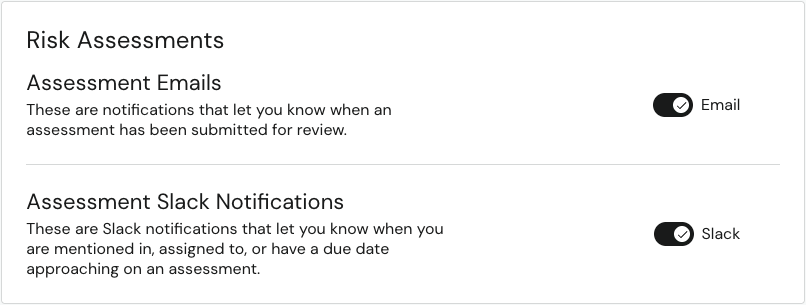
Beyond conversations, Vera can deliver Risk Assessments notifications to you as Slack direct messages, so you're alerted to assessment activity without leaving Slack. When enabled, the same comment and assignment notifications that DataGrail sends by email are also sent to your Slack direct messages. You won't receive a notification for actions you take yourself, such as assigning an assessment to your own account or mentioning yourself in a comment.
To receive these notifications, all of the following must be in place:
- Your Slack workspace is connected to DataGrail.
- Your DataGrail user is mapped to your Slack account (see User Mapping above).
- The Assessment Slack Notifications preference is enabled for your user.
To enable the preference:
- Navigate to Settings > Notifications.
- Enable Assessment Slack Notifications. This option appears only after your Slack workspace is connected.
Slack assessment notifications are being rolled out gradually. If you don't see the Assessment Slack Notifications option after connecting your workspace, it may not yet be available for your account — contact support@datagrail.io.
Disconnecting Your Workspace
If you need to disconnect your Slack workspace from DataGrail:
- Navigate to Settings > Slack in your DataGrail dashboard.
- Select the Disconnect button in the Workspace Details section.
- Confirm the disconnection when prompted.
Disconnecting will immediately revoke Vera's access to your Slack workspace. All user mappings will be preserved, so if you reconnect later, you won't need to reconfigure them.
Disclaimer: The information contained in this message does not constitute as legal advice. We would advise seeking professional counsel before acting on or interpreting any material.